

How to Shrink a PDF File Size: 2026 Guide

Ayush Soni
Founder, File Studio
On this page
- Why Your PDF Is So Large and Why It Matters
- What usually makes a PDF balloon in size
- Why online compression deserves more skepticism
- Shrink PDFs Offline with File Studio
- For a single PDF
- For batches and repeat work
- What to check after compression
- Choosing Your PDF Compression Strategy
- A practical side-by-side view
- Which option makes sense for your workflow
- Alternative Offline and Built-in Methods
- Using Preview on macOS
- Using Print to PDF on Windows
- Advanced Tips for Maximum PDF Compression
- Target the heavy parts instead of crushing everything
- Compress before signatures, not after
- Frequently Asked Questions About PDF File Size
- What's the best way to shrink a scanned PDF?
- How much can a PDF shrink without looking bad?
- Will compression break links or form fields?
- Should I compress the same PDF more than once?
- What should I inspect after shrinking a PDF?
You're usually looking for this answer at the worst possible moment. The portal won't accept your upload. Your email app rejects the attachment. A client is waiting, and a PDF that looked perfectly normal a minute ago is suddenly “too large.”
The good news is that oversized PDFs are usually fixable. In most cases, the file isn't large because the PDF format is inefficient. It's large because someone exported for print instead of screen, embedded far more image data than the document needs, or saved layers, fonts, and metadata that nobody reading the file will ever use.
If you've been searching for how to shrink a PDF file size, the job is to identify what's making the document heavy, reduce that specific overhead, and avoid risky shortcuts. That last part matters more than most guides admit. If the PDF contains contracts, HR records, IDs, invoices, or signed paperwork, uploading it to a web compressor may solve one problem while creating another.
Why Your PDF Is So Large and Why It Matters
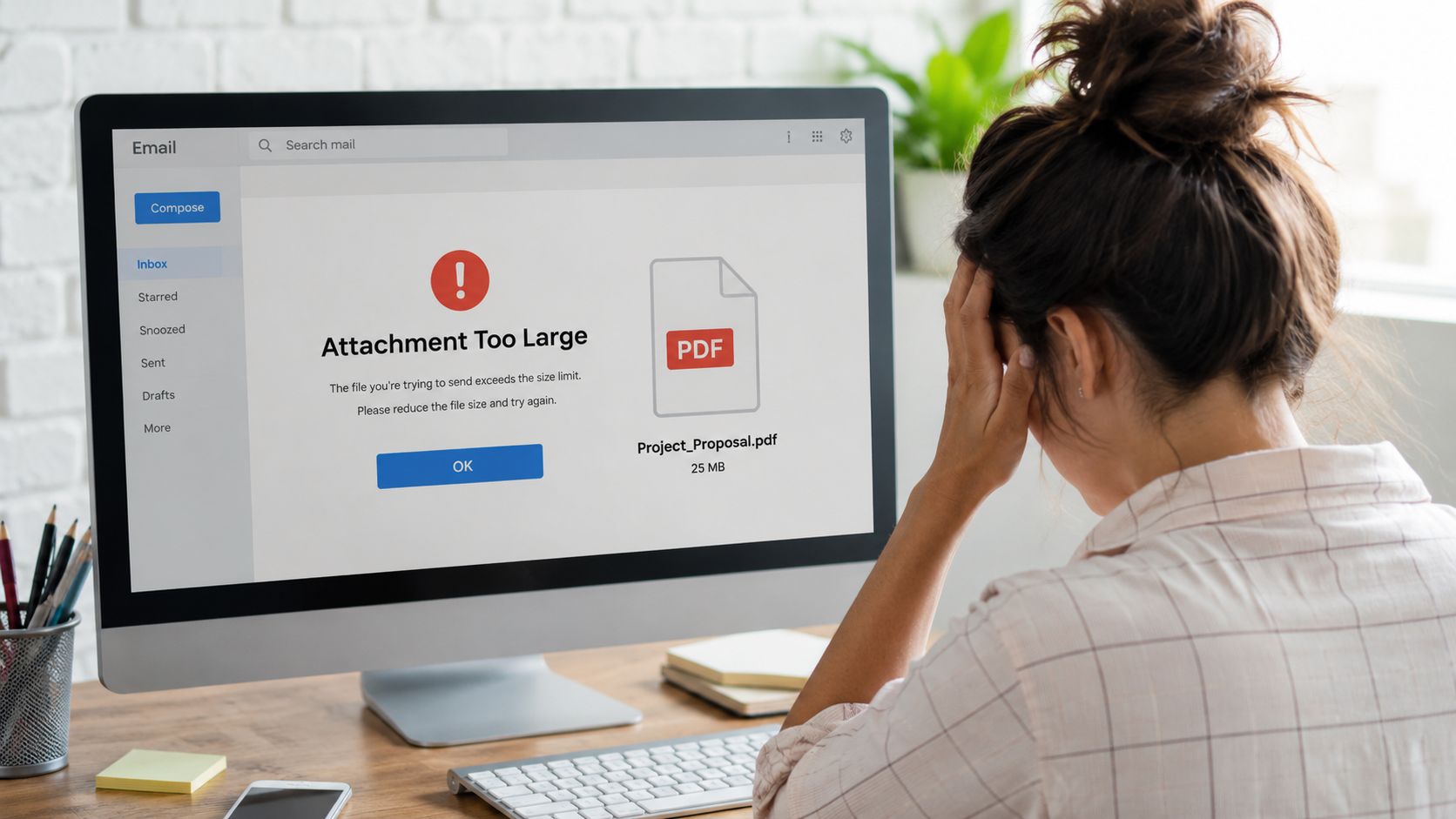
That “attachment too large” message usually points to one of a few familiar causes.
What usually makes a PDF balloon in size
The biggest culprit is often images. A document that looks like simple pages on screen may contain print-grade photos, full-page scans, or screenshots saved at much higher resolution than anyone needs for email or web viewing.
Text-heavy PDFs can also carry hidden baggage. According to Neuxpower's explanation of PDF bloat and space usage, unused font characters, extra metadata, and uncompressed image streams can collectively account for over 80% of the total file size in text-heavy documents. The same source notes that Adobe Acrobat Pro's Audit Space Usage tool helps identify those categories so you can remove them without changing the document's visual appearance.
That's why two PDFs with the same page count can behave completely differently. One is clean text and lightweight graphics. The other is packed with embedded fonts, hidden editing history, large scans, comments, and metadata.
Practical rule: Don't assume page count tells you anything useful about file size. A short scanned packet can outweigh a long text contract by a wide margin.
A good workflow starts with diagnosis. If the PDF came from a scanner, image reduction usually matters most. If it came from Word, InDesign, or a contract system, fonts and metadata may be the better target. If you're working with documents in other formats too, a related accessibility step is to convert PDF to audio when people need to review content away from a screen.
Why online compression deserves more skepticism
Convenience has trained people to drag files into whatever browser tab appears first. That's fine for a restaurant menu or a public handout. It's a bad habit for anything confidential.
The privacy problem is simple. Many web compressors require you to upload the document to an external server before anything happens. For legal, HR, finance, and client-facing work, that should never be the default assumption.
Hidden metadata makes the risk worse. PDFs can contain author names, software details, timestamps, and document history that the recipient never sees directly but that still travel with the file unless you remove them. If your job involves sensitive records, shrinking the file and protecting the file should be part of the same decision.
Shrink PDFs Offline with File Studio
If you want the shortest path from “too large” to “ready to send,” use an offline desktop tool and keep the file on your own machine the entire time.
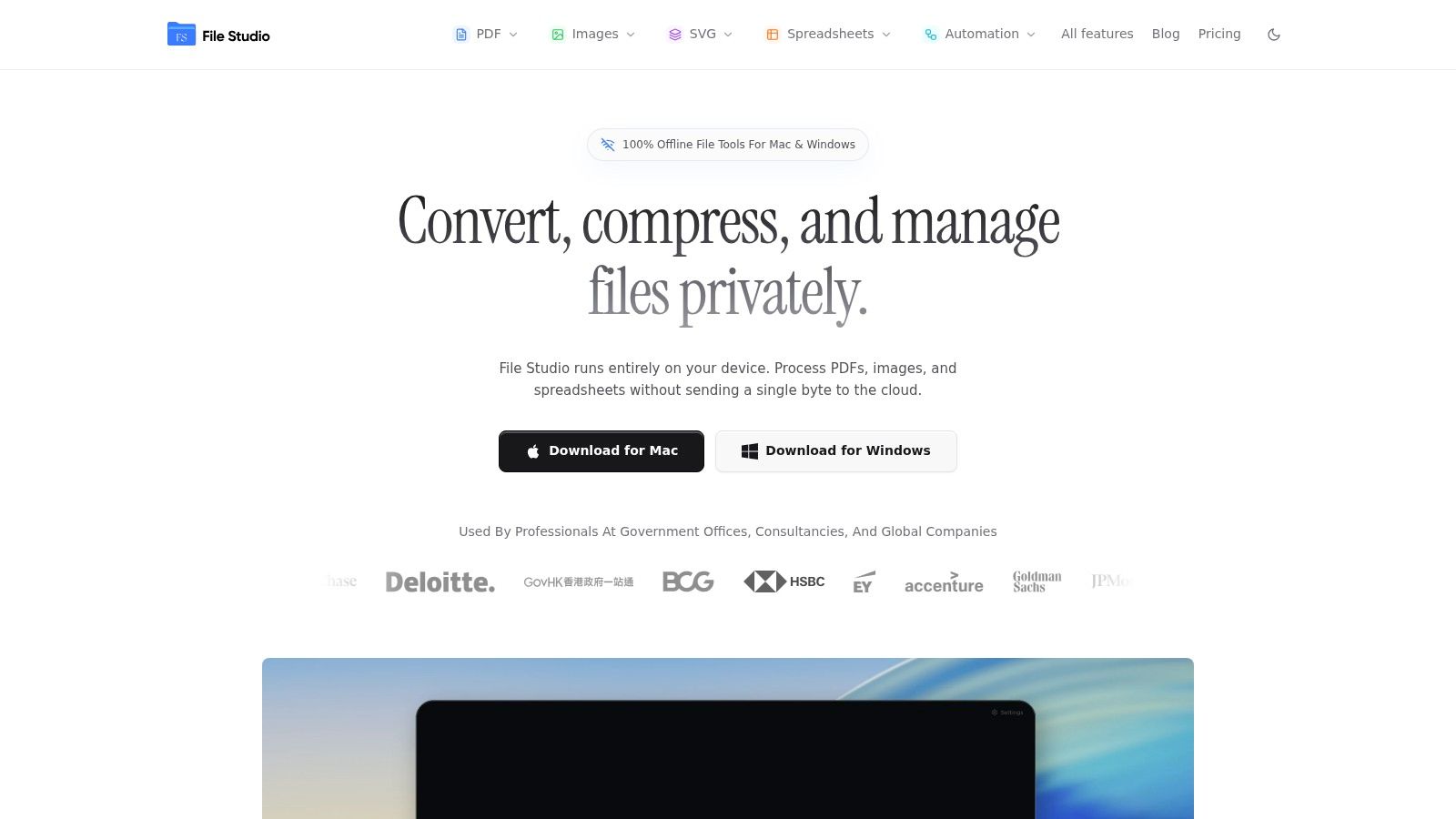
The core idea is straightforward. Open the PDF in a desktop app, choose a compression level that matches the job, save the smaller copy, and inspect the result before sharing it. If you want a direct starting point, File Studio's offline PDF compression tool handles that workflow without uploading anything.
For a single PDF
For one document, the best approach is usually this:
- Open the file locally. Start with the original PDF stored on your computer, not in a browser tab.
- Choose a preset based on use. For email, use a balanced setting first. For web upload, you can usually push compression harder.
- Run compression once. Avoid repeatedly compressing the same exported copy. Each extra pass can degrade image quality and make troubleshooting harder.
- Save as a new file. Keep the original untouched so you can back up if the result is too aggressive.
What works in practice is moderation. Most office PDFs don't need maximum compression. They need enough reduction to pass attachment or portal limits while keeping text sharp at normal zoom.
What doesn't work is blind one-click shrinking with no review. That's how logos get smeared, screenshots become unreadable, and scanned initials vanish into gray fuzz.
If the document is mostly text, check text first. If it's mostly photos or scans, check image edges first. Those are the first places bad compression shows up.
For batches and repeat work
Desktop software offers a significant edge over browser tools.
If you're handling month-end reports, intake packets, policy handbooks, or archived scans, processing one file at a time gets old fast. Batch compression lets you select a whole folder, apply one preset, and save the outputs consistently.
A practical batch workflow looks like this:
- Group similar files together. Compress scanned forms separately from digital text documents so you don't force one setting onto very different files.
- Use naming rules that make sense later. Add a suffix like “-compressed” so nobody mistakes the reduced copy for the source file.
- Test on a few files first. If the sample looks good, run the rest with confidence.
- Keep destination folders clean. Save outputs somewhere predictable so people can find the final versions quickly.
This matters in real office work. Repeating the same manual steps across dozens of PDFs wastes time and increases mistakes. A local batch tool turns compression into a routine instead of a scramble.
What to check after compression
Don't just look at the smaller file size and assume you're done. Open the compressed PDF and test it like the recipient will.
Use this quick review list:
| Check | What to look for |
|---|---|
| Body text | Zoom in and confirm letters stay crisp, especially smaller fonts |
| Images | Look for blockiness, halos, or muddy color areas |
| Page order | Make sure the saved copy didn't change sequence or rotation |
| Searchability | If the original had selectable text, confirm it still behaves normally |
| Links and forms | Click key links and inspect interactive fields if the file uses them |
A clean result should feel uneventful. It opens quickly, reads normally, and no one notices you compressed it. That's the ideal outcome.
Choosing Your PDF Compression Strategy
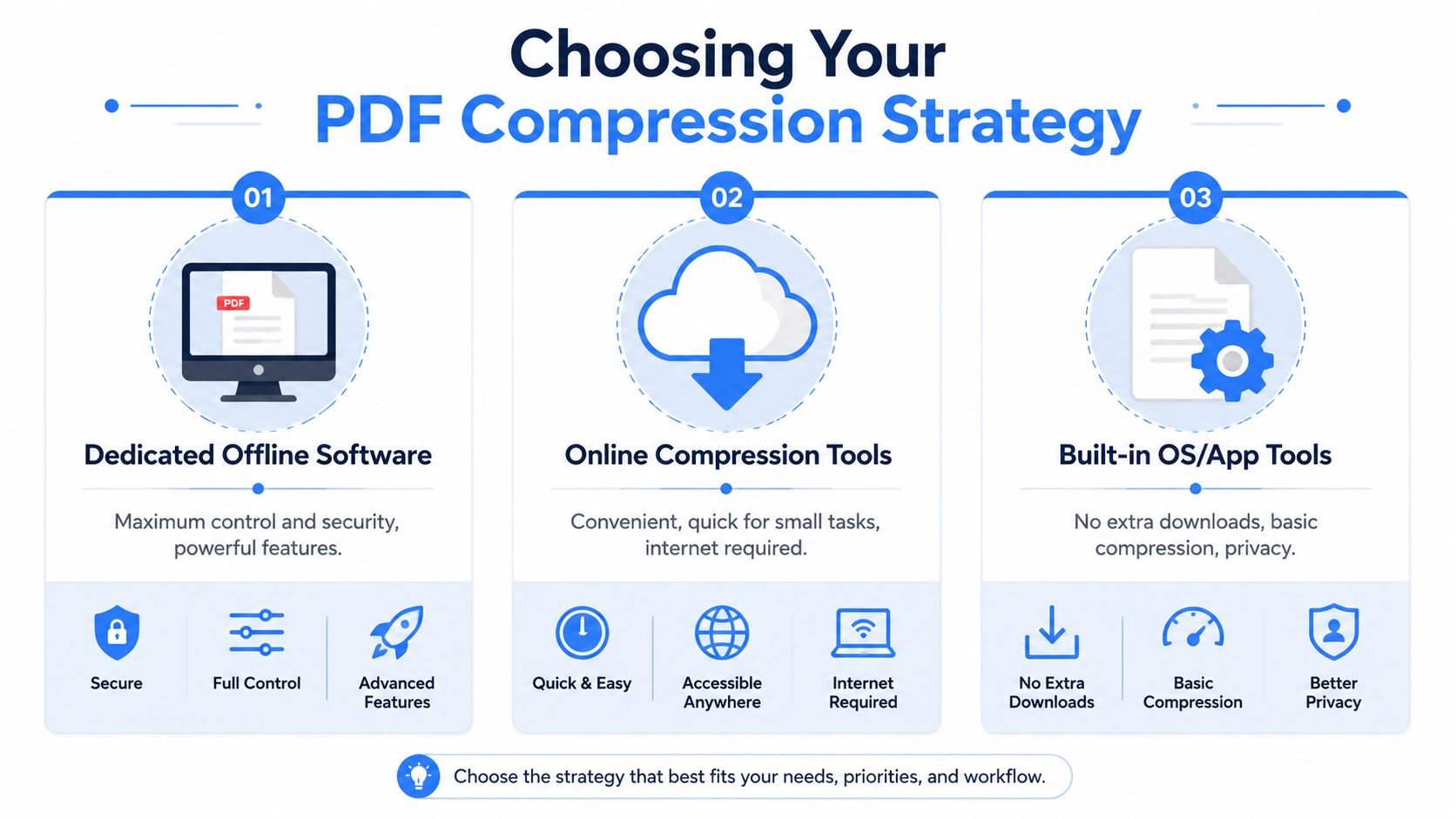
Users have three choices: dedicated desktop software, online compression tools, or whatever is already built into their computer or PDF app.
A practical side-by-side view
Here's the trade-off in plain terms.
| Method | Best for | Main strength | Main limitation |
|---|---|---|---|
| Dedicated offline software | Repeated work, sensitive files, better control | Privacy and consistent settings | Requires installing an app |
| Online compression tools | Casual one-off use on non-sensitive files | Fast access from any browser | Uploads files to external servers |
| Built-in OS or app tools | Occasional basic compression | Already available on many machines | Limited control and mixed results |
The privacy issue deserves direct attention. According to Adobe's online PDF compression page referenced in the verified data, a 2025 industry report found that 68% of legal firms rejected cloud-based PDF tools due to privacy concerns. That concern makes sense. If your document includes IDs, contracts, or client material, sending it to a third-party server for routine compression may conflict with internal confidentiality standards.
If your file set includes large embedded images before they even become PDFs, it also helps to understand how to compress images without losing quality, because the best PDF optimization often starts upstream.
The right tool depends less on “Can it compress?” and more on “Where is the file processed, and how much control do I have over the result?”
Which option makes sense for your workflow
For professional use, offline tools usually win for two reasons.
First, they keep the document local. That matters when the file contains employee records, case files, tax forms, vendor agreements, or internal reports. Second, they're easier to standardize. Teams can reuse the same settings, name outputs the same way, and batch similar jobs without improvising each time.
Built-in tools are fine when you need a quick rescue and the result doesn't need precision. Online tools are convenient when the file is public and low-risk. But if you handle sensitive documents more than occasionally, the safer habit is obvious. Keep compression on the device you control.
Alternative Offline and Built-in Methods
If you don't want to install anything right away, use the tools already on your computer. They won't give you the same level of control, but they can reduce file size enough for simple jobs.
Using Preview on macOS
Preview has a familiar option for reducing PDF size.
Open the PDF in Preview, choose File, then Export, and select the Reduce File Size option from the Quartz Filter menu if it's available on your setup. Save the result as a new file instead of overwriting the original.
This method is quick, but it's blunt. You don't get much say over how images, fonts, or metadata are handled. Sometimes the result is perfectly acceptable. Sometimes text and screenshots take a visible hit.
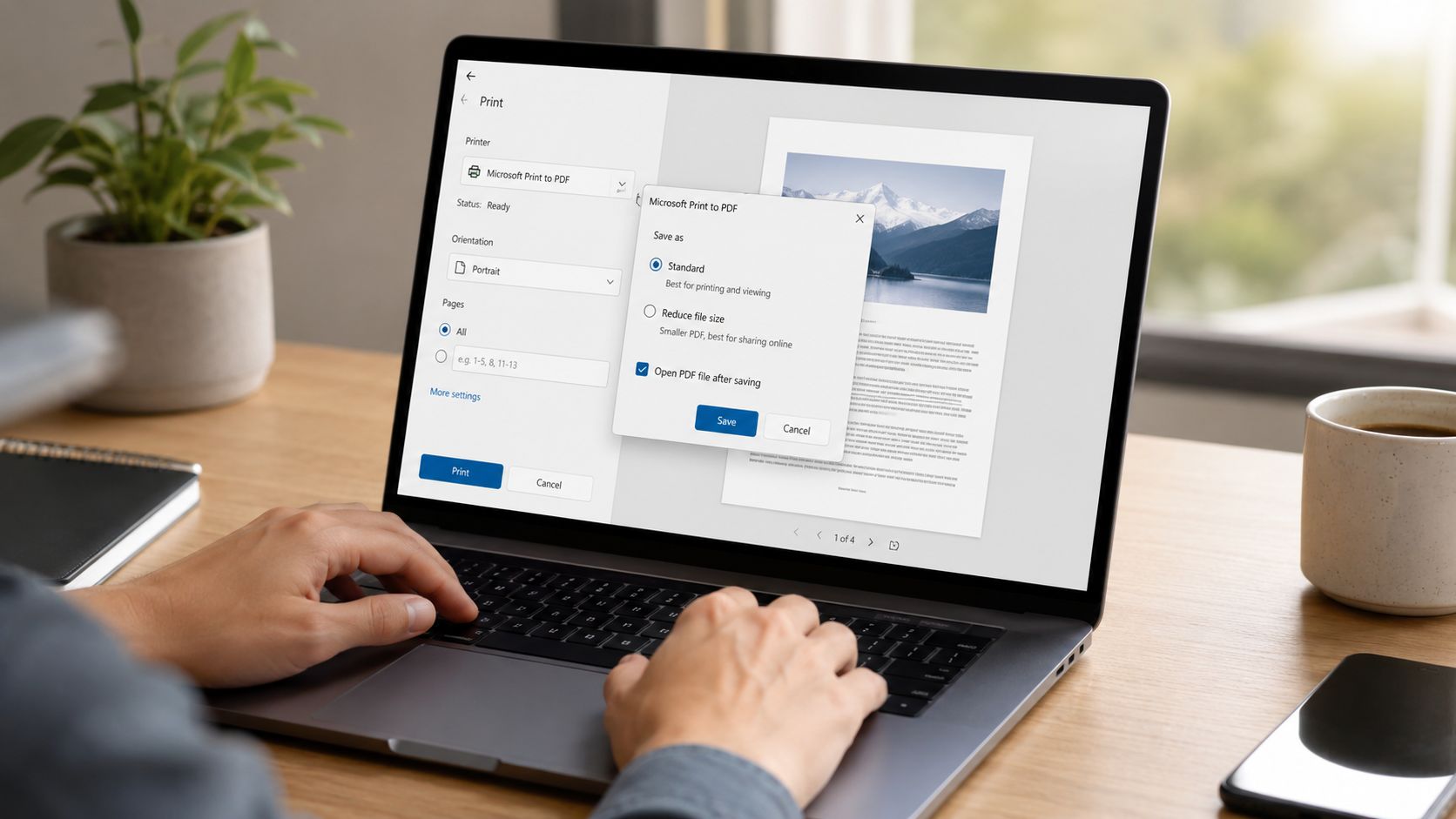
Using Print to PDF on Windows
Windows users often get decent results from re-rendering the file through Microsoft Print to PDF.
Open the original PDF, choose Print, select Microsoft Print to PDF, and save the new version under a different name. This can simplify the file structure and strip out some overhead from the original export.
That said, it isn't a surgical fix. It may flatten useful elements, reduce fidelity unevenly, or preserve more bloat than you expected.
A sensible way to use built-in methods is as a first pass:
- Try them on low-risk files. General handouts and internal drafts are fine candidates.
- Avoid them for complex documents. Forms, layered PDFs, and files with heavy image content often need more control.
- Always review the output. Re-rendered PDFs can change in subtle ways.
Built-in tools are good emergency options. They're not great maintenance tools if shrinking PDFs is part of your weekly routine.
Advanced Tips for Maximum PDF Compression
When a standard compression pass isn't enough, stop treating the PDF as one object. Target the part that's heavy.
Target the heavy parts instead of crushing everything
The most effective image setting in the verified data is very specific. This Reddit discussion on reducing PDF size notes that compressing images to 120 DPI with an image quality setting of 3/10 can reduce raw uncompressed PDFs by up to 90%, and in one example a 50-page document containing embedded photos dropped from 50MB to approximately 5MB. That's a strong option for screen reading, especially when the PDF contains oversized photos or scans.
For deeper optimization, match the compression method to the content. VeryPDF's compression overview recommends Flate (LZW) for text and vector graphics, JPEG2000 for continuous-tone photos, and CCITT G4 for monochrome scans, while avoiding low-quality JPEG for text-heavy documents because it softens crisp edges.
If you're assembling PDFs from downloaded visual assets, it helps to clean those assets before they ever get embedded. A practical companion read is this guide to pulling images from web pages, especially when source images are messy, oversized, or inconsistently saved.
You should also strip metadata deliberately when privacy matters. File Studio has a useful walkthrough on removing PDF metadata offline, which is worth doing before documents leave your machine.
Compress before signatures, not after
This is the mistake that creates avoidable headaches.
According to First Legal's explanation of reducing PDF size, compressing a PDF after collecting electronic signatures can invalidate those signatures because reducing size changes the signed document's integrity. In practice, that means the right order is simple: optimize first, sign second.
Here's the safe checklist:
- Audit first. Identify whether images, fonts, or metadata are driving size.
- Compress only what needs it. Don't flatten or rebuild the whole file unless you have to.
- Finalize the shareable version. Make sure the file is the one you intend to send.
- Collect signatures last. Once signed, leave the document alone.
That order saves time and avoids re-signing cycles nobody wants.
Frequently Asked Questions About PDF File Size
What's the best way to shrink a scanned PDF?
Focus on the images, not the page count. Scanned PDFs are often large because each page is stored as image data, so image downsampling usually has the biggest effect.
How much can a PDF shrink without looking bad?
It depends on what's inside the file. For image-heavy PDFs, the verified example above shows that compressing images to 120 DPI with a low image quality setting can cut size dramatically while keeping text and standard graphics visually usable.
Will compression break links or form fields?
Basic optimization often won't, but re-printing or flattening a PDF can change interactive elements. If the file has links, forms, or signatures, test the compressed copy before you send it.
Should I compress the same PDF more than once?
Usually no. Start from the original each time. Re-compressing an already compressed file can stack quality loss and make the result harder to read.
What should I inspect after shrinking a PDF?
Check small text at higher zoom, review page images, click important links, and confirm searchability if the original allowed text selection.
If you regularly handle oversized PDFs and don't want to upload sensitive files to web tools, File Studio is a practical offline option for Windows and macOS. It lets you compress PDFs locally, process files in batches, clean metadata on-device, and keep confidential documents off third-party servers.