

Learn How to Extract Pages from Pdf: Offline Guide 2026

Ayush Soni
Founder, File Studio
On this page
- Why You Need a Secure Way to Extract PDF Pages
- The offline advantage
- What works and what doesn't
- Extracting PDF Pages on Mac and Windows with File Studio
- Extract a single page
- Extract a page range
- Choose the right output format
- How to Batch Extract Pages from Multiple PDFs
- When batch extraction makes sense
- A practical batch workflow
- Use watch folders for recurring jobs
- Free Alternatives and Their Hidden Costs
- What built-in tools do well
- Where online converters break down
- PDF Extraction Methods Compared
- Pro Tips for Naming and Organizing Extracted Pages
- Use filenames that explain themselves
- Keep output folders predictable
- Check metadata before sharing
- Frequently Asked Questions About PDF Extraction
- Can I extract pages from a password-protected PDF
- Will extraction reduce quality
- Can I combine extracted pages back into one PDF
- What if the PDF is scanned
You've probably got a PDF open right now that's much bigger than what you need. A contract where only one signature page matters. A report with a single appendix worth sending. A scanned packet where you just need the receipt, not the whole stack.
That task sounds small until it turns into friction. You upload the file to a random web tool, wait for it to process, rename the result, then wonder where that original document just went and who else handled it along the way. If the PDF contains client details, invoices, IDs, HR paperwork, or legal drafts, that quick shortcut stops feeling harmless.
Learning how to extract pages from PDF files efficiently is less about the click sequence and more about choosing a workflow that doesn't waste time or expose sensitive documents.
Why You Need a Secure Way to Extract PDF Pages
The usual reason for extracting pages is simple. You don't want to send the whole file. You want page 37 from a contract, the invoice cover sheet, or a chapter from a large PDF. The technical part is easy. The risky part is how it's often done.
A lot of users go straight to a browser-based converter because it's the fastest result in search. That works fine for a disposable file. It's a poor habit for anything confidential. Legal agreements, onboarding packets, personal records, tax forms, and client documents shouldn't bounce through unknown servers just because you need one page.
Practical rule: If you wouldn't email the full document to a stranger, don't upload it to a random PDF website either.
The privacy issue isn't theoretical. Once a document leaves your device, you lose direct control over where it's stored, how long it's retained, and who inside that service can access it. That matters even more in client-facing work. If you handle sensitive paperwork, these CasePulse secure file sharing insights are worth reading because they frame document handling as an operational trust issue, not just a convenience choice.
The offline advantage
An offline desktop workflow solves two problems at once. First, it keeps the file local. Second, it removes the upload-wait-download cycle that makes quick document tasks feel slower than they should.
That's why dedicated desktop apps usually beat web converters for routine PDF work. You open the file, select the page, export it, and move on. No browser timeout. No ads. No queue. No concern about whether a file gets cached on someone else's infrastructure.
If you're sharing extracted pages externally, privacy isn't only about the visible content. File properties can also reveal more than intended. Before sending final documents, it's smart to review how to remove PDF metadata so author details, software history, or hidden document information don't tag along with the file.
What works and what doesn't
A secure page extraction workflow should do a few things well:
- Keep processing local: Your files stay on your Mac or Windows machine.
- Handle exact page selection: Single pages, custom ranges, and non-adjacent pages should all be straightforward.
- Export cleanly: You should be able to save as a new PDF or, when needed, as image files.
- Support repeat work: If you process the same kinds of PDFs regularly, the tool shouldn't force you into one-file-at-a-time busywork.
What doesn't work is the “quick and free” route when the document matters. That trade-off usually costs more in friction, cleanup, and risk than it saves in clicks.
Extracting PDF Pages on Mac and Windows with File Studio
If you want the fastest reliable method, use a desktop app that runs locally on both macOS and Windows. The workflow is the same on either system, which is useful if your team switches between machines or shares instructions internally.
Here's what the interface looks like during the extraction step.
Extract a single page
This is the most common job. You've got a long PDF, but you only need one page.
Use this sequence:
- Open the PDF in the desktop app.
- Choose the page extraction or split-pages tool.
- Enter the page number you want, such as page 37.
- Pick an output location on your computer.
- Export the selection as a new PDF.
That gives you a standalone file containing only the page you selected. For admin work, this is usually the cleanest option because the recipient gets a normal PDF, not a screenshot or a printout.
A lot of people try printing the page to PDF instead. That can work in a pinch, but it's often clumsier. You're dealing with print dialogs, printer-style settings, and more room for mistakes. A proper extraction tool is faster because it's built for page-level document tasks rather than pretending a printer is a file editor.
Extract a page range
The second common case is saving a section from a larger document. Maybe you want pages 12 through 18 from a report, or a chapter from lecture notes.
The process is nearly identical:
- Load the source PDF: Start with the full document.
- Enter the range: Use a range like 12-18.
- Confirm the output type: Save as a new PDF if you want a clean subset of the original file.
- Export locally: The app creates a separate document with only those pages.
Some desktop tools also support custom selections like 2, 5, 9-12. That's useful when the pages you need aren't consecutive.
If your job is specifically splitting one large PDF into smaller parts, the dedicated split PDF workflow is usually the better fit because it's designed around page selection rather than print-style export.
Keep the original untouched. Save extracted pages as a separate file so you can always return to the source if you selected the wrong page range.
Choose the right output format
Not every extraction job should end as a PDF. Sometimes the page needs to go into a slide deck, chat thread, or design review where an image works better.
In a good offline app, you can usually export pages in one of two ways:
| Output need | Best format | Why it works |
|---|---|---|
| Share a document page as-is | Preserves page layout and keeps it easy to review | |
| Drop a page into slides or messages | JPG | Convenient for fast sharing and broad compatibility |
| Keep page graphics crisp | PNG | Better when you want cleaner text edges or transparent-friendly workflows |
For most office tasks, extracted PDF pages should stay as PDFs. Export to JPG or PNG when the page is being reused as a visual asset, not as a document.
How to Batch Extract Pages from Multiple PDFs
Single-file extraction is easy. Repeating it across a folder of documents is where weak tools show their limits.
If you've ever had to pull the same page from a whole set of PDFs, you know how tedious it gets. Open file. Select page. Export. Rename. Repeat. That isn't hard work. It's just repetitive work, which is exactly what software should take over.
When batch extraction makes sense
Batch extraction is useful when the rule stays the same across many files. Common examples include:
- Client report packets: Pull page 2 from each PDF because that's where the summary sits.
- Invoice archives: Save only the first page from each invoice for fast review.
- Application files: Extract the signature page from every submitted form.
- Scanned records: Separate the identification page from each packet into its own output folder.
Those tasks don't need creativity. They need consistency.
Here's the kind of interface that makes that possible.
A practical batch workflow
A strong batch setup usually follows this pattern:
- Add a folder of PDFs instead of opening files one by one.
- Apply a single extraction rule, such as page 2 or pages 3-5.
- Set the output destination once.
- Run the batch and let the app create matching outputs for every source file.
The key benefit isn't just speed. It's fewer mistakes. Manual repetition creates naming errors, skipped files, and wrong-page exports. Batch rules reduce that risk because you define the action once and apply it consistently.
If you regularly process folders of documents, look for tools with true batch file operations rather than “batch” features that still make you confirm each file individually. That kind of half-automation wastes time.
Use watch folders for recurring jobs
For repeated workflows, watch folders are even better. You drop PDFs into a designated folder, and the app applies the saved extraction rule automatically.
That's useful for teams that receive the same document format every day. An admin assistant can save incoming files to one folder and let the app route extracted pages to another. No repeated setup. No reopening the same dialog all afternoon.
Workflow note: Batch extraction helps when the page rule is stable. If every PDF needs different pages, batching can create more review work than it saves.
Desktop tools create a real advantage over online converters. Browser tools are built for occasional single-file tasks. Repetitive office work needs presets, folders, and automation that stay on your machine.
Free Alternatives and Their Hidden Costs
Free options exist. Some are decent for occasional use. Most become frustrating as soon as the workflow gets even slightly more demanding.
The main categories are built-in operating system tools and online PDF websites. Both can extract pages. Neither gives you the same mix of privacy, control, and repeatability as a dedicated offline app.
What built-in tools do well
On macOS, Preview can handle simple page removal and page-by-page export. On Windows, you can often use Print to PDF for basic page isolation. Those methods are local, which is a big plus.
They're fine when all of these are true:
- you're working with one file
- the page selection is simple
- you don't need batch processing
- you don't care about advanced output management
Where they fall short is polish. Print-based methods feel indirect because they weren't designed as document extraction tools first. Preview is better, but it still gets clumsy when you're handling larger sets of files or trying to build a repeatable workflow.
Where online converters break down
Online converters win on visibility, not on trustworthiness. They're easy to find, and they promise instant results. The hidden cost is that they usually require uploads, and they often come with annoying limits or interruptions.
Common pain points include:
- Privacy exposure: The document leaves your device.
- Ads and distractions: Free tools often surround the task with clutter.
- File restrictions: Some services limit size, page count, or output choices.
- Weak multi-file support: Many claim batch support but make it awkward in practice.
- Unclear retention: It isn't always obvious when uploaded files are deleted.
That doesn't mean every online service is unsafe. It means you're relying on someone else's environment for a task that usually doesn't need the internet at all.
PDF Extraction Methods Compared
| Feature | File Studio (Offline App) | OS Built-in (Preview/Print to PDF) | Online Converters |
|---|---|---|---|
| Privacy | Local processing on your device | Local processing on your device | Requires upload to external service in most cases |
| Ease of repeated use | Built for routine workflows | Acceptable for occasional one-off tasks | Often fine for single jobs, awkward for repeated work |
| Batch extraction | Supported | Usually limited or absent | Often limited, inconsistent, or gated |
| Output control | PDF and image export with workflow options | Basic, depends on OS feature | Varies by service |
| Ads and interruptions | None in the app workflow | None | Common on free tools |
| Internet required | No | No | Usually yes |
| Best use case | Frequent, privacy-sensitive document work | Simple occasional extraction | Low-stakes, disposable files |
The important trade-off is this: free built-in tools are private but limited, while online tools can feel convenient but add privacy and reliability concerns. If you deal with sensitive PDFs regularly, the “free” option often costs you more in time and peace of mind.
Pro Tips for Naming and Organizing Extracted Pages
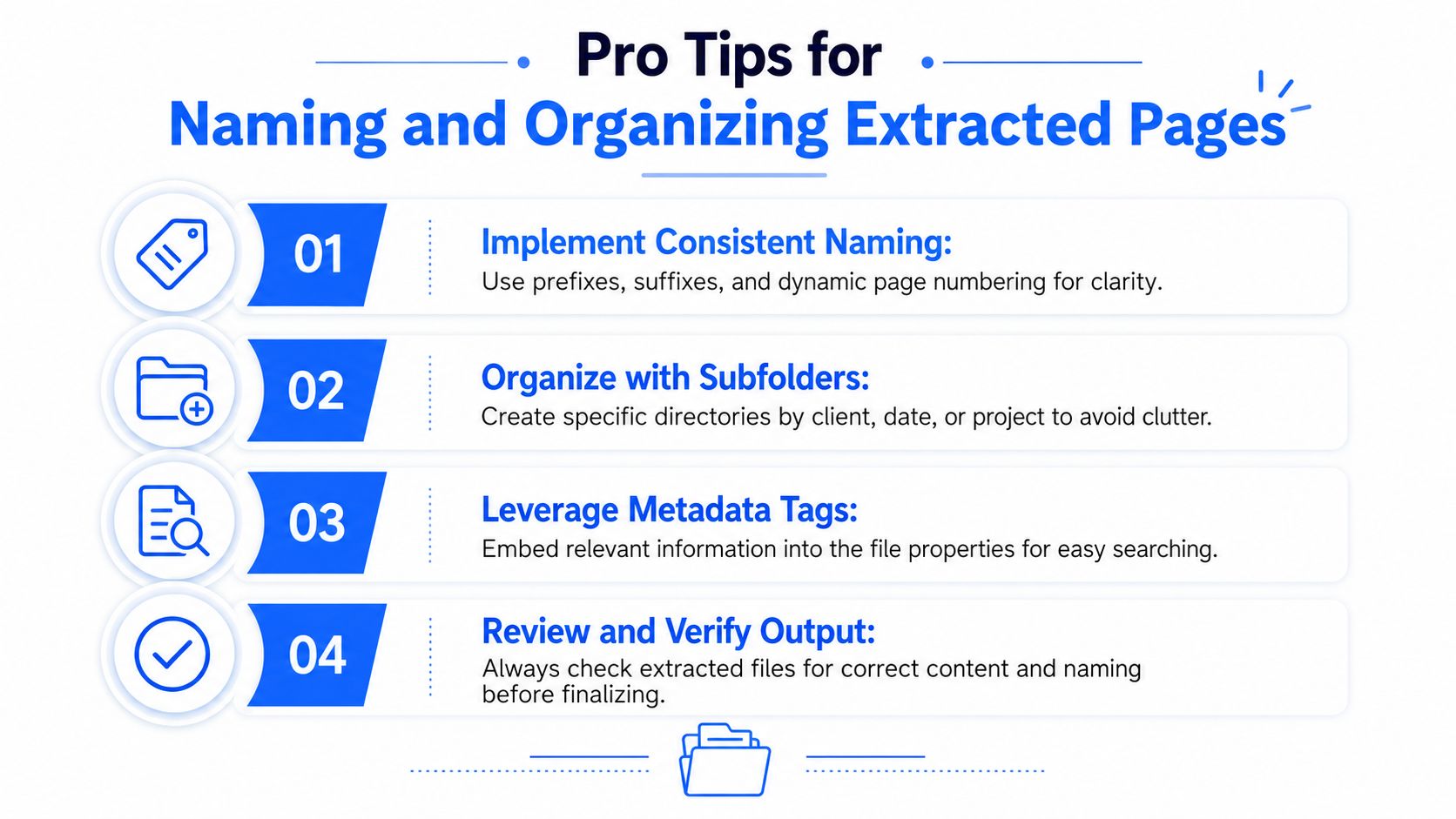
Page extraction gets messy fast when the output lands in Downloads as a pile of vague filenames. An effective time-saver isn't only extracting pages. It's making sure the results are usable five minutes later and still understandable a month from now.
Use filenames that explain themselves
Good naming removes guesswork. Bad naming creates cleanup.
If the app supports naming presets or dynamic tokens, use them. A pattern like %filename%-%page-number% is much better than generic exports such as “Document(12).pdf” or “Untitled-1.pdf”. When you revisit the files later, the filename tells you both the source and the extracted page.
A few practical patterns work well:
- Original name plus page number: Useful for isolated page exports from many source documents.
- Client or project prefix: Helpful when multiple PDFs from different matters land in one folder.
- Date plus document label: Best for recurring paperwork where version clarity matters.
Short filenames help the computer. Descriptive filenames help the human who has to find the file later.
Keep output folders predictable
Saving every export to the desktop is how clutter starts. Set a default output folder for each kind of job instead.
Try a folder structure like this:
- Client-specific folders: Best for legal, finance, and account management work
- Project folders: Useful when extracted pages support a larger deliverable
- Temporary review folders: Good for short-lived exports you plan to merge, review, or delete
If your desktop app allows presets, pair the folder destination with the extraction settings. Then the task becomes one action instead of six small decisions.
Check metadata before sharing
A newly extracted PDF can still carry file properties you don't want to pass on. That might include author details, application history, timestamps, or other embedded document information.
This step gets skipped because the file looks clean on screen. But visible content and hidden metadata aren't the same thing. If you work with contracts, HR records, or client deliverables, make metadata review part of the handoff process.
A professional workflow usually looks like this:
- Extract the required pages.
- Review the output filename.
- Confirm the destination folder.
- Inspect metadata if the file is leaving your organization.
- Share the cleaned version, not the first export by default.
That's the difference between a quick fix and a repeatable document process.
Frequently Asked Questions About PDF Extraction
A few edge cases come up all the time, especially when the PDF wasn't created under ideal conditions.
Can I extract pages from a password-protected PDF
Yes, if you have the password or permission to open and edit the file. Most proper desktop PDF tools can work with protected documents after you gain access to them. If you don't have access rights, extraction may be blocked.
Will extraction reduce quality
Not usually when you extract pages directly into a new PDF. You're preserving the page as a document page, not taking a screenshot of it. Quality changes are more likely when you export to image formats and choose heavy compression settings.
Can I combine extracted pages back into one PDF
Yes. After extracting the pages you need, you can merge them into a new PDF in the order you want. This is useful for building a custom packet from several source files.
What if the PDF is scanned
You can still extract the page visually because it exists as a page in the PDF. The limitation is text behavior. A scanned page may not have selectable or searchable text unless OCR has been applied. That affects search and copy-paste, but not the basic extraction step.
If you handle PDFs often, File Studio is the kind of offline tool that makes this task feel simple again. It runs locally on Mac and Windows, keeps sensitive files on your device, and handles both one-off page extraction and larger repeat workflows without the usual browser friction.