

How to Merge PDFs: Securely Combine Files Offline

Ayush Soni
Founder, File Studio
On this page
- Why Most PDF Merging Advice Is Risky
- The convenience trap
- What safe merging looks like in practice
- Merge PDFs Privately with File Studio
- A clean offline workflow
- When this method saves time
- Using Built-in Tools on Windows and macOS
- macOS Preview is the better built-in option
- Windows can do it, but not elegantly
- Online Merge Tools vs Offline Desktop Software
- What matters when choosing a method
- Advanced Merging Workflows and Power User Tips
- Batch jobs and repeatable workflows
- Selective pages and command-line control
- Troubleshooting and Final Output Settings
- Fix the file before you send it
- Output settings that prevent rework
You've probably got a stack of PDFs open right now. A signed contract in one file. A scan from the copier in another. Maybe invoices, IDs, a cover sheet, or a report appendix sitting in Downloads with names like final-v2-REAL.pdf. You need one clean PDF, and you need it fast.
That's the moment when one might search how to merge PDFs, click the first free tool they see, upload everything, and hope for the best. That works for a restaurant menu or a school handout. It's a bad habit for payroll records, client files, legal exhibits, HR packets, or anything with names, signatures, account details, or internal notes.
Why Most PDF Merging Advice Is Risky
Friday at 4:45 p.m., someone realizes the closing packet, signed HR forms, or court exhibit set still needs to be combined into one PDF before it goes out. That is when bad advice spreads fastest. Search results push web tools because they are quick to open, but speed is only one part of the job. If the file contains personal, legal, or financial information, the safer choice is usually the one that keeps every page on your own machine.
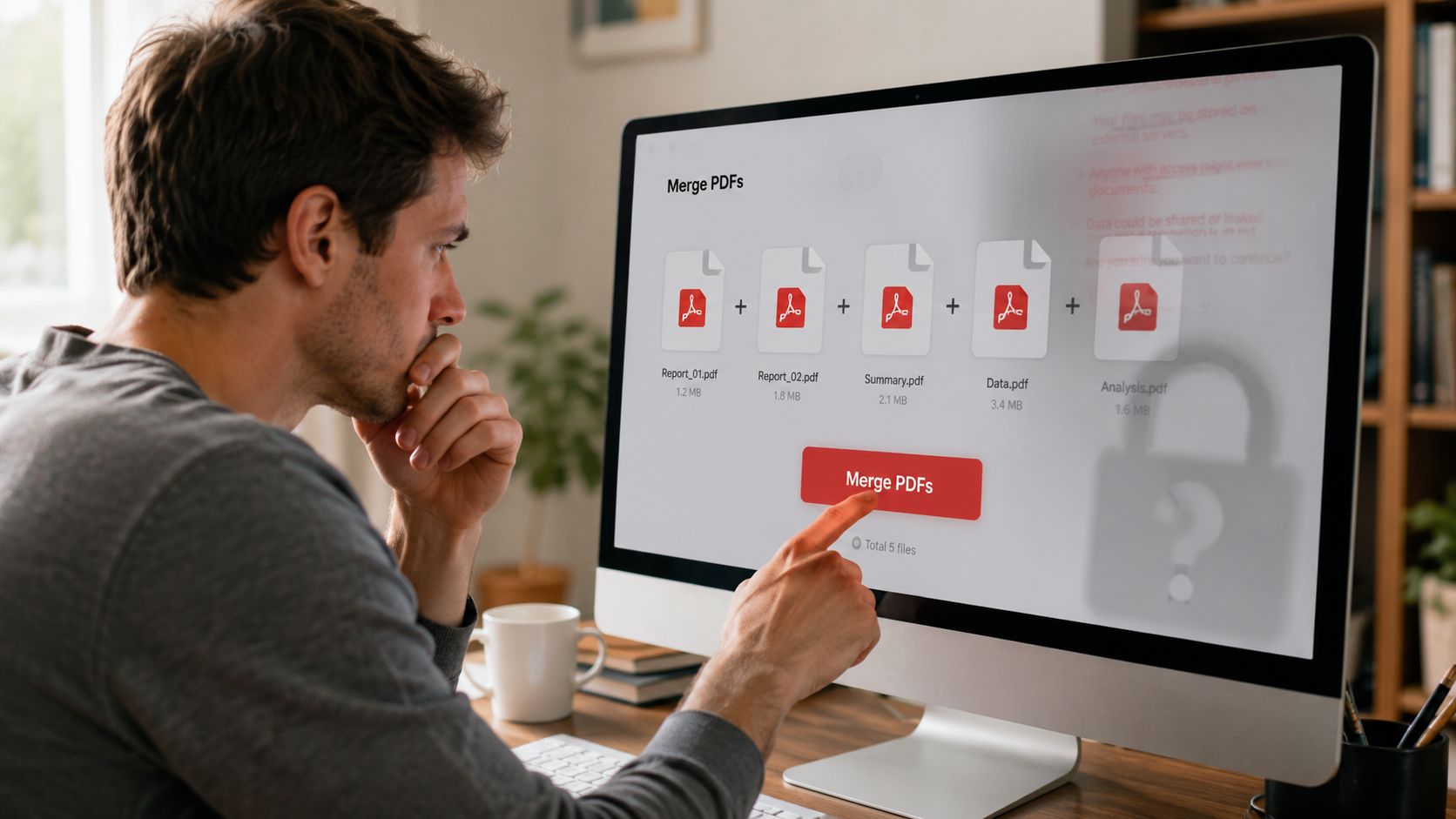
That concern is not hypothetical. In a Reddit thread about private PDF workflows, one user put it plainly: “I need to merge some confidential documents... I cannot use any online 3rd party apps and I don't have the paid Adobe version.” That is a normal office constraint, not an edge case. Anyone reviewing the safety of uploading PDFs to web tools is asking the right question.
The convenience trap
Browser-based merge tools win on convenience. Open a tab, upload files, click Merge, download the result. For low-stakes documents, that can be fine.
The trade-off is obvious once the files matter. Your documents leave the device you control and pass through someone else's infrastructure. That adds questions most quick tutorials ignore: how long files stay on the server, whether deletion is automatic, what happens if a link is shared by mistake, and whether the service logs account or file activity in ways your office would rather avoid.
I would not use a random online merger for:
- Client intake packets with addresses, dates of birth, or case notes
- Employment files with pay data, IDs, or tax documents
- Real estate or legal bundles with signatures, exhibits, and closing paperwork
- Financial records with account numbers, invoices, or internal approvals
A simple rule works well here. If the document would be a problem if sent to the wrong recipient, it should not go through a browser tool unless you have already cleared that process with your company's privacy and retention standards.
What safe merging looks like in practice
A safe workflow is boring on purpose. The files stay local. The software runs locally. You merge, review, save, and send the final PDF only after you confirm page order, readability, and anything else that could trigger rework.
That matters because merging is not just a formatting task. It is also a handling decision. The moment files are uploaded to a third-party service, the job shifts from simple document assembly to document transfer, and that is where privacy risk, policy conflicts, and cleanup headaches start.
For sensitive work, these are the standards that matter:
- Local processing: The merge happens on your device.
- No account required: You should not need to register just to combine a few files.
- Reliable page control: The output should match the order you set.
- Pre-send review: You can inspect the final PDF before it leaves your office.
- Cleanup options: You can remove metadata, flatten comments, or reduce file size if needed.
A lot of PDF advice is written for convenience on the first try. In real office work, the better method is the one that protects confidential files, avoids subscription creep, and does not create extra risk just to save thirty seconds.
Merge PDFs Privately with File Studio
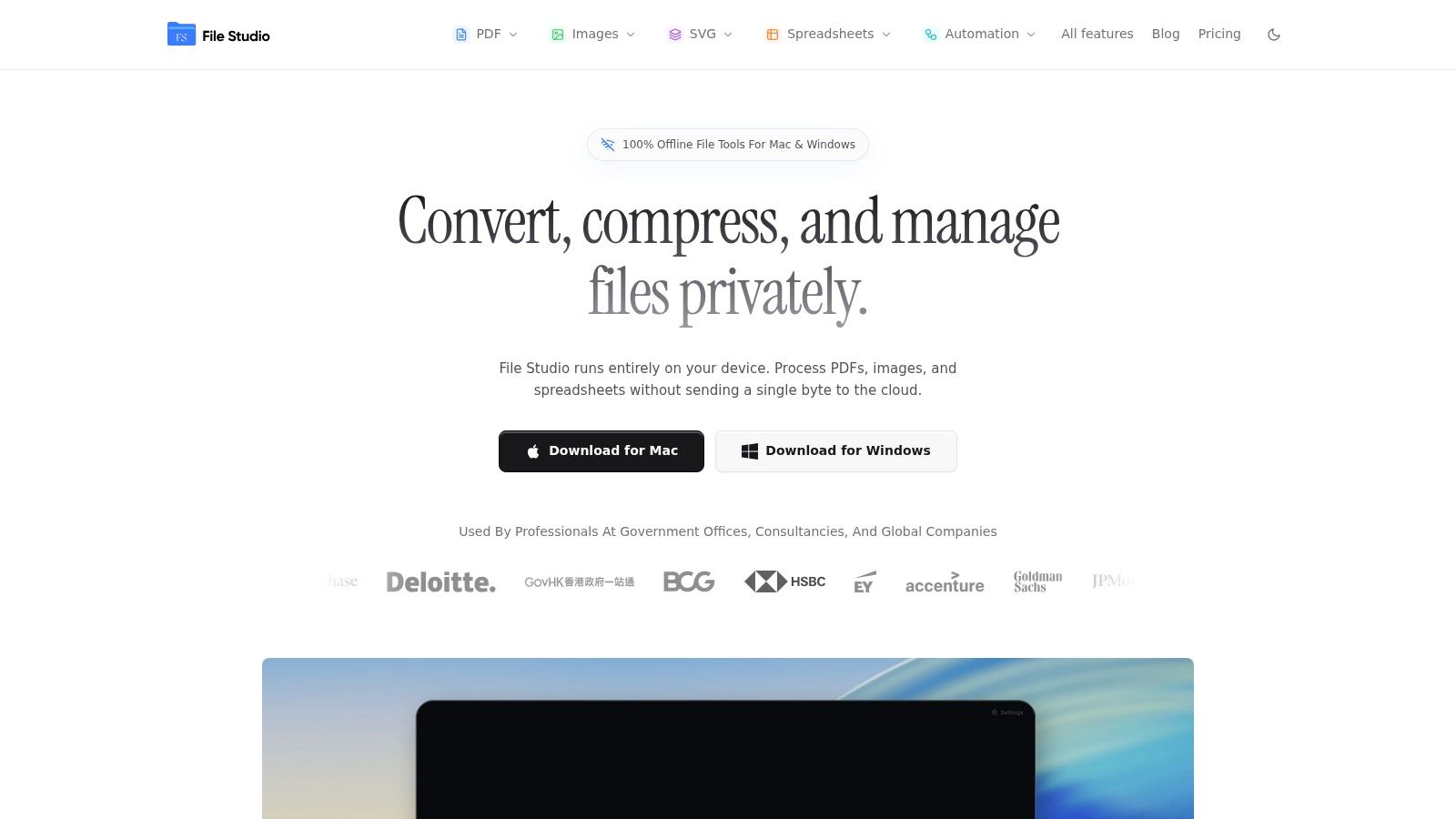
If the job involves sensitive documents, use an offline desktop workflow. That keeps the merge local, avoids browser upload limits, and gives you better control over page order and output.
A clean offline workflow
The basic process is simple:
- Open the merge tool in the desktop app.
- Drag your PDFs into the file list.
- Reorder them until the sequence is right.
- Remove anything that doesn't belong.
- Export the merged PDF to a local folder.
If you want the exact tool page, the offline PDF merge workflow in File Studio shows the core action clearly. The main advantage isn't novelty. It's control. You aren't waiting for uploads, worrying about browser tabs crashing, or wondering whether a third-party service keeps temporary copies longer than you'd like.
With PDF use this widespread, that matters. Adobe Acrobat holds a 64% share of the global PDF software market, serves over 100 million daily users, and people collectively open around 400 billion PDF files annually, according to Smallpdf's PDF statistics roundup. At that scale, merging isn't a niche task. It's routine office work, especially in legal, HR, and finance.
When this method saves time
Desktop merging starts to pull ahead when the work stops being one-off.
It's better for:
- Multi-file packets: Contracts, appendices, scanned IDs, supporting exhibits
- Recurring admin work: Monthly reports, invoice bundles, onboarding packets
- Sensitive records: Anything you wouldn't upload to a web service
- Mixed cleanup jobs: When you need to reorder, delete pages, compress, or flatten after the merge
Practical rule: If you already know you'll need a second step after merging, use a desktop app from the start.
That's the difference between “I combined some PDFs” and “I produced a document that's ready to send.” In actual office work, the merge itself is only part of the task. You often need to fix scan order, remove blank pages, check orientation, and produce a file that won't bounce back from an email attachment limit or a client portal.
A good offline tool also cuts down on the small annoyances that waste time. You don't lose your place if the internet drops. You don't get blocked by file-size warnings halfway through. You don't have to explain to a manager why a confidential packet went through a free web utility.
If you're learning how to merge PDFs for professional use, that's the standard to aim for. Private by default. Local by default. Fast enough that you'll use it every day.
Using Built-in Tools on Windows and macOS
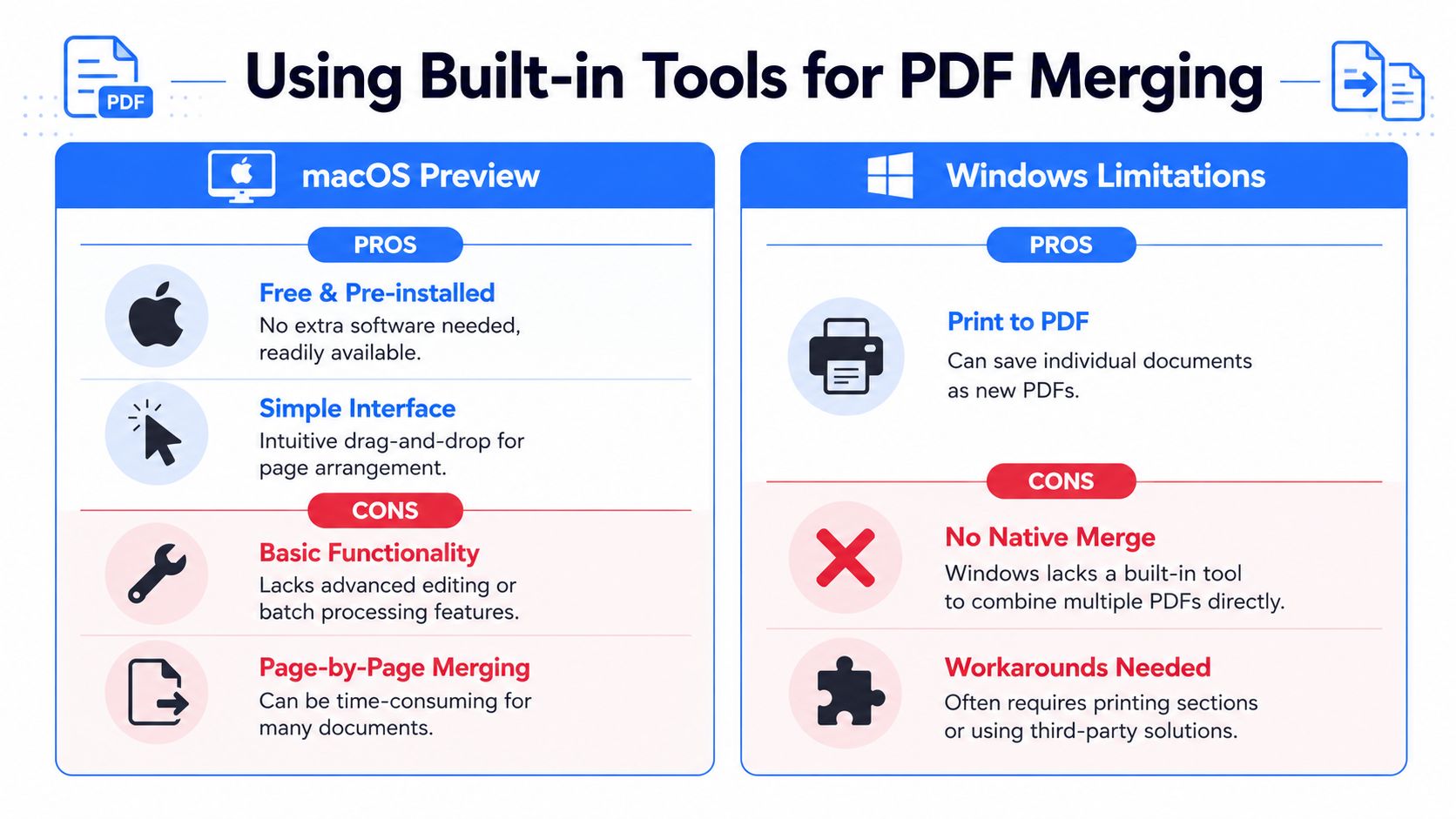
If you don't want to install anything, both operating systems give you at least one workable option. macOS does it better. Windows can get the job done, but it's more of a workaround than a proper merge feature.
macOS Preview is the better built-in option
Preview is one of the most overlooked PDF tools on a Mac. For simple jobs, it works well.
A practical method looks like this:
- Open the first PDF in Preview.
- Turn on thumbnails so you can see page previews in the sidebar.
- Drag the second PDF into the sidebar where you want it placed.
- Repeat for additional files.
- Save or export the combined document.
You can also drag individual pages around inside the thumbnail panel, which makes small corrections easy. For short packets, this is often enough.
Where Preview starts to feel slow is volume. If you're combining many files, cleaning up scans, or building standardized packets every day, the thumbnail workflow becomes manual and fussy. It's fine for occasional use. It's not ideal for production work.
Windows can do it, but not elegantly
Windows doesn't include a true native PDF merge tool in the same way Preview does on macOS. The common built-in workaround is Microsoft Print to PDF. It can help in narrow cases, especially when you're creating a new PDF from printable files, but it isn't a smooth method for combining existing PDFs into one polished document.
Typical Windows workarounds involve steps like these:
- Open files one by one: Print them to PDF in sequence or recreate the packet manually.
- Rebuild from source documents: If the originals are Word files, images, or spreadsheets, print them together into a new PDF output.
- Use a cloud feature in Microsoft 365: Possible, but not the same as having a local merge utility.
That last option has limits of its own. Microsoft documents note that PDF merging in SharePoint or OneDrive can see an 8 to 12% failure rate when source files exceed 50 pages or include embedded annotations, as described in Microsoft 365 document processing guidance. That's a reminder that non-dedicated tools often struggle with heavier documents.
Built-in tools are best for light work. Once the packet gets large, annotated, or repetitive, they stop feeling free because they start costing time.
If you only need a quick, local merge and you're on a Mac, Preview is the clear winner. If you're on Windows, the built-in path exists, but those handling PDFs regularly often end up wanting something more direct.
Online Merge Tools vs Offline Desktop Software
A quick browser tool looks efficient until the file contains medical records, signed contracts, or internal financials. Then the important question is simple. Are you willing to upload that packet to someone else's server just to save two minutes?
That choice separates online merge tools from offline desktop software more than any feature list does. Browser tools are built for convenience. Local software is built for control, repeat use, and keeping sensitive files on your own machine.
What matters when choosing a method
| Criteria | Online Merge Tools | Offline Desktop Software | Built-in OS Methods |
|---|---|---|---|
| Privacy | Files are uploaded to a third-party service | Files stay on your device | Files stay on your device |
| Internet dependency | Required | Not required | Not required |
| Speed on small jobs | Fast if upload is quick | Fast once installed | Varies |
| Large or complex files | Can be inconsistent | Usually more dependable | Often awkward |
| Page control | Usually basic unless paid | Usually stronger | Limited |
| Batch work | Often limited | Better suited to repeat workflows | Poor |
| Cost model | Free tiers, limits, or subscriptions | One-time or license-based options are common | Free |
| Best use case | Non-sensitive, occasional merges | Sensitive or frequent document work | One-off basic tasks |
In practice, the privacy trade-off decides the tool for a lot of offices. If a PDF contains client data, personnel records, bank statements, or anything under a retention policy, uploading it to a web service adds risk you do not need. Even if the provider deletes files quickly, the document still left your system. For many teams, that alone rules out the browser option.
Speed is less straightforward than it looks. Online tools feel fast for two small files on a stable connection. They get slower once uploads drag, file size limits appear, or the service wants a paid plan before it will handle bookmarks, page ranges, or larger packets. Desktop software takes longer on day one because you have to install it. After that, repeat jobs are usually faster, especially if you merge the same kinds of files every week.
Cost follows the same pattern. Free web tools are cheap until they are not. The hidden cost is usually time, privacy review, feature limits, or cleanup work after a bad merge. A paid desktop app can be the cheaper option for anyone doing regular document assembly.
A few practical rules work well:
- Use online tools for low-risk files, one-off jobs, and situations where convenience matters more than privacy.
- Use offline desktop software for sensitive records, large packets, repeat workflows, and any process that needs predictable output.
- Use built-in methods only for occasional basic merges when extra manual work is acceptable.
One more point gets missed. Merging locally protects the pages themselves, but it does not automatically clean hidden document details. Before sending a finished file outside your office, check for author fields, timestamps, and other leftovers with a guide on how to remove PDF metadata.
The same logic applies to recordkeeping. If the merged PDF is headed into long-term storage, the merge step should fit your larger process for secure digital archiving for businesses, not just email convenience.
The short version is blunt. Online tools are fine for harmless files. Offline software is the safer default for real document work.
Advanced Merging Workflows and Power User Tips
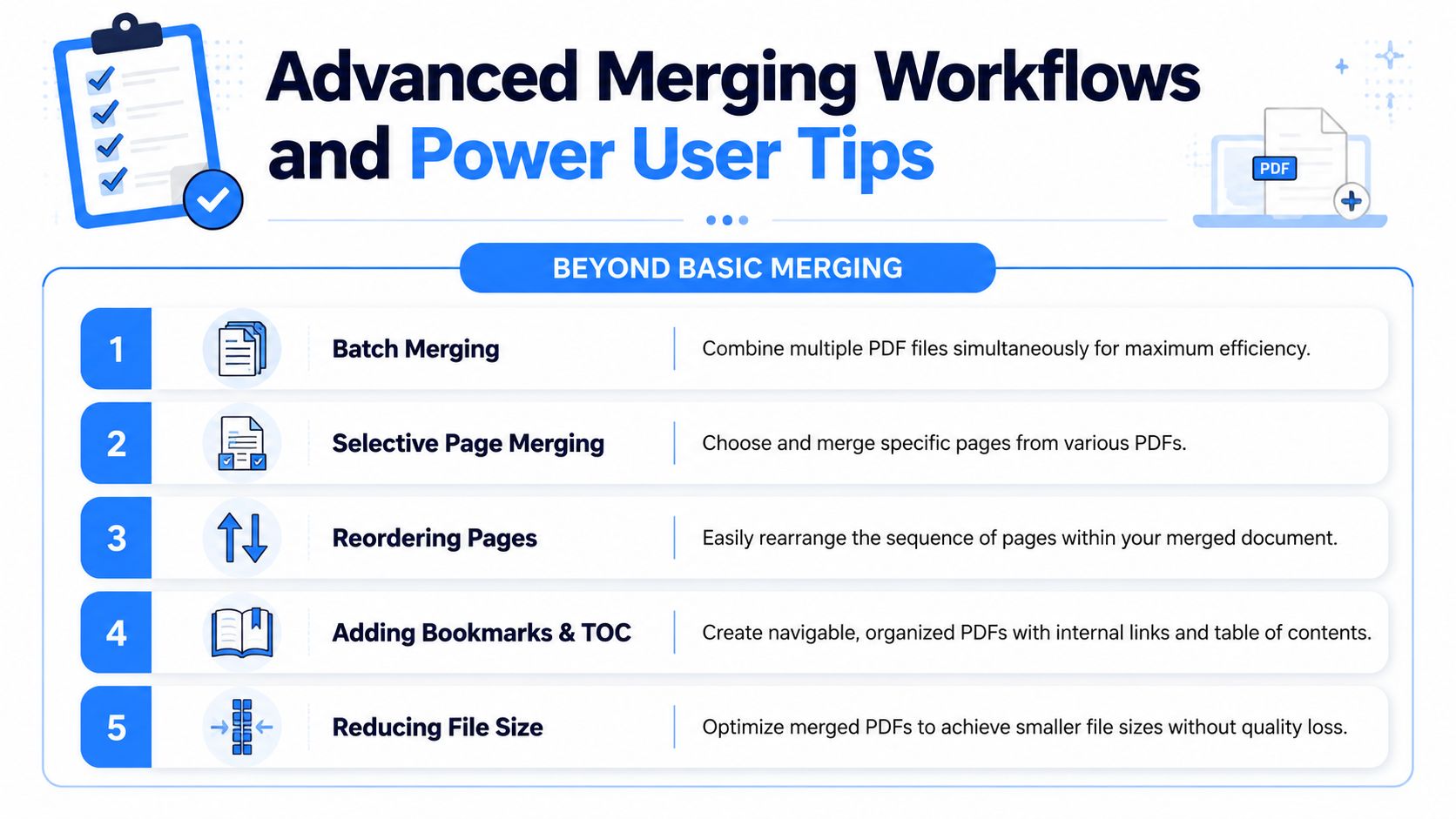
Basic merging is just stacking files in order. Real document work usually needs more than that. You may need to combine a whole folder, pull only certain pages from multiple PDFs, or build a packet that's ready for archiving instead of just emailing.
Batch jobs and repeatable workflows
If you merge the same types of files over and over, stop treating each packet like a custom job. Set up a repeatable process instead.
A stronger workflow usually includes:
- Consistent file naming: Put dates, client names, or case numbers in a standard order before merging.
- Staging folders: Keep source files in one folder and final outputs in another so nothing gets overwritten by accident.
- Pre-merge cleanup: Delete blank scans, rotate sideways pages, and check page size mismatches first.
- Archive-ready output: If the merged PDF will be stored long term, pair the merge step with a process for secure digital archiving for businesses, especially when paper scans are part of the record.
That last point gets missed all the time. Merging isn't just about convenience. It's often the handoff point between a messy working set of files and a final business record.
Selective pages and command-line control
Whole-file merging is easy. Selective page merging is where many tools fall apart.
A lot of office jobs need combinations like these:
- Page 1 from a signed agreement
- Pages 2 to 4 from a terms addendum
- One exhibit from a longer report
- A cover page inserted at the front after everything else
Non-technical users usually handle this by merging everything, then deleting pages. It works, but it's clumsy and easy to get wrong. Better tools let you extract or choose pages before the final merge. That reduces cleanup and lowers the risk of leaving in a page that shouldn't be there.
For scripted workflows, qpdf remains a strong option. The commonly recommended pattern uses the --empty --pages flags followed by the file list and output name. According to a programming discussion about automated PDF merging, that approach is effective, but around 15% of script failures in mixed Windows and Linux environments come from unescaped file paths with spaces, which is why quoting paths matters in this qpdf automation thread.
Quote every path. The command can be right and still fail if a folder name has a space.
One more habit pays off when the documents are confidential. Clean the file after merging, not just before sending. Metadata can preserve author names, timestamps, software details, and editing history. If privacy matters, review how to remove PDF metadata locally before distributing the final file.
For password-protected PDFs, the safest workflow is simple: open them for editing only in a trusted local tool, confirm you're allowed to edit them, merge the needed pages, then save a clean output with the right protection settings afterward. Don't force protected files through random converters and hope the result behaves.
Troubleshooting and Final Output Settings
A merge can succeed and still leave you with a bad final document. The file might be too large to email. Bookmarks may disappear. Links may stop working. Scanned pages can come out sideways or in the wrong order. Most of that can be fixed if you check the output before you send it.
Fix the file before you send it
When the merged PDF looks wrong, start with the obvious issues first.
- Pages are out of order: Go back to the source list and rebuild in the correct sequence. This is faster than patching a bad packet page by page.
- The file is too large: Compress after merging, not before, so you only optimize once.
- Mixed page orientation: Rotate the affected pages and save a fresh copy.
- Blank pages slipped in: Remove them manually before final export.
- Broken links or odd formatting: Recreate the affected source file if possible, then merge again. Some PDFs don't combine cleanly when they were generated by older or inconsistent software.
A professional PDF isn't just combined. It's checked, cleaned, and named so the next person can use it without asking questions.
If the output is headed to a court filing system, a client portal, or a finance workflow, open the final file and test it like the recipient will. Scroll through every page. Click any links. Confirm signatures or annotations still appear the way they should.
Output settings that prevent rework
Good export habits save more time than is often recognized.
Use this checklist before you finalize:
- Set a clear filename. Include what the file is, who it belongs to, and the date if needed.
- Choose compression carefully. Too much compression can make scanned text hard to read.
- Flatten when appropriate. This helps lock in annotations and reduces surprises in other PDF viewers.
- Review metadata. Remove anything that doesn't need to travel with the file.
- Save to the right folder. Keep drafts separate from the final version so no one sends the wrong copy.
For sensitive documents, privacy settings are part of output quality. A PDF that looks fine on screen can still carry hidden information you didn't intend to share. That's why final review matters just as much as the merge itself.
If you only remember one thing from this guide on how to merge PDFs, make it this: choose the method based on the document, not just on convenience. A harmless handout and a confidential employee file should never follow the same workflow.
If you need a practical way to merge PDFs privately on Mac or Windows, File Studio is built for exactly that kind of local, no-upload workflow. It runs offline, handles PDF organization in one place, and fits the kind of day-to-day document work where speed matters but privacy matters more.