

What Is File Compression: Lossy vs. Lossless Explained

Ayush Soni
Founder, File Studio
On this page
- Why That File Is Too Big to Email
- How File Compression Works
- Redundancy is the key idea
- What the process looks like in plain language
- Why some files shrink more than others
- Lossy vs Lossless The Two Sides of Compression
- What lossless compression keeps intact
- What lossy compression throws away
- Lossy vs Lossless Compression at a Glance
- How to choose without overthinking it
- A Guide to Common Compression Formats
- Archive formats for packaging files
- Image formats for quality, clarity, or speed
- Audio and video formats
- Why and How to Compress Files Securely
- Why online compression can create avoidable risk
- How to build a safer routine
- When offline tools make the most sense
- Putting Compression to Work in Your Workflow
You are about to send a contract packet before the end of the day. The folder includes a PDF, a few phone photos of signed pages, and a spreadsheet with client details. The files are too large for email, so a quick online compressor looks like the fastest fix. A few clicks later, the upload is done. The file is smaller. What happened to the copy you just handed to that website, and what hidden details stayed inside it?
That question belongs at the center of any explanation of file compression.
File compression makes digital files smaller so they are easier to store, upload, and share. Sometimes that means packaging several files into one archive, like a ZIP folder. Sometimes it means rewriting a single file so it takes up less space. A useful comparison is vacuum-packing clothes for a trip. You can fit more into the same suitcase, but you still need to know what you packed, what shape it is in, and who can open the bag.
The practical problem usually shows up first. An attachment fails. A scan crawls through an upload. A shared folder takes too long to send to a client. If you have run into that kind of bottleneck, this guide on how to condense files for email without adding friction to sharing helps explain the day-to-day use case.
But size is only half the story.
Compression improves workflow efficiency. It does not automatically protect confidential material, remove document properties, or strip location data from photos. A compressed file can still contain author names, device details, timestamps, revision history, and other metadata that says more than you intended. That matters for legal files, HR records, financial documents, design drafts, and any file that moves outside your team.
A local-first approach is often the safer default. If compression happens on your own device, you reduce the number of extra copies created during the process and keep sensitive files out of third-party upload queues. That does not solve every security problem, but it gives you more control over where the file goes, who can access it, and what needs to be cleaned before you share it.
Understanding compression starts with file size. Using it well also means knowing what stays, what gets discarded, and what private details may travel with the file unless you remove them on purpose.
Why That File Is Too Big to Email
You are about to send a proposal to a client. The PDF attaches, the screenshots attach, the spreadsheet attaches, and then your email app blocks the message because the total is too large. You can split everything across several emails, but that creates a new problem. Files arrive out of order, attachments get missed, and the recipient has to piece the package back together.
File compression helps by reducing bulk and bundling related files into a single container that is easier to send, store, and track. A ZIP file is the common example. It works like packing loose papers into one labeled folder, and in many cases it can shrink the total size at the same time.
If attachment limits keep slowing down your work, this guide on how to condense files for email walks through practical ways to get oversized files into a sendable form.
The email limit is only the visible symptom.
A large file often signals one of three things. The file contains repeated data that can be stored more efficiently. It includes assets, such as high-resolution images, that add weight fast. Or it is really a group of files that would be easier to handle as one archive. Compression addresses each case differently, which is why it shows up in so many everyday tasks.
That matters for workflow, but it also matters for privacy. When a file is too large, people often rush to an online compression site because it feels faster than opening a desktop tool. That shortcut can expose more than the document itself. Filenames, folder structure, embedded metadata, and the file contents may all pass through a third-party service. For routine public files, that may be acceptable. For contracts, HR records, client deliverables, financial reports, or internal drafts, it creates risk that is easy to avoid with a local-first process.
Compression is useful when you need to:
- Send a set of files together: One archive is easier to attach, forward, and confirm than a scattered batch of attachments.
- Stay within email limits: A smaller package has a better chance of going through on the first try.
- Keep projects organized: Related documents, images, and notes can travel as one unit.
- Reduce storage waste: Smaller files leave more room on a laptop, shared drive, or backup system.
- Handle sensitive material more carefully: Offline compression tools let you process files on your own device instead of uploading them to a web service first.
A good practical rule is simple. If your goal is to send, archive, or share files with less friction, try local compression before you split the files, lower the quality, or upload them to an online tool.
How File Compression Works
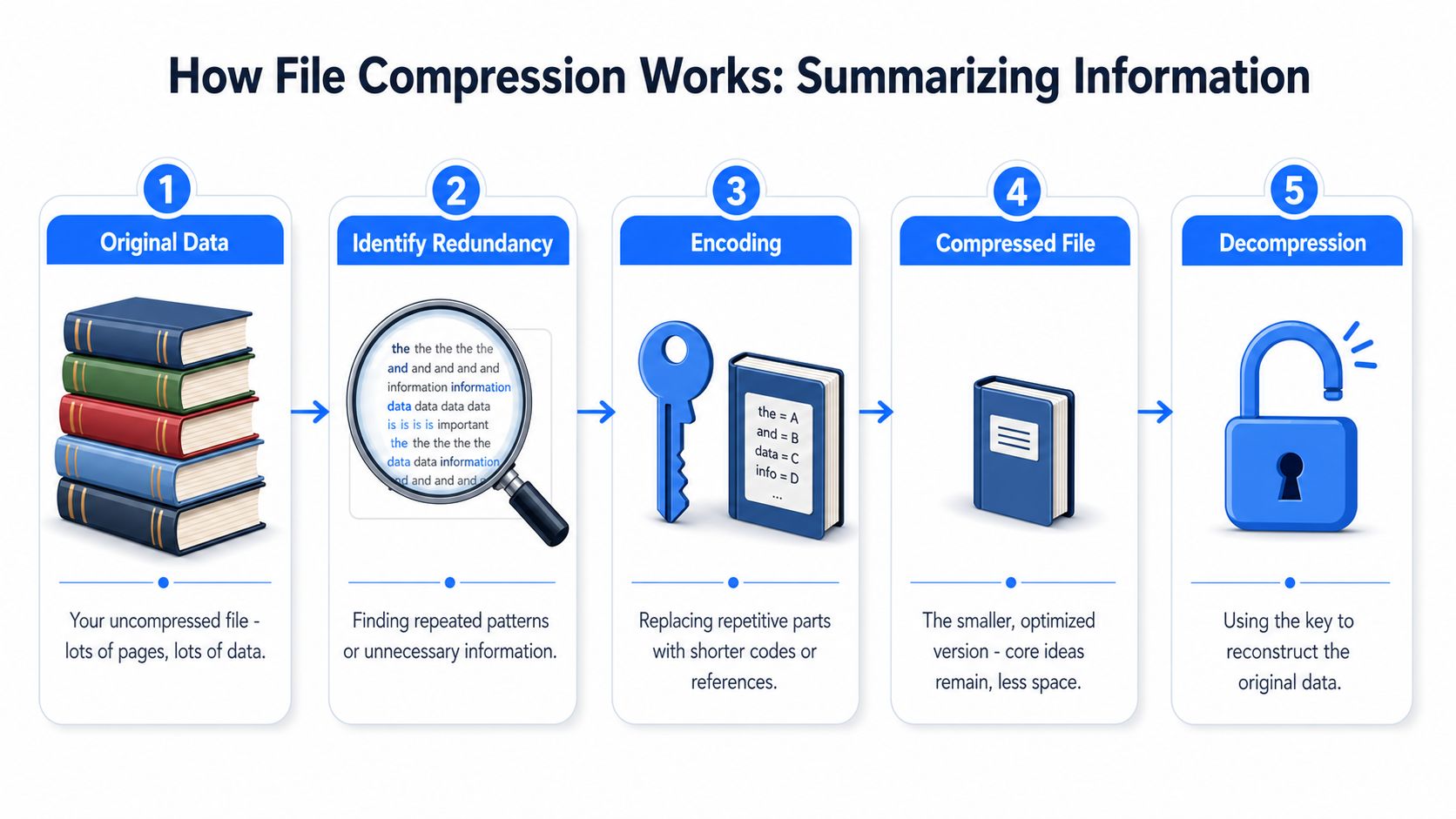
Compression works by finding patterns in data and storing those patterns in a shorter form. The file still contains the information you need, but it is written more efficiently.
That idea matters in practice because compression is not a universal shrink ray. It works well when a file has repetition, predictable structure, or unused space. It helps far less when the file has already been packed tightly by another format.
Redundancy is the key idea
The core concept is statistical redundancy. In plain English, that means some parts of a file repeat or follow patterns that software can describe more compactly.
A compression tool might notice that the same sequence appears many times and replace each repeat with a shorter reference. It is similar to using a label instead of writing the full phrase every time. The original meaning stays recoverable if the method is lossless. If the method is lossy, some detail is removed on purpose to save more space.
This also explains why file type matters. A raw image or text-heavy document often has plenty of repeated structure. A JPEG or MP4 usually has much less room left to save because compression has already happened inside the format. If you want a clearer sense of how file formats affect size and quality, this image format comparison guide is a useful companion.
What the process looks like in plain language
Most compression follows the same basic path:
- Read the file: The software scans the data and looks for repetition, patterns, or parts that can be encoded more efficiently.
- Build a shorter description: Repeated chunks may be turned into references, shorter codes, or dictionary entries.
- Save the compressed version: The new file keeps the same content in a smaller package, or a reduced version if some quality loss is allowed.
- Decompress when needed: Your device reads those references and rebuilds the file into a usable form.
- Open or extract the result: Depending on the method, you get either the exact original back or a version that is close enough for viewing, listening, or sharing.
Compression is a more efficient description of data. In some formats, it is also a controlled tradeoff between size and detail.
Why some files shrink more than others
Confusion usually starts when someone zips a folder, sees almost no size change, and assumes compression failed. In many cases, the file was already compressed before the ZIP step began.
A plain text file often shrinks well because words, spaces, and formatting patterns repeat constantly. A JPEG photo, MP3 track, or MP4 video has already gone through a format designed to reduce size, so a second pass may save very little.
A simple mental model helps:
| File type | Typical compression potential | Why |
|---|---|---|
| Text-heavy documents | Often good | Repeated words and patterns are common |
| Raw image files | Often good | Large amounts of uncompressed data |
| JPEG photos | Often limited | They're already compressed |
| MP3 audio | Often limited | They're already compressed |
| ZIP archives | Usually very limited | They're already compressed once |
There is also a workflow and privacy takeaway here. If a file barely shrinks, sending it to an online compression site often adds risk without much benefit. You may upload the file contents, filename, and embedded metadata, then get back a result that is only slightly smaller. For professional or sensitive material, it makes more sense to test compression locally first and only change formats or quality settings when the size savings justify it.
Lossy vs Lossless The Two Sides of Compression
This is the dividing line that matters most. Lossless compression keeps every bit of the original information. Lossy compression throws some information away to get a much smaller file.
That sounds simple, but it affects almost every file choice you make.
What lossless compression keeps intact
Lossless compression is the safe option when precision matters. You compress the file, decompress it later, and get the exact original back. No missing text, no altered spreadsheet values, no damaged logo edges.
That's why lossless formats are the right choice for many work files:
- Legal documents: A missing character can change meaning.
- Spreadsheets: One altered cell can break the usefulness of the file.
- Design assets like logos or screenshots: Sharp edges and clean text matter.
- Archives: You usually want the original preserved exactly.
Formats and methods associated with lossless compression include ZIP archives and image formats such as PNG and GIF in the verified material. They're built for fidelity first.
What lossy compression throws away
Lossy compression is different. It removes some data permanently, usually data that people are less likely to notice in everyday viewing or listening.
The Discrete Cosine Transform, developed in 1974, became the most widely used lossy compression method and forms the basis of JPEG. That same source notes that JPEG reduced image file sizes by up to 90% compared to uncompressed equivalents by discarding perceptually less important data.
That's why a JPEG can be so much smaller than an uncompressed image. The file isn't just packed more cleverly. It's simplified.
If you save a file with lossy compression, the missing data doesn't come back later. You can copy the file, email it, and rename it, but that discarded information is gone.
For photos on websites, slide decks, or quick sharing, that tradeoff is often fine. For medical records, signed documents, or edit-heavy visual work, it usually isn't.
Lossy vs Lossless Compression at a Glance
| Attribute | Lossless Compression | Lossy Compression |
|---|---|---|
| Original data | Preserved exactly | Some data is permanently removed |
| Best for | Documents, archives, graphics, files needing accuracy | Photos, audio, video where smaller size matters more |
| Quality after decompression | Identical to original | Similar, but not identical |
| File size reduction | Moderate | Often much greater |
| Repeated re-saving | Safer | Can reduce quality further depending on format |
| Examples from this article | ZIP, PNG, GIF | JPEG, MP3 |
How to choose without overthinking it
You can usually make the right call with three questions:
- Will anyone edit this later? If yes, keep the highest-quality original and be careful with lossy formats.
- Does exact accuracy matter? Contracts, spreadsheets, and evidence files should stay lossless.
- Is speed of sharing the priority? For casual photo sharing or web use, lossy compression may be the right tool.
If you're choosing image formats regularly, this overview of image format differences is a useful companion because format choice and compression choice are tightly linked.
A Guide to Common Compression Formats
A file extension is often a quick clue about what the file is trying to do. Some formats are built to package lots of files together. Others are designed to shrink photos, audio, or video enough to share without slowing down your workflow.
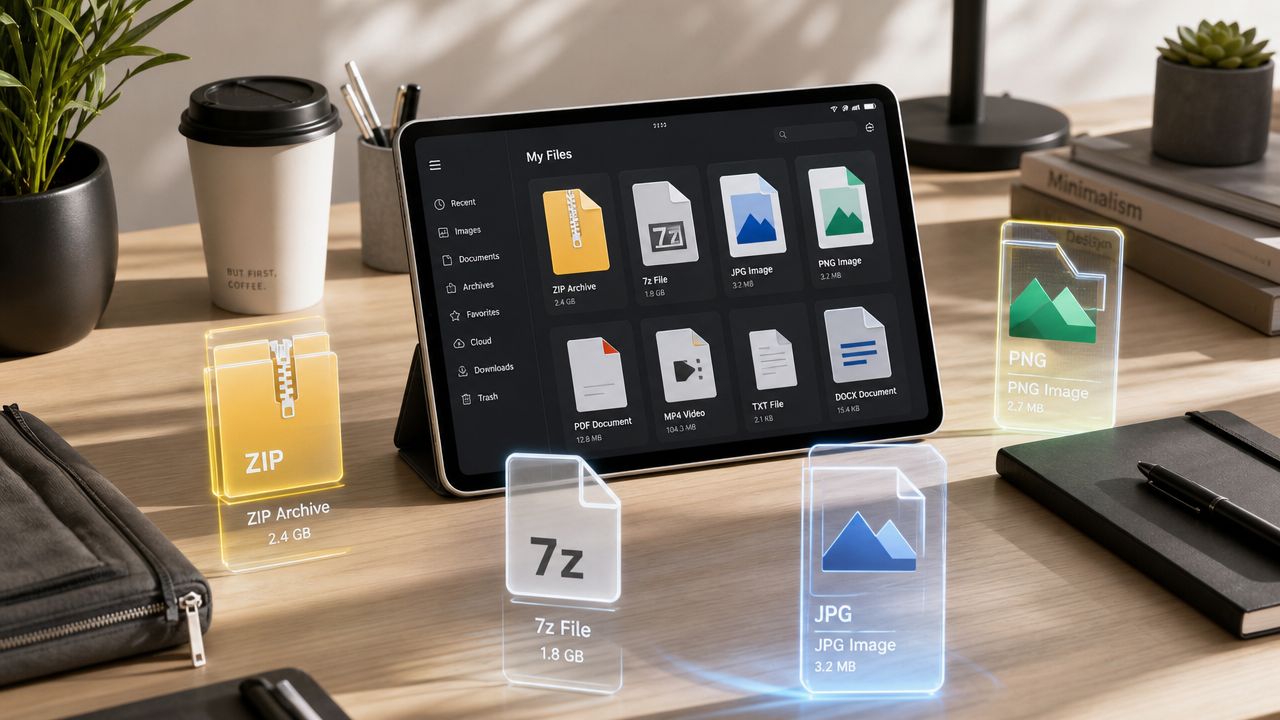
A helpful way to read formats is to ask one question first: is this format mainly for bundling, for media delivery, or for preserving quality?
Archive formats for packaging files
ZIP is the format many office workers recognize first. It wraps multiple files into one container and usually compresses them without changing the original contents. That makes it useful for sending project folders, grouping related documents, or storing a clean snapshot of work at a certain point in time.
7z does a similar job, but with more compression options and archive features. It can reduce size further in some cases, but the tradeoff is compatibility. A ZIP file opens almost anywhere. A 7z file may ask the recipient to install a tool first.
That difference matters in real work. If you are sending files to a client, recruiter, or legal team, the format that opens easily is often the better choice, even if it is slightly larger.
One more practical point. Archive formats can package sensitive files neatly, but they do not automatically remove hidden details inside those files. A zipped folder can still contain documents with author names, revision history, timestamps, or image metadata. If privacy matters, treat the archive as a box around the files, not as a privacy filter.
Image formats for quality, clarity, or speed
Image formats are where compression choices become visible. The wrong one can make text fuzzy, introduce artifacts, or preserve hidden metadata you did not mean to share.
- JPG or JPEG: Best for photographs and quick sharing. It usually uses lossy compression, so it can make files much smaller, but repeated saving can reduce image quality.
- PNG: Better for screenshots, diagrams, logos, and images with transparency. It uses lossless compression, so edges and text stay sharp.
- GIF: Common for simple animations and basic graphics with limited colors. It is less useful for detailed photos.
- WebP: Often used on websites because it can balance image quality and file size efficiently. If your team handles web images often, this guide to when to use the WebP image format gives useful context.
The easiest way to remember these choices is simple. JPG is usually for photos. PNG is usually for clarity. GIF is usually for simple motion. WebP is often for web delivery.
As noted earlier, different compression methods work differently under the hood. Some formats save space by finding repeated patterns. Others remove visual detail that people are less likely to notice. You do not need to memorize the math to make a good choice, but it helps to know that the format is making that choice for you.
Audio and video formats
Audio and video files get large fast, so these formats usually prioritize practical playback and transfer.
MP3 became standard for audio sharing because it trims file size enough for easy storage and streaming. MP4 is widely used for video because it can hold compressed video and audio in a format that plays on almost any device.
For professional editing, source files are usually a better place to keep your master copy. Compressed media is convenient for review, upload, and delivery, but it is rarely the best version to preserve if you may need to edit, audit, or republish the material later.
A good habit is to keep one original, high-quality version in secure local storage and create smaller copies for sharing. That improves speed without giving up control over quality, revision options, or sensitive embedded information.
Why and How to Compress Files Securely
You need to send a signed contract, a scanned ID, and a few supporting images before the end of the day. The files are too large, so a browser compressor looks like the fastest fix. The size problem gets solved. A second problem can remain hidden inside the file.
Compression and privacy are two different jobs. Compression reduces size. Privacy work controls where the file goes, who can process it, and whether hidden information stays attached.
Why online compression can create avoidable risk
A web compressor can be convenient, but the tradeoff is easy to miss. To shrink the file, you usually have to upload it to someone else's server first. If that file contains contracts, HR records, invoices, passport scans, medical paperwork, or internal reports, the compression step becomes a data-handling decision.
That matters even if the service looks legitimate. You may not know how long the file is stored, who can access it during processing, whether it is logged for debugging, or whether copies remain in backups after you click download.
The second risk is metadata. Files often carry extra information beyond what you see on the page or screen. A photo can include date, device details, and sometimes location data. A PDF can include author names, software history, revision details, form fields, comments, or embedded attachments.
Compression does not automatically remove that information.
A useful comparison is a suitcase. Compression helps you squeeze the clothes tighter. It does not check the pockets before the suitcase leaves the house. If sensitive details are already inside the file, making the file smaller usually leaves those details in place.
For professional work, that distinction matters. A compressed proposal can still reveal who created it. A compressed image can still contain camera or location details. A compressed PDF can still include comments or hidden layers that were never meant for the recipient.
How to build a safer routine
A safer approach starts with one question. Is this file merely large, or is it also sensitive?
If the file includes personal information, legal material, financial data, client records, or internal business documents, keep compression local whenever possible. Software that runs on your device reduces unnecessary exposure because the file does not need to pass through a third-party upload process.
Then separate two tasks that many people blend together:
- Reduce the file size - Choose a method that fits the file. - Use lossless compression for records, signed documents, spreadsheets, screenshots, and source assets where accuracy matters. - Use lossy compression for shareable copies of photos or media when some quality reduction is acceptable.
- Inspect or remove hidden information - Check document properties, comments, revision history, and embedded objects in PDFs and office files. - Check EXIF and related metadata in images before sharing outside your team. - Export a clean copy if needed, rather than assuming compression handled it.
This two-step mindset prevents a common mistake. People often treat "smaller" as if it also means "safer." It does not.
Local workflows also save time in day-to-day work. A browser tool often turns ten files into ten rounds of upload, wait, download, and rename. A desktop tool can process batches, work without internet access, and fit into repeatable office routines.
When offline tools make the most sense
Offline compression makes the most sense when the file would cause real problems if it reached the wrong person or system.
- HR teams: resumes, employee records, onboarding forms
- Finance staff: statements, invoices, internal reporting files
- Legal work: contracts, exhibits, discovery documents
- Design and photography: client images that may still include metadata
- Schools and administrators: scanned IDs, student records, application forms
A good rule is simple. If you would hesitate to forward the file to an unknown inbox, do not upload it to an unknown compression service either.
Putting Compression to Work in Your Workflow
A busy workday version of this looks familiar. You need to send a contract, a batch of photos, or a scanned form before lunch. The file is too large, so you compress it. The useful question is not only "How do I make this smaller?" It is also "What am I exposing, and what part of my process can I make repeatable?"
Compression works best as a habit inside your workflow, like choosing the right folder name or checking who can view a shared file. A smaller file can speed up email, uploads, backups, and handoffs between coworkers. It does not automatically remove comments, author names, location data, revision history, or other hidden details. That is why file size, file quality, and file privacy need to be treated as three separate decisions.
A practical way to handle that is to make the decision in this order:
- Start with the job: archive, email, upload, or share
- Choose the file version: original for records, reduced copy for distribution
- Check for hidden data: metadata, comments, tracked changes, embedded previews
- Compress locally when the file is sensitive: client work, internal documents, financial files, HR records
- Batch the task when possible: compress, rename, and export in one pass instead of repeating the same steps file by file
That local-first step matters more than many people realize.
Online compression tools can be convenient, but convenience changes the trust model. To use them, you usually upload the file to someone else's server, wait while it is processed, then download the result. For a public image meant for a blog post, that may be an acceptable trade. For a contract draft, a payroll spreadsheet, or a photo set with location metadata, it creates an avoidable risk. Even if the service is legitimate, you still have to trust its storage practices, retention policy, access controls, and logging.
A desktop workflow is often faster too. It works like using a scanner with presets instead of adjusting every page by hand. You set the rules once, then run the task in batches. That saves time, reduces mistakes, and keeps sensitive files on your own device instead of passing through a browser tab and an unknown processing queue.
The day-to-day takeaway is simple. Use compression as part of a file-handling routine, not as a last-second rescue step. Decide what version you need, clean hidden information when necessary, and keep professional or private files in an offline workflow whenever you can.
If you want a local-first way to compress, convert, edit, and clean files without uploading them, File Studio is built for that kind of work. It runs offline on macOS and Windows, handles PDFs, images, SVGs, and spreadsheets on-device, and supports batch workflows plus metadata cleaning for people who need file utility tools without the privacy tradeoffs of web apps.