

Best Windows File Management Software: Guide 2026

Ayush Soni
Founder, File Studio
On this page
- Introduction The Daily File Scramble
- What Is Modern File Management Software
- The pantry and appliance analogy
- Why this shift matters in offices
- Key Features That Go Beyond Copy and Paste
- Format conversion for real compatibility
- Batch processing for repetitive work
- Metadata management for privacy and control
- Desktop vs Web Tools A Critical Comparison
- Side by side comparison
- Privacy changes the decision
- Performance is not just about speed
- Cost and operational friction
- File Management Needs by Professional Role
- Legal and HR teams
- Photographers and designers
- Small business owners and office admins
- Real World Workflow From Chaos to Control
- A clean offline workflow
- Why integrated handling matters
- Conclusion Taking Control of Your Digital Files
Monday morning often starts with a small file task that turns into a messy chain reaction. You need to send a client packet. One image is in HEIC and won't open properly for the recipient. Two PDFs need to be merged. A scan is too large for email. Someone reminds you to remove personal details before the file leaves the office. What looked like a five-minute job becomes a tour of browser tabs, downloads, temporary folders, and “free” online tools that may or may not keep your files private.
If you manage office operations, this probably feels normal. It shouldn't. Many teams still think file management means folders, copy, paste, rename, and search. That's only half the job. The other half is what happens after you find the file: converting it, cleaning it, combining it, compressing it, and preparing it safely for sharing.
That gap matters most when files contain contracts, IDs, invoices, HR forms, or internal reports. In those moments, the question isn't just “Where is the file?” It's “Can we handle this file properly without losing time or control?”
Introduction The Daily File Scramble
A typical office file problem rarely arrives alone. Someone emails a proposal as a PDF. A scanned signature page comes in as a PNG. The client wants one finished document, in the right order, under the email size limit, with no hidden author details left inside. You open File Explorer, find the files quickly, and then hit a wall. Explorer helps you locate them, but it doesn't finish the job.
So the workaround begins. One website converts the image. Another compresses the PDF. A third tool merges files. Then you save each result with names like final, final-2, and final-really-this-one. By the end, your Downloads folder looks like a junk drawer.
The bigger issue isn't just inconvenience. It's control. Every upload creates a question you may not be able to answer later. Where did that file go? Was metadata preserved? Did the service keep a copy? Did a staff member accidentally use the wrong version when combining everything back together?
You can organize files perfectly and still have a broken file workflow.
That's why Windows file management software needs a broader definition. Good software doesn't stop at navigation. It helps people prepare files for actual work, especially when privacy, consistency, and repeatability matter. For an office manager, that means fewer tools to juggle and fewer chances for staff to make avoidable mistakes.
What Is Modern File Management Software
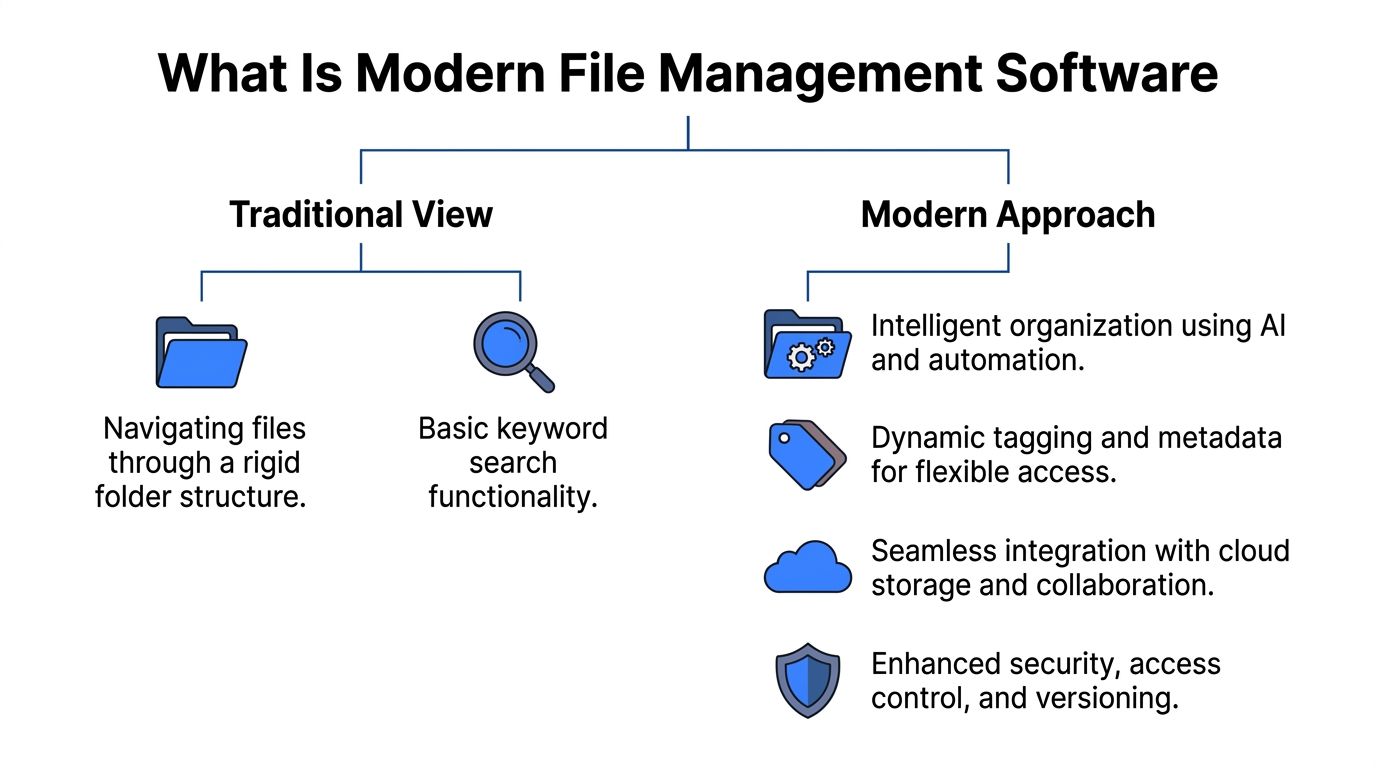
The old definition of file management is simple: store files in folders, give them names, and retrieve them later. That model goes back a long way. The original Windows File Manager arrived with Windows 3.0 in 1990 and replaced manual MS-DOS commands with a visual way to copy, move, and delete files, a foundational shift noted in ZDNET's look at the original Windows File Manager.
That was a major step forward. But office work has changed faster than the folder model has.
The pantry and appliance analogy
Think of Windows Explorer like a pantry. It's useful because it tells you where everything is. You can see the pasta, soup, rice, and coffee. You can sort the shelves and label containers. But the pantry doesn't cook dinner.
To turn ingredients into a meal, you need appliances. In file work, those appliances are the tools that convert, compress, merge, clean, and prepare files. A modern file workflow combines both parts. You still need navigation, but you also need function.
That's where many people get confused. They hear “file manager” and think only of panes, tabs, and folder trees. In practice, modern Windows file management software should help with questions like these:
- Can it convert a phone photo into a format a customer can open?
- Can it process a whole folder instead of one file at a time?
- Can it remove hidden information before a document is shared?
- Can it do all of that offline?
Why this shift matters in offices
Office staff don't need more ways to browse files. They need fewer handoffs between separate utilities. That's especially true for regulated or paperwork-heavy environments, where navigation alone doesn't solve the actual problem.
If you want a broader view of how document workflows evolve beyond basic storage, Superdocu's document management insights offer useful context around structure, retrieval, and process control.
Practical rule: If your staff keeps leaving File Explorer to finish routine file tasks, your current “file management” setup is incomplete.
A modern tool doesn't replace folder organization. It completes it.
Key Features That Go Beyond Copy and Paste
The easiest way to judge Windows file management software is to ignore the marketing language and look at daily tasks. What does the software let you do after you've found the file?
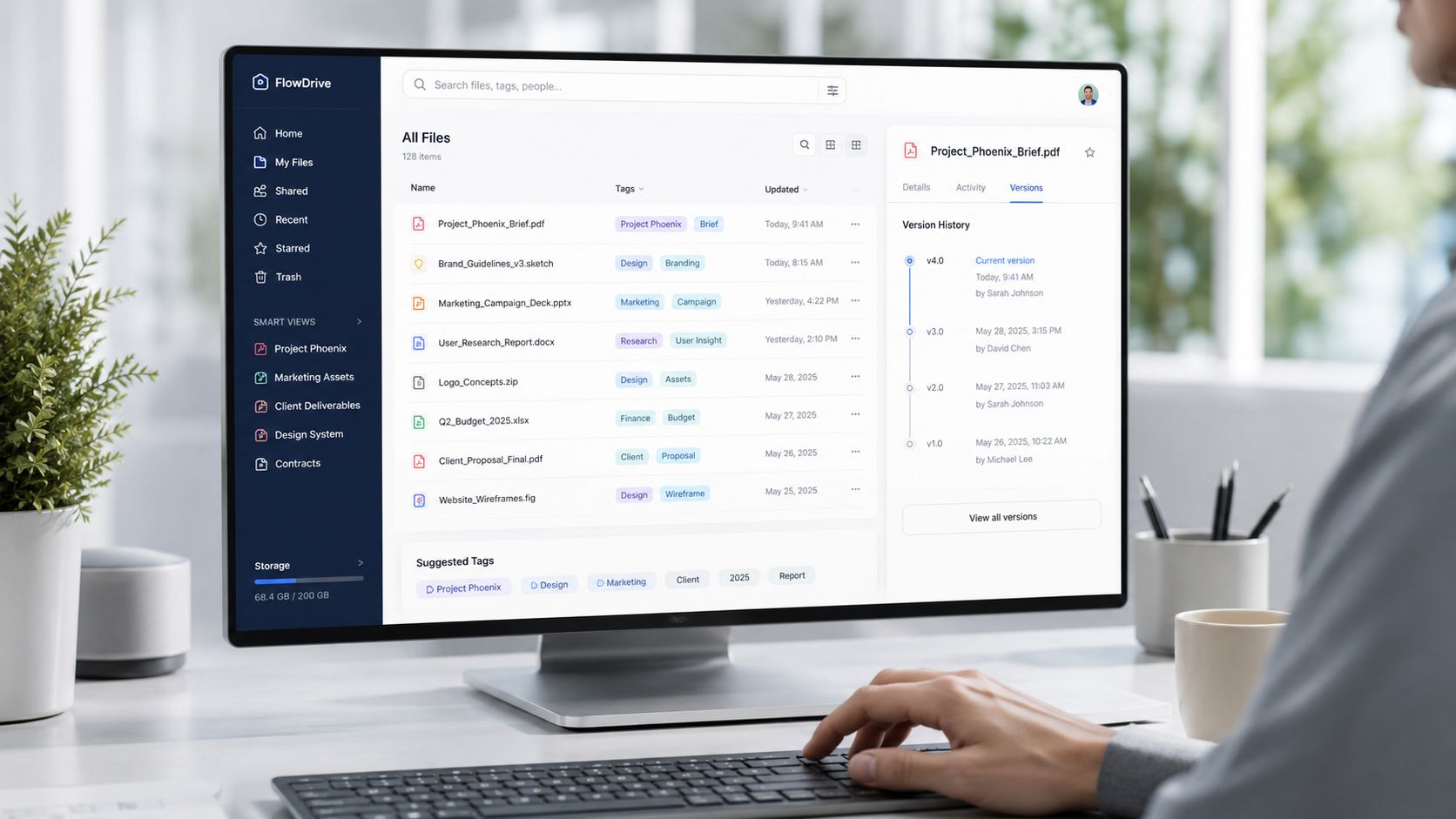
A lot of comparison articles miss this. Contrarian analysis says 82% of Windows file manager comparison articles from 2024 to 2026 omit support for modern camera formats such as HEIC, AVIF, and RAW because they focus on navigation instead of transformation, as noted in this analysis of file manager coverage gaps.
Format conversion for real compatibility
Conversion sounds like a side feature until it blocks a job. An employee drags photos from an iPhone into a folder and discovers the files are HEIC. A vendor asks for JPG. A web portal only accepts PDF. Suddenly, “file management” means making one format usable in another system.
That's not an edge case. It's routine office work.
A useful tool should handle common conversion paths without forcing staff into separate apps. Examples include:
- Image compatibility: HEIC to JPG or PNG for easier sharing.
- Document packaging: multiple images into one PDF.
- Output standardization: saving files in a format customers, courts, insurers, or suppliers accept.
Batch processing for repetitive work
The next jump in value is batch processing. This means applying one action to many files in one run.
An office assistant may need to compress a folder of scanned invoices. A marketing coordinator may need to resize product photos. An HR team may need to rename and export document sets consistently. Doing that by hand creates avoidable risk because people forget steps, skip files, or save to the wrong place.
Here's the practical difference:
| Task | One-off method | Batch method |
|---|---|---|
| Convert images | Open each file manually | Process a whole folder |
| Compress PDFs | Repeat clicks for every document | Apply one preset to all |
| Rename exports | Type names one at a time | Use consistent output rules |
Metadata management for privacy and control
This is the part many non-technical teams overlook. Metadata is the information attached to a file about the file. It's similar to the shipping label on a package. The contents are the document or image itself. The label may show the author, software used, timestamps, device details, location data, or edit history.
That matters more than people realize. A file can look harmless on screen and still carry hidden details in the background.
For teams working with confidential material, it also helps to understand GoSafe on permission management, because file safety isn't only about the document itself. It's also about who can open, edit, or distribute it.
Metadata is often invisible to the sender and highly visible to the wrong recipient.
Three metadata questions should always be asked before sending files outside the company:
- Who created this file, and is that name embedded inside it?
- Does the file include location, device, or software details?
- Can staff inspect and remove that information locally before sharing?
When software handles conversion, batching, and metadata in one place, it stops being a simple file browser. It becomes a working tool.
Desktop vs Web Tools A Critical Comparison
Web tools are tempting because they're fast to reach. Open a browser, upload a file, download the result, and move on. For one harmless document, that can be fine. For routine office work, the trade-offs pile up quickly.
The best comparison isn't “Which one has more features on the homepage?” It's “Which one gives staff more control when the task is repetitive, sensitive, or time-critical?”
Side by side comparison
| Factor | Desktop Software | Online Web Tools |
|---|---|---|
| Privacy | Files stay on the local device during processing | Files must be uploaded to a remote service |
| Performance | Uses local machine resources directly | Limited by upload and download steps |
| Workflow depth | Better suited to batch work and repeat tasks | Often better for quick single-file jobs |
| Reliability | Works without internet access | Depends on browser, connection, and service availability |
| File handling | Easier to keep files in known folders | Copies often end up scattered across downloads |
| Cost model | May offer one-time purchase options | Often tied to ads, upload limits, or recurring plans |
Privacy changes the decision
If your team handles contracts, IDs, employee records, or client deliverables, the privacy question moves to the front. A 2025 Gartner report found that 68% of knowledge workers in regulated industries avoid online converters for sensitive documents because of metadata leakage risks, highlighted in this summary of the privacy gap around sensitive file handling.
That doesn't mean every browser-based tool is unsafe. It means office managers shouldn't assume convenience equals control. If you can't clearly describe where a file goes during processing, you're asking staff to trust a black box.
Performance is not just about speed
People often think local desktop software is only about security. Performance matters too, especially when files are scattered across large folders and staff need previews, metadata reads, and repeated edits.
Benchmark tests show NTFS offers superior buffering performance for random access of large files, while Linux-based systems excel at sequential I/O, according to file system benchmark testing from Clemson University. In plain language, Windows desktop software can feel more responsive for document libraries where users jump between many unrelated files instead of processing one long stream.
That helps explain why local tools often feel better for office archives. They're working with the operating system's native behavior rather than waiting for each file to travel up to a server and back.
Cost and operational friction
Browser tools often look free until they interrupt work. Staff hit size limits, queue limits, feature locks, or download caps. Then they start creating mini workarounds across different sites.
For companies already reviewing broader cloud controls, guidance around secure Office 365 deployment can be useful because the same principle applies here. Convenience tools should still fit into a privacy and governance policy.
If you want a practical example of the offline approach, this guide on converting files without uploading shows why local processing appeals to teams that can't afford casual data exposure.
A web converter can solve a task. Desktop software can support a process.
That difference matters when you're training staff, standardizing results, and trying to reduce small daily errors that waste hours by the end of the week.
File Management Needs by Professional Role
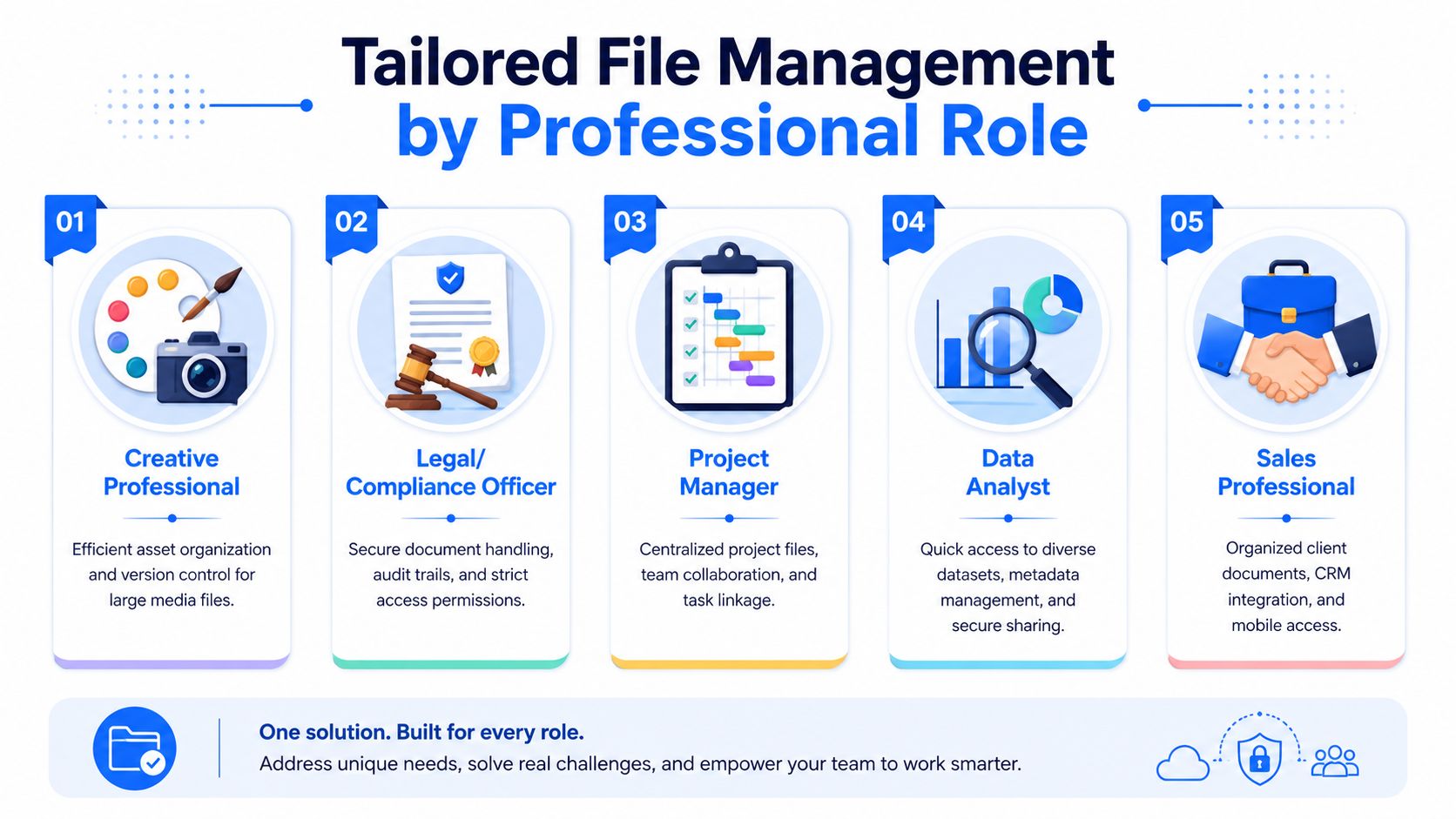
The phrase “file management” means different things depending on who sits at the desk. The folder structure may look similar, but the operational pain points are not.
A 2025 Gartner report says 68% of knowledge workers in regulated industries avoid online converters for sensitive documents like IDs and contracts because of metadata leakage risks, as referenced in this discussion of privacy-first file handling needs. That concern shows up differently across roles.
Legal and HR teams
Legal and HR staff usually don't struggle to find files. They struggle to prepare them safely.
A contract packet may need page reordering, file merging, PDF cleanup, and metadata review before it goes outside the business. A scanned ID might need conversion and compression before it fits a secure portal. An employee file may need a consistent naming standard so anyone on the team can locate the correct version later.
For these teams, good Windows file management software should support:
- Confidential handling: keeping sensitive files local during preparation.
- Assembly work: merging supporting documents into one clean packet.
- Metadata control: checking for author names, timestamps, and embedded details.
- Consistency: making final documents look uniform across staff members.
Photographers and designers
Creative teams face a different problem. Their files are large, numerous, and often in formats that ordinary office software doesn't handle well.
A designer may receive WebP assets, export PNGs for one channel, and JPGs for another. A photographer may need to convert RAW or HEIC files into shareable formats without bouncing through multiple apps. The pain isn't only conversion. It's repetition.
Typical needs include:
- Bulk export: turning a set of source files into delivery-ready formats.
- Compression: reducing file size for web use or client handoff.
- Version control in practice: keeping original files separate from derived outputs.
- Watermark and resize tasks: applying the same rule across many files.
Small business owners and office admins
This group usually handles everything nobody else owns. Invoices, reports, brochures, scans, onboarding forms, and customer attachments all pass through the same desk.
The challenge is less technical than procedural. Work gets fragmented. One staff member uses a website to compress a PDF. Another uses a printer driver trick to create a new PDF. A third saves screenshots into Word because it seems faster. The company ends up with inconsistent files and inconsistent habits.
Offices don't lose time only because tasks are hard. They lose time because each person invents a different workaround.
For owners and admins, the ideal setup is straightforward:
| Role | Common pain point | What a unified offline tool helps with |
|---|---|---|
| Legal and HR | Sensitive records and document packets | Local cleanup, combining, and controlled sharing prep |
| Creative | Modern image formats and bulk exports | Fast conversion, resizing, compression |
| Office admin | Repetitive daily paperwork | Standardized outputs and fewer browser detours |
The right software won't remove the need for filing discipline. It will stop common office file jobs from turning into a scavenger hunt.
Real World Workflow From Chaos to Control
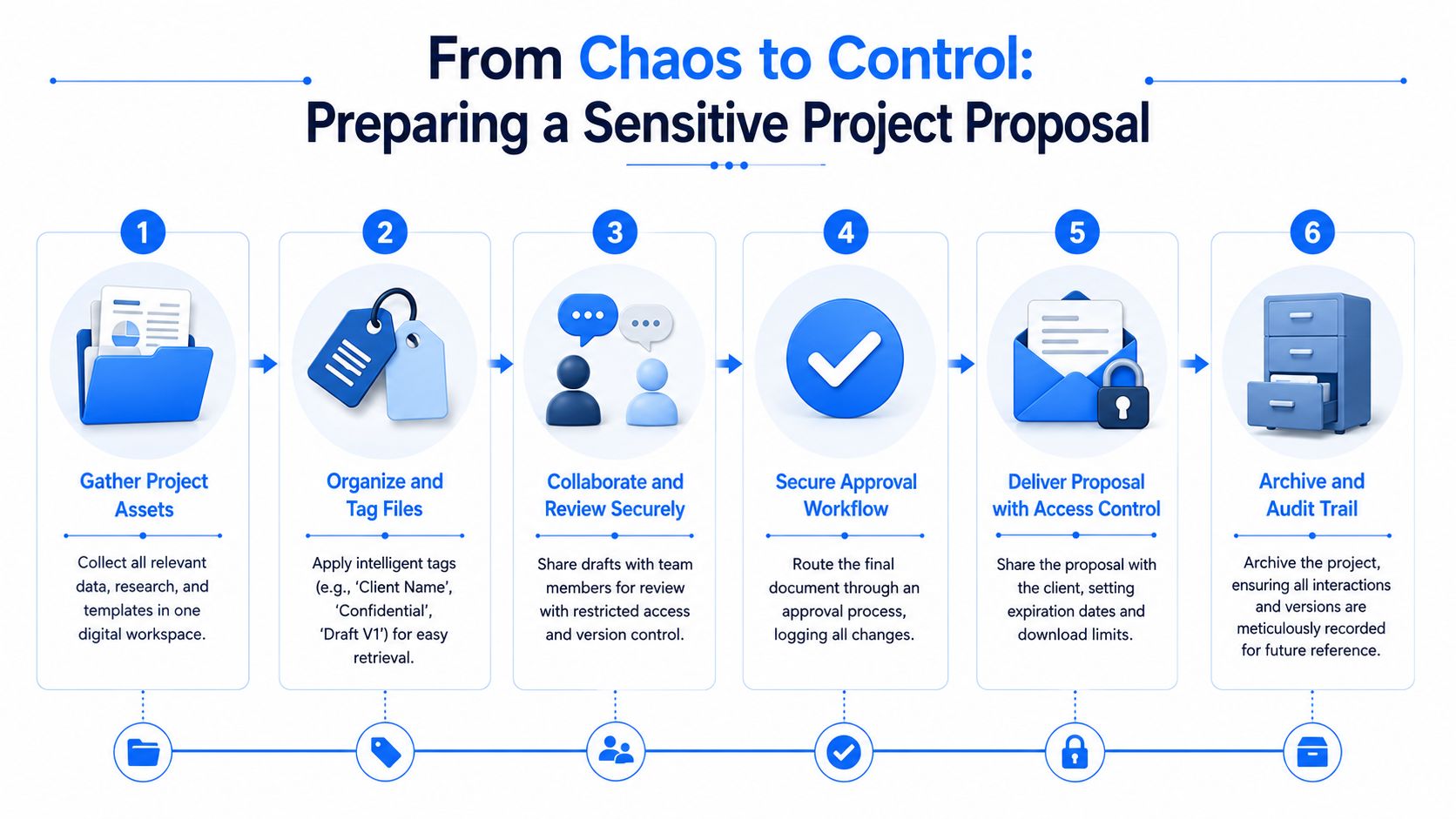
Take a common task: preparing a sensitive project proposal for a client. The written proposal has already been exported to PDF. The supporting diagrams arrived as PNG scans. The finished packet needs to be small enough to send, arranged in the right order, and stripped of unnecessary hidden details.
A clean offline workflow
Here's how a well-run desktop process works:
- Gather the source files into one working folder instead of pulling them from email attachments one by one.
- Convert the PNG schematics into a more convenient image format if needed for downstream compatibility.
- Compress those images so they don't inflate the final proposal unnecessarily.
- Merge the proposal PDF and image-derived pages into one combined document.
- Reorder pages and add the cover page so the client sees a polished packet, not a stitched-together bundle.
- Inspect metadata and remove details that don't belong in the final handoff.
That sequence sounds simple because it is simple when the tools are in one place. It becomes clumsy when every step requires a different app or website.
Why integrated handling matters
This kind of workflow also benefits from staying close to the Windows environment itself. In enterprise setups, Windows Server's File Server Resource Manager uses a USN journal for real-time file tracking, but that can reduce batch processing throughput by 15 to 20%, according to Microsoft's File Server Resource Manager overview. For office managers, the practical lesson is that file-heavy processes can be affected by system-level behavior you never see on screen.
That's one reason good desktop tools should support organized local outputs and repeatable folder-based processes. If you're refining that part of your workflow, guidance on how to organize converted files is a helpful next step.
Clean file work depends on sequence. Find, transform, assemble, verify, then share.
When staff follow a repeatable offline process, they make fewer judgment calls. That's what reduces risk. Not genius. Not heroics. Just a workflow that doesn't force people to improvise.
Conclusion Taking Control of Your Digital Files
Most offices already have a way to store files. What they often lack is a reliable way to work with files after they're found. That's the difference between old-school navigation and modern Windows file management software.
Copy, paste, and folders still matter. They're the foundation. But professional file handling also includes conversion, compression, batch processing, metadata cleanup, and controlled preparation for sharing. Without those capabilities, staff keep bouncing between browser tools, temporary folders, and manual workarounds.
Offline desktop software has a clear advantage when files are sensitive, repetitive, or operationally important. It keeps processing local. It reduces upload friction. It supports repeatable routines instead of one-off fixes. For office managers, that translates into fewer scattered tools, fewer staff errors, and better control over what leaves the business.
The practical test is simple. Ask what happens after someone finds the file. If the answer involves three websites, two downloads, and a guess about hidden metadata, the workflow needs improvement.
Modern file management isn't just organization. It's preparation, privacy, and control.
If you want one privacy-first desktop app that handles conversion, compression, PDF work, metadata cleanup, batch jobs, and file organization without uploads or recurring subscription pressure, File Studio is worth a look. It runs offline on Windows and macOS, supports everyday office files plus modern image formats, and gives teams a cleaner way to manage sensitive documents locally.