

Combine Images Into PDF: Guide for Windows & Mac 2026

Ayush Soni
Founder, File Studio
On this page
- Why Combining Images into PDFs Is an Essential Skill
- Why PDF wins over sending separate images
- The real skill isn't conversion alone
- The Native Windows Method Using Print to PDF
- How to do it correctly
- When this method works best
- The macOS Method Using Finder and Quick Actions
- The fastest built-in workflow on Mac
- What to adjust after creation
- Where Free Tools and Online Converters Fall Short
- The format problem most guides ignore
- Privacy is the bigger trade-off
- The Professional Method for Secure and Advanced PDF Creation
- When an online tool is still acceptable
- Troubleshooting and Best Practices for Perfect PDFs
- A simple quality check before you send
- Small habits that prevent big annoyances
You've probably got a folder like this open right now: receipt photos from your phone, scanned forms, screenshots for a report, or a handful of images someone asked you to send “as one PDF.” The task sounds simple until you hit the usual friction points. Pages come out in the wrong order, one image gets dropped, the file is too large to email, or the tool you found online won't accept HEIC, WebP, or RAW files.
For quick jobs, the built-in tools in Windows and macOS are often good enough. For anything sensitive, messy, or format-heavy, they stop being convenient fast. The key decision isn't just how to combine images into PDF. It's which method fits your files, your privacy requirements, and your tolerance for cleanup afterward.
Why Combining Images into PDFs Is an Essential Skill
A pile of image files is hard to review and easy to mishandle. Ten separate photos of a contract or expense claim make the recipient do the organizing work. One PDF is cleaner, easier to archive, easier to forward, and more likely to be taken seriously.
That's why this task shows up everywhere. Students turn screenshots into submission files. Admin staff package receipts and signed forms. Legal, HR, and finance teams assemble scans into documents that can be stored, sent, and referenced without hunting through loose images.
The broader shift is visible in the market itself. The global image-to-PDF converter market reached $3.8 billion in 2025 and is projected to reach $8.7 billion by 2034, with an approximate 10.5% compound annual growth rate, according to DataIntelo's image-to-PDF converter market report. That growth tracks a practical reality: people and teams increasingly need to turn visual files into standardized PDFs for compliance, archiving, and secure transmission.
Why PDF wins over sending separate images
A PDF gives structure to otherwise chaotic inputs. It fixes page order, keeps everything in one attachment, and works across devices without asking the recipient to guess which file comes first.
For many everyday tasks, that's enough reason to combine images into PDF instead of sending a zip file or a string of attachments.
Practical rule: If the images tell one story, belong to one transaction, or support one submission, they should usually leave your device as one PDF.
The real skill isn't conversion alone
The useful skill is choosing the right level of tool.
- Native tools are fine for standard JPG and PNG jobs.
- Online converters can be convenient, but they introduce format and privacy trade-offs.
- Offline desktop apps make sense when you need predictable output, better format support, and local processing.
Individuals don't struggle because PDF creation is hard. They struggle because the wrong method looks easy at first, then creates extra cleanup work later.
The Native Windows Method Using Print to PDF
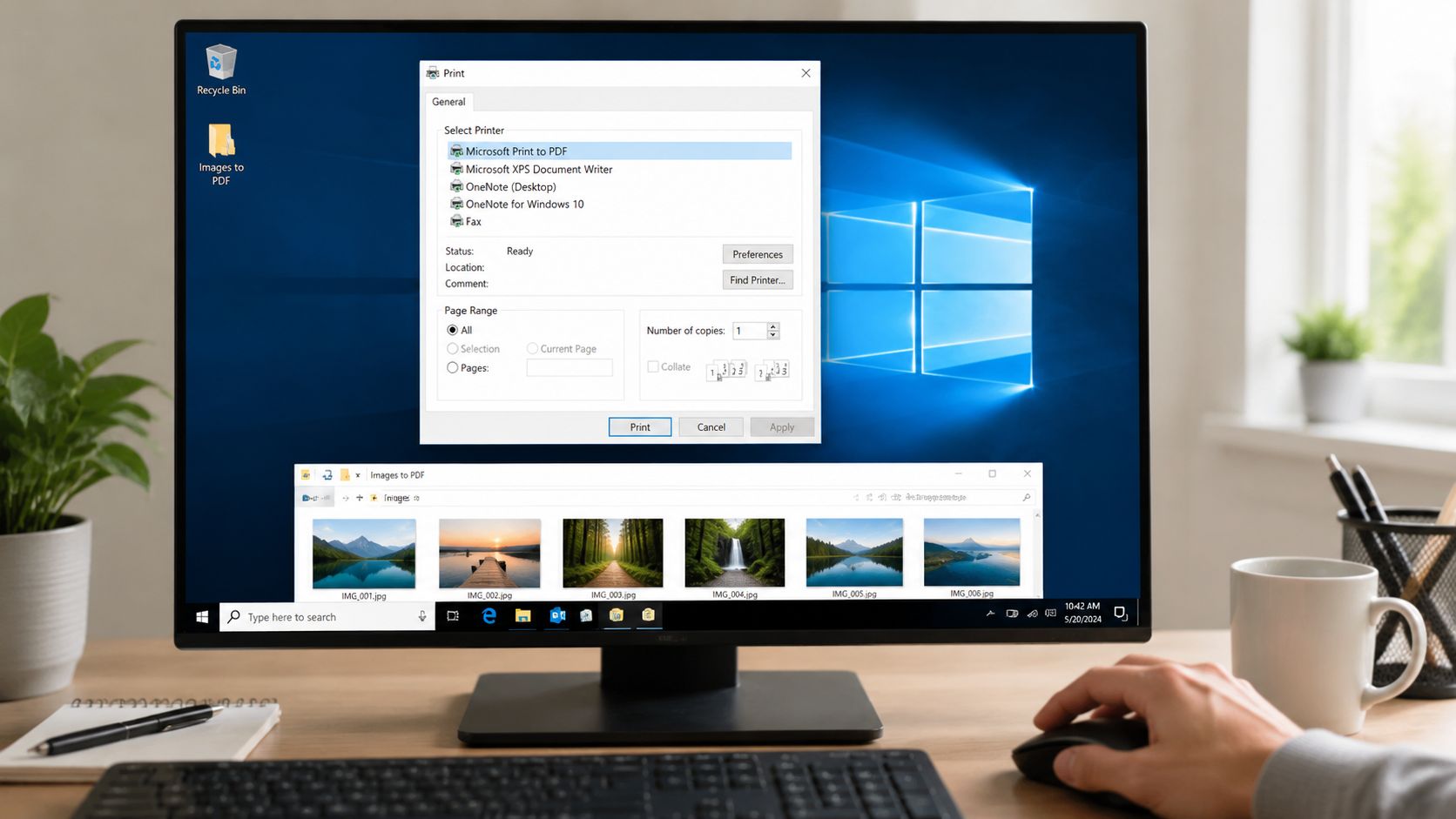
Windows already gives you a workable way to combine images into PDF without installing anything. For straightforward batches of JPG or PNG files, Microsoft Print to PDF is the fastest free option widely available.
How to do it correctly
The basic workflow is simple:
- Put all images in one folder.
- Rename them if needed so they sort in the right order.
- Select all the images you want in the PDF.
- Right-click and choose Print.
- Set the printer to Microsoft Print to PDF.
- Review the layout options, then save the result.
The detail that trips people up is selection order. When using Windows Microsoft Print to PDF, you must right-click the first image in your selection. Any images selected before the one you right-click will be excluded from the final PDF. To ensure 100% inclusion, select all files first, then right-click the very first image in sequence to launch the print command, as shown in this Windows Print to PDF walkthrough on YouTube.
That sounds minor, but it's the difference between a complete document and one with missing pages.
Right-clicking the wrong thumbnail can silently drop pages. Always anchor the print action on the first file in the intended sequence.
A few practical tweaks help:
- Use clear filenames:
001,002,003sorts better thanscan1,scan10,scan2. - Preview the page style: If images look cropped, try a different paper size or fit option.
- Check orientation: Mixed portrait and horizontally-oriented images can look awkward in one batch.
When this method works best
This Windows method is solid for quick office work. Think receipts, screenshots, basic scans, and phone photos that are already in common formats. It's local, immediate, and doesn't require a browser tab or an account.
Where it starts to feel limited is control. You don't get much help with metadata, compression strategy, page cleanup, or unusual file types. If the source folder contains mixed image formats or camera originals, the “free and built-in” path stops being smooth.
Here's the honest read:
| Need | Windows Print to PDF |
|---|---|
| Standard JPG/PNG batch | Good |
| Fast one-off conversion | Good |
| Precise file ordering | Good, if you right-click the first file |
| Modern or specialist formats | Weak |
| Sensitive documents with cleanup needs | Limited |
For basic work, it's good enough. For serious work, it's only the starting point.
The macOS Method Using Finder and Quick Actions
Mac users get a cleaner built-in workflow. Finder's Quick Actions make it easy to combine images into PDF directly from the file list, and the whole process happens on the device.
The fastest built-in workflow on Mac
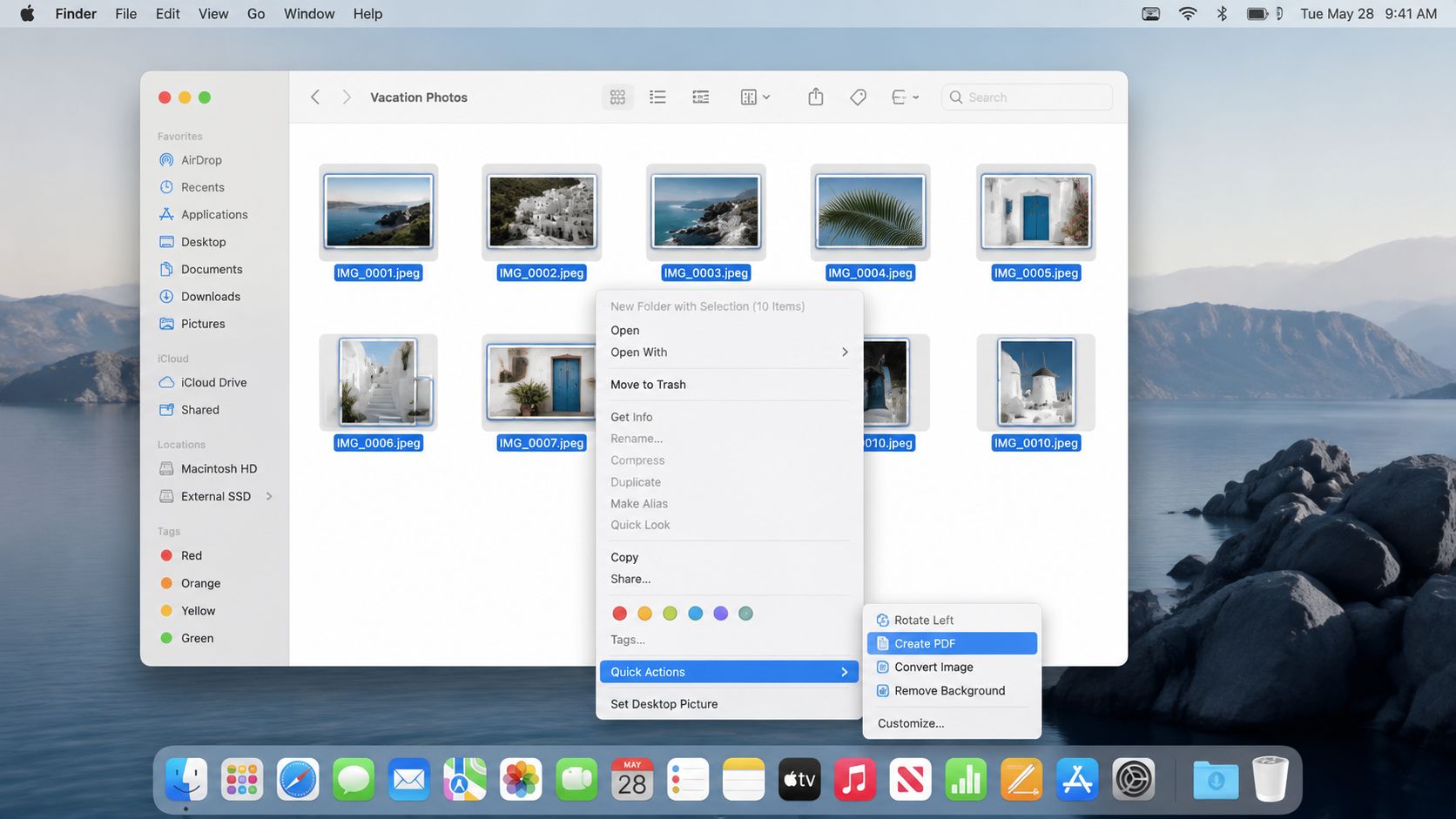
In 2026, macOS includes a native Quick Actions feature that lets users select any number of images in Finder, right-click, and generate a PDF entirely on-device, reflecting a strong preference for privacy over server-based uploads noted in this discussion of macOS PDF creation and offline tools.
The actual steps are short:
- Open the folder in Finder.
- Arrange files by name so page order is correct.
- Select the images.
- Right-click and choose the PDF creation Quick Action.
- Save the generated PDF.
Mac handles this more elegantly than Windows in day-to-day use. There's less friction, fewer dialog boxes, and less chance of a hidden selection mistake. If your files are already in the right order, the job is nearly instant.
This is why many Mac users never bother with browser converters for routine tasks. Native tools are faster, cleaner, and private by default.
What to adjust after creation
The built-in route is fast, but not always final. You may still want to reorder a page, rotate a scan, or remove one bad page after the PDF is created. If that's the next step, this guide to editing PDFs on Mac is a useful reference for working in Preview without adding another app.
A few habits make the Finder method work better:
- Sort first: Finder will usually respect the visible file order, so fix names before creating the PDF.
- Keep dimensions in mind: Very wide screenshots and tall phone scans can create an uneven-looking document.
- Open the result in Preview: It's the fastest place to catch a sideways page or an out-of-order insert.
On Mac, the best workflow is often two steps only: assemble in Finder, then polish in Preview.
For students, office staff, and anyone bundling normal image files, this is one of the best “good enough” solutions available. It's when you need stronger format handling, better export control, or stricter document hygiene that the native option starts to feel narrow.
Where Free Tools and Online Converters Fall Short
Free options look efficient until the files get messy. A parent uploads school forms from an iPhone, a recruiter combines scanned IDs, or a designer drags in screenshots plus a WebP export. The quick browser tool that handled five JPGs yesterday starts rejecting files, flattening quality, or forcing an extra conversion step.
The format problem most guides ignore
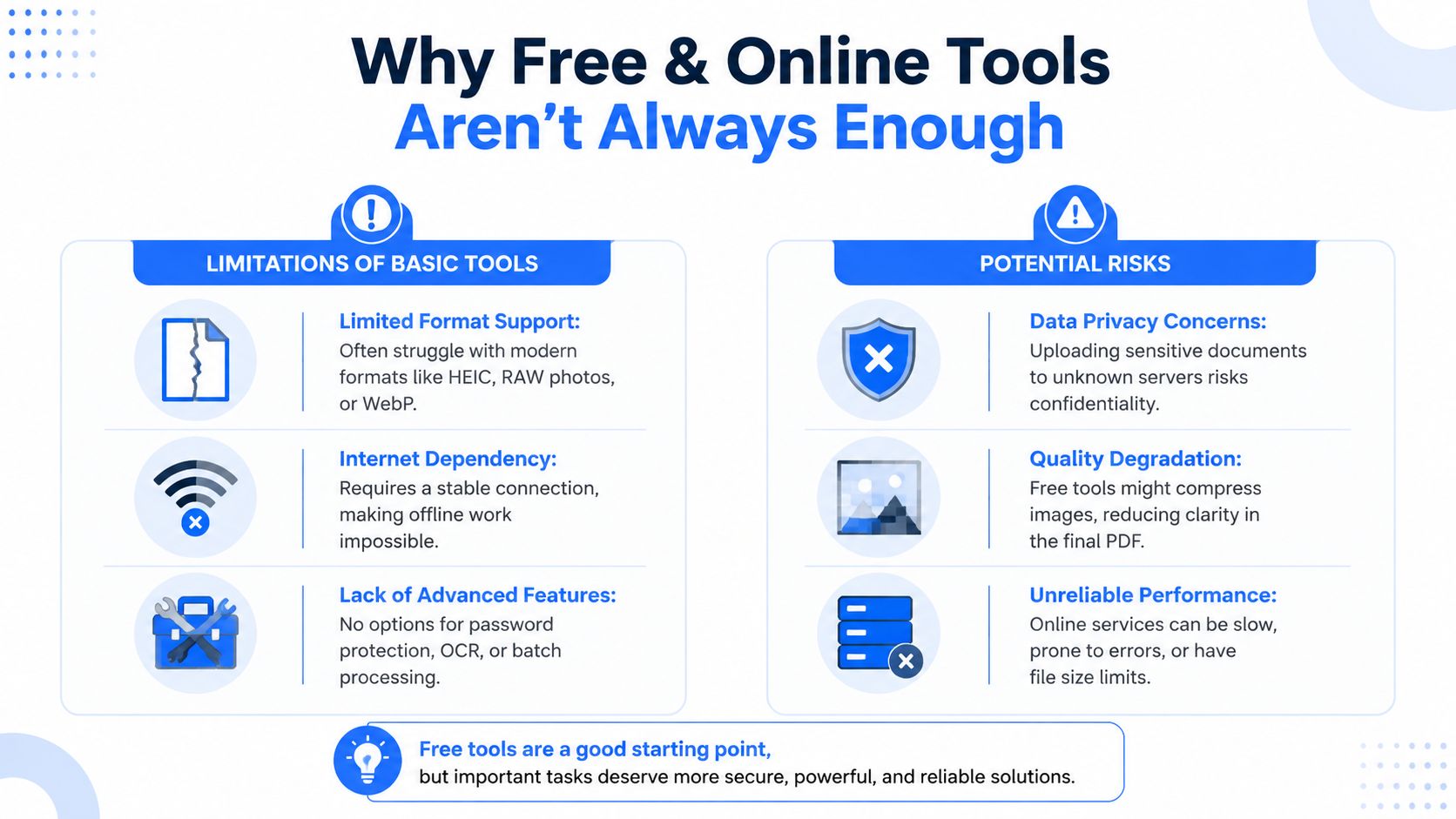
Free web tools are usually built around the safest inputs. JPG and PNG go through. Anything less common is hit or miss.
That matters because current image workflows are mixed by default. iPhones save HEIC unless someone changes the camera setting. Scanners often output TIFF. Creative apps export WebP, PSD, or other formats that many browser converters either refuse or mishandle. In practice, that turns a simple job into two jobs. First convert the image into something the site accepts, then merge the converted files into PDF.
That extra prep is where "free" starts costing time. It also creates more chances to degrade image quality, strip metadata you wanted to keep, or save everything at uneven dimensions.
A browser-based tool can still be good enough for a small batch of ordinary photos. An online PDF merger is fine for low-stakes work when every file is already in a common format and privacy is not a concern. That is a narrower use case than many landing pages suggest.
Privacy is the bigger trade-off
The moment the files include passports, invoices, signed forms, medical paperwork, or internal company documents, convenience is no longer the only question. You also need to know where the files go, how long they sit on a server, and whether the service gives clear answers about retention and deletion.
If you need a practical way to judge that risk, this guide on whether it's safe to upload PDFs online lays out the common failure points without hand-waving.
Free and browser-based tools often fall short in the same places:
- Format support is uneven: HEIC, TIFF, PSD, RAW, and WebP are common trouble spots.
- Upload speed becomes part of the job: Large scans or multi-page image sets can take longer to send than to process locally.
- File handling is often unclear: Some services explain retention policies well. Many do not.
- Output control is limited: Compression, page size, rotation, and ordering options are often basic.
- Repeat work stays manual: Batch jobs usually mean re-uploading, rechecking, and fixing the same issues every time.
A free converter is only free when the files are simple, the quality is acceptable, and the upload risk is low.
For casual, non-sensitive image sets, native tools or a basic web app can be enough. For confidential files, mixed formats, or work you need to repeat without surprises, free converters are usually the point where people start looking for an offline tool built for the whole job.
The Professional Method for Secure and Advanced PDF Creation
A phone photo of a signed form, a TIFF scan from accounting, a HEIC image from an iPhone, and a folder of product shots from design can all belong in the same PDF. That is usually the point where native print features and basic web tools start wasting time.
For work that includes confidential files, mixed image types, or repeat jobs, an offline desktop application is the safer and more predictable option. The benefit is not just privacy. It is fewer format surprises, better output control, and less manual cleanup.
Serious workflows usually need four things at the same time:
- Mixed-format input: JPG, PNG, HEIC, TIFF, WebP, PSD, or RAW in one run
- Output control: compression, page order, paper size, rotation, and image quality
- Local processing: files stay on the machine instead of passing through a browser upload
- Repeatability: the same settings work again next week without rebuilding the job from scratch
That matters in real document work. HR teams compile onboarding packets. Finance staff bundle receipts and invoices. Legal teams archive evidence photos and signed pages. Design teams export review packs from uneven source files. In all of those cases, "good enough" usually means someone has to reopen the PDF and fix it by hand.
A desktop workflow also cuts out the common two-step routine of converting images first and merging later. That routine is manageable for a couple of JPGs. It becomes unreliable once you add newer phone formats, scans from different devices, or image sets that need consistent sizing and compression.
If the job continues after image conversion, it helps to use a tool that also supports merging PDFs in a local workflow. That keeps the whole process in one place instead of bouncing between converters.
When an online tool is still acceptable
Web tools still have a place. If you are combining a few non-sensitive JPG files and speed matters more than fine control, an online PDF merger can be perfectly reasonable.
Use the job itself to decide:
| Situation | Best fit |
|---|---|
| A few standard images, nothing sensitive | Native OS tool or simple web tool |
| Mixed image formats | Offline desktop app |
| Confidential documents | Offline desktop app |
| Repeated team workflow | Offline desktop app |
| Need for cleanup and export control | Offline desktop app |
Free methods are fine for light work. Once privacy, file variety, or consistency matter, an offline application stops being a nice extra and starts saving real time.
Troubleshooting and Best Practices for Perfect PDFs
A PDF can be technically complete and still look sloppy. Most problems come from ordering, inconsistent image dimensions, or skipping the final review before sending.
A simple quality check before you send
Open the finished PDF and scan it page by page. Don't just confirm that it exists. Confirm that it reads correctly.
Use this quick check:
- Page order: Make sure filenames sorted the way you expected.
- Rotation: Phone photos and scans often slip in sideways.
- Legibility: Zoom in on small text, signatures, and dates.
- Margins and cropping: Watch for clipped edges on receipts and forms.
- File size: If the PDF feels unusually heavy, it may need image compression before sharing.
If the recipient has to rotate pages, rename files mentally, or hunt for the missing attachment, the document isn't finished.
Small habits that prevent big annoyances
The best results usually come from simple prep work before conversion.
- Name files in sequence: Use
001,002,003so every tool sorts them correctly. - Group similar page shapes: Mixing tall phone screenshots with wide graphics can produce awkward pagination.
- Keep originals untouched: Work from copies when you're doing aggressive cleanup or conversion.
- Review on the device you'll use to send: A PDF that looks fine on one screen can reveal layout issues on another.
- Prepare batches in advance: If you handle recurring image sets, a dedicated batch image converter workflow can save a lot of repetitive prep.
The polished result usually isn't about one magic button. It comes from choosing the right method, naming files carefully, and checking the final document before it leaves your hands.
If you regularly combine images into PDF and you're tired of browser limits, upload risks, or format failures, File Studio is worth a look. It runs offline on macOS and Windows, handles modern image formats locally, and gives you a more reliable way to convert, organize, compress, and assemble files without sending documents to the cloud.