

Document Processing Workflow: A Practical Guide for 2026

Ayush Soni
Founder, File Studio
On this page
- Your Daily Document Scramble Is a Solvable Problem
- Why the current habit breaks down
- A workflow doesn't have to be complicated
- The Six Core Stages of a Document Workflow
- The full assembly line
- What everyday file tasks actually need
- Why an Offline Workflow Is Your Best Defense
- Why uploads create unnecessary exposure
- Where local processing fits best
- Real-World Examples of Local Document Workflows
- The HR onboarding packet
- The photographer delivery set
- The finance presentation pack
- Best Practices for Building Your First Workflow
- Build for repetition, not novelty
- Protect the file before you optimize the process
- Your Implementation Checklist for Local Processing
- A simple rollout that works
- Frequently Asked Questions About Document Workflows
- When do you actually need cloud AI
- Can offline tools handle modern file formats
- What is the difference between batch processing and watch folders
You have a passport scan in one folder, a signed contract in another, and a PDF form that needs one page removed before you send it out. The deadline is today. You open a browser, search for a converter, upload the image, download a PDF, open a second site to merge files, then a third to compress the result because the client portal rejects the file size. Somewhere in that chain, you've handed sensitive documents to multiple unknown servers just to finish a routine task.
That mess is what a document processing workflow describes. It's not corporate jargon. It's the repeatable sequence you use to get documents from raw input to final output without wasting time, introducing errors, or exposing private data.
Most articles on the topic drift straight into enterprise AI, cloud OCR, and large-scale extraction systems. That leaves out a huge group of people who aren't trying to train models or classify thousands of invoices. They just need to merge, convert, split, compress, redact, or reorganize files safely. That gap matters because 60% of organizations report data privacy as their primary barrier to adopting AI document solutions, yet most tutorials still assume cloud upload as the default, as noted in Nanonets' discussion of document processing and privacy barriers.
For legal staff, HR teams, finance admins, photographers, and office managers, the better answer is often simpler. Keep static file work local. Build a workflow that runs on the device in front of you. Use cloud systems when you specifically need extraction or AI-driven classification. For everything else, an offline process is often faster to trust, easier to repeat, and far easier to defend.
Your Daily Document Scramble Is a Solvable Problem
The typical office document routine is more chaotic than generally acknowledged. One person renames files by hand. Another exports pages one at a time. Someone else uses a free converter site that strips formatting or leaves behind odd metadata. The task gets done, but the process is brittle.
A practical document processing workflow fixes that by replacing improvisation with sequence. You define the input, the steps, the output format, and where the file ends up. Once that sequence is clear, repetitive work stops feeling like a string of interruptions and starts behaving like an operation.
Why the current habit breaks down
Online tools feel convenient because they remove setup. They also fragment the job.
- You switch contexts constantly: convert on one site, merge on another, compress on a third.
- You lose consistency: file names, output quality, and settings vary with each tool.
- You create privacy risk: every upload extends the chain of custody.
- You make review harder: when a result looks wrong, it's difficult to trace which step caused it.
That last point matters more than people think. Bad workflows don't usually fail in dramatic ways. They fail subtly, through missing pages, bloated PDFs, wrong orientation, stripped signatures, or metadata left intact when a file gets shared externally.
Practical rule: If you perform the same file task more than a few times a week, it deserves a defined workflow.
A workflow doesn't have to be complicated
For many teams, the right workflow is short:
- Collect the files.
- Clean and standardize them.
- Convert or combine them.
- Remove sensitive extras such as metadata.
- Save to the correct destination with a consistent name.
That's it.
The mistake is assuming every document process needs enterprise infrastructure. It doesn't. Static document work has different requirements from AI extraction pipelines. If you're not trying to pull fields from invoices or classify incoming mail at scale, you can skip a lot of complexity and focus on reliability, privacy, and repeatability.
That shift is where local-first workflows win. They reduce tool sprawl, keep sensitive files on your own machine, and make common tasks like merging, splitting, compressing, and image conversion far easier to standardize.
The Six Core Stages of a Document Workflow
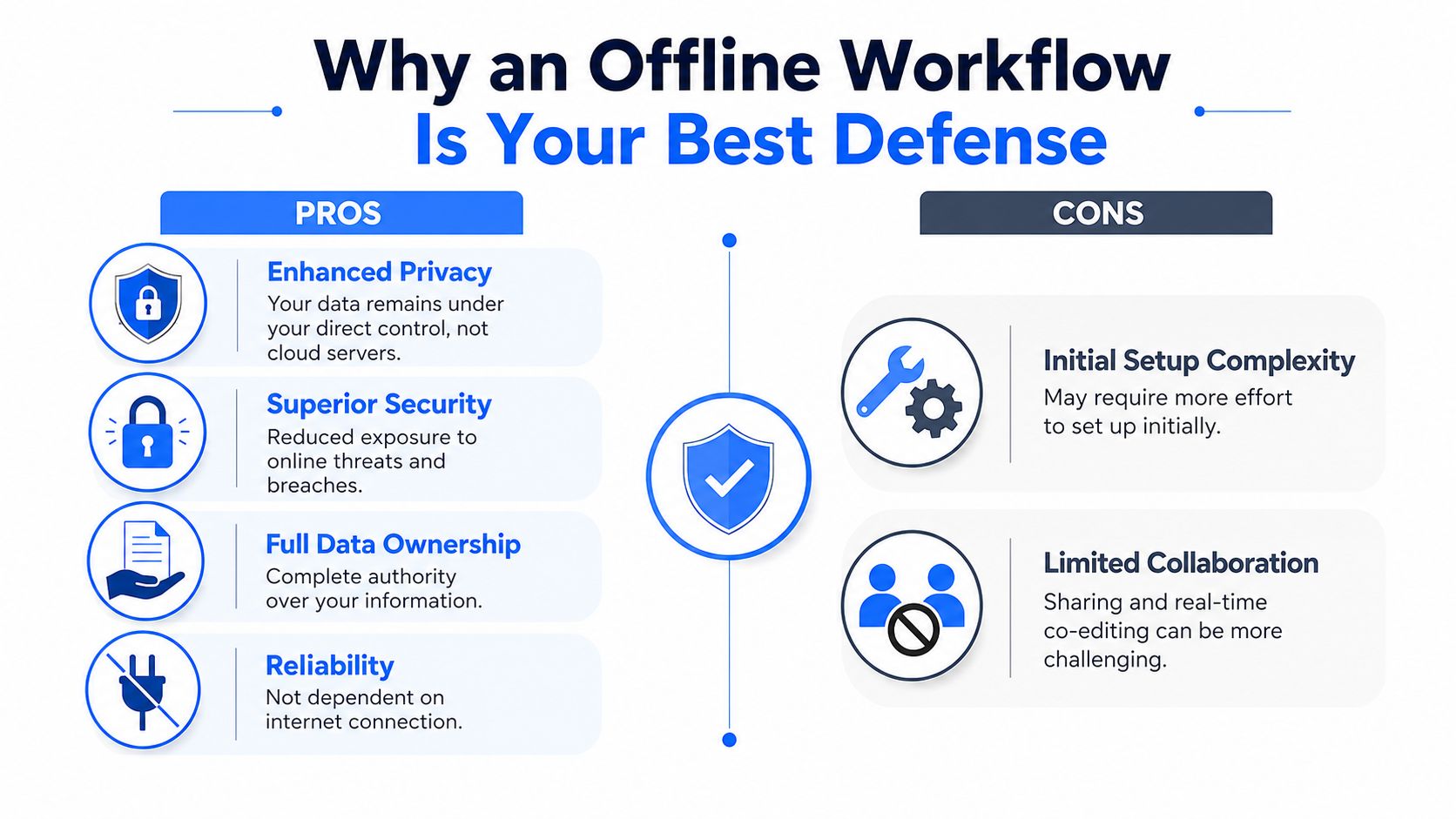
A useful way to think about a document processing workflow is as a digital assembly line. A file enters in whatever condition it's in. It moves through a series of controlled steps. It leaves in a form that's usable, shareable, and archived correctly.
The full assembly line
Most complete workflows include six stages.
- Ingestion In this stage, the file enters the process. It might come from a scanner, email attachment, shared drive, export folder, or phone camera. The main job here is intake. Gather the source material without losing track of version or origin.
- Pre-processing and classification
Here you clean up the file before doing anything serious with it. Rotate sideways scans. straighten crooked pages. remove visual noise. group files by type if needed. In OCR-heavy workflows, this stage directly affects results. In IDP systems, techniques such as binarization, deskewing, and noise removal correlate to a 15 to 30% improvement in OCR accuracy for scanned documents, according to Docsumo's overview of the intelligent document processing workflow. - Data extraction
This stage matters when you need text, fields, totals, names, or account numbers pulled out of the document. It's central in invoice automation and records processing. If that's your world, Snyp's guide to invoice automation is a useful example of where structured extraction belongs in the larger process. - Validation
Someone or something checks whether the result is correct. Did the OCR miss a character. Did page order survive the merge. Did the export settings preserve readability. Validation is where many rushed workflows cut corners and create downstream clean-up work. - Routing
Once the document is ready, it goes somewhere. Maybe that means a folder for client delivery, a secure HR archive, or a review queue for accounting. - Storage
The final file needs a stable home, sensible naming, and retention discipline. Storage isn't glamorous, but without it, teams recreate the same document three times because nobody can find the approved copy.
What everyday file tasks actually need
Most office file work doesn't require all six stages in full form.
If you're converting HEIC images into a PDF packet, merging signed forms, or compressing a report for email, the workflow is shorter. You still ingest. You still pre-process if the files are messy. You still validate the output. But extraction and classification may be irrelevant.
That distinction saves time. It also prevents overengineering.
A simple comparison helps:
| Workflow type | Essential stages | Usually unnecessary |
|---|---|---|
| Static file tasks | Ingestion, pre-processing, validation, routing, storage | Complex extraction logic |
| Data extraction tasks | All six stages | Very little can be skipped safely |
For repetitive local jobs, batch handling becomes a powerful force multiplier. Instead of fixing one document at a time, you apply the same settings to a whole set. If that's new territory, this explanation of batch processing in file workflows is worth reading because it captures why one good preset often beats repeated manual clicking.
Clean input is not a luxury. It's what makes the rest of the workflow predictable.
Teams often obsess over the last step, like file compression or export format, while ignoring the first messy steps that determine output quality. In practice, the strongest workflows start by standardizing intake and cleanup. The rest gets easier from there.
Why an Offline Workflow Is Your Best Defense
Digital files are now the norm, not the exception. By 2022, 95% of businesses globally had transitioned from paper-based to digital documentation, a shift that made secure handling of electronic files a core operational need and raised concerns around embedded metadata and sensitive information, according to PDF Reader Pro's document management statistics roundup.
That reality changes the risk calculation. Privacy is no longer a niche concern for regulated industries only. It affects almost anyone handling contracts, IDs, invoices, medical forms, hiring packets, or internal reports.
Why uploads create unnecessary exposure
The moment you upload a document to an online converter, you lose direct control over the file.
Maybe the service deletes it quickly. Maybe it retains it temporarily. Maybe the privacy policy is clear. Maybe it isn't. The point is simpler than that. Your confidential file has left your environment.
Three risks show up repeatedly in routine office work:
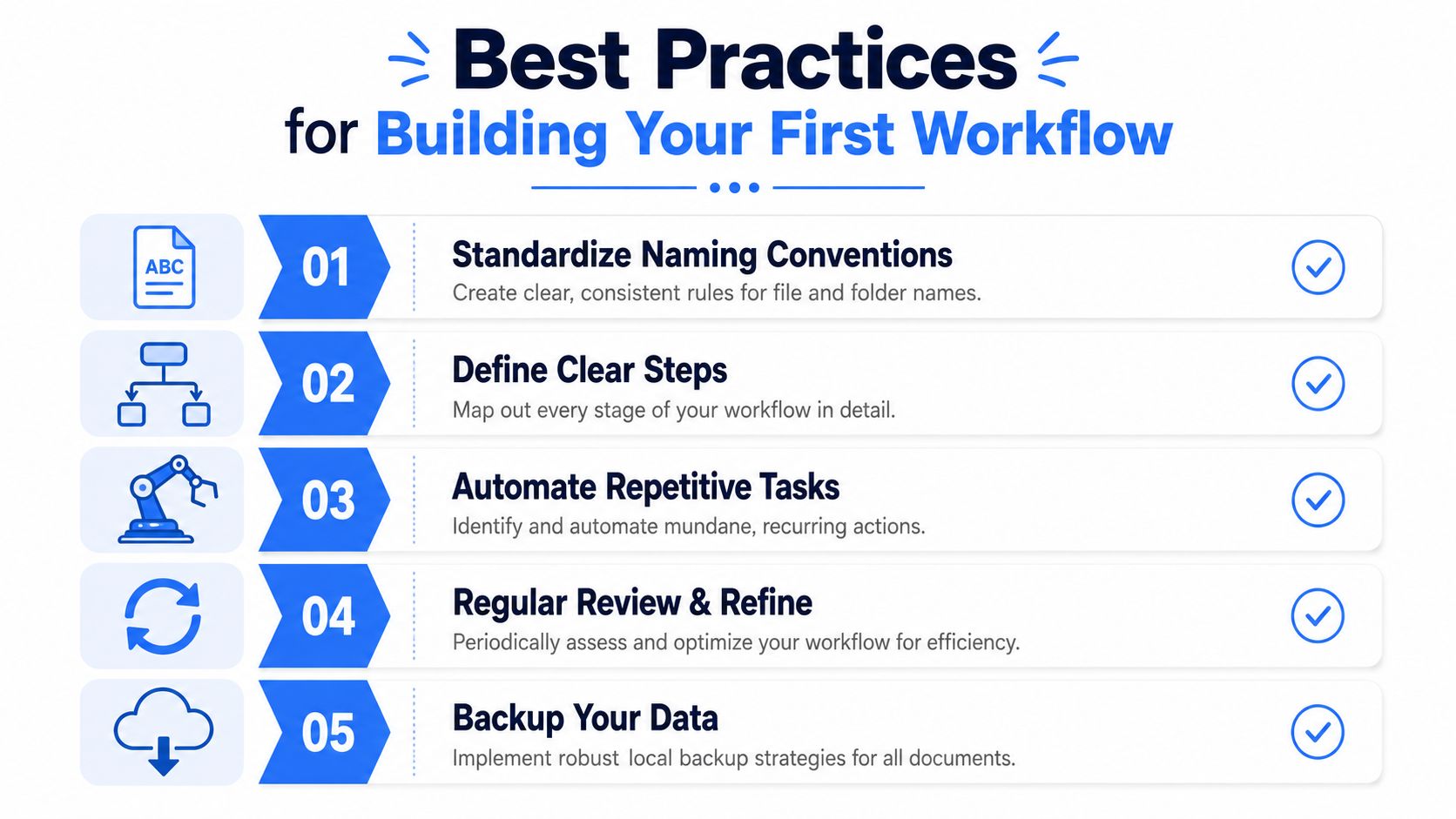
- Metadata leakage: PDFs and images can carry author names, timestamps, software history, location details, and revision traces.
- Unclear retention: many browser tools don't make file lifecycle obvious at the moment you need them.
- Process sprawl: the more sites involved, the harder it is to explain where a file went and who touched it.
That's why local-first processing is often the cleaner operational choice, especially for files that never needed cloud intelligence in the first place. If privacy is one of your selection criteria, this guide to data privacy software for document work offers a useful framework for evaluating what “secure enough” really means in practice.
Where local processing fits best
Offline workflows are strongest when the job is static file manipulation, not cloud-scale interpretation.
They work especially well for:
- HR and legal files: contracts, ID scans, signed policy forms, onboarding packets
- Finance documents: reports, invoices, supporting statements, board packs
- Creative asset prep: format conversion, resizing, watermarking, PDF assembly
- Administrative cleanup: page deletion, reordering, flattening, compression, export
The safest document is often the one that never leaves the machine.
Offline work does have trade-offs. Collaboration is less automatic than in cloud suites, and teams need some discipline around folders and versioning. But for sensitive one-owner or small-team workflows, that trade can be worth it. You gain predictable control, clear file custody, and the ability to work even when the internet is unreliable or prohibited.
Real-World Examples of Local Document Workflows
Abstractions only help so much. The easiest way to judge a document processing workflow is to look at what people do with one.
Organizations that implement IDP automation report an average 4x faster document processing speed, reduce human error rates by up to 90%, and report an average ROI of 200 to 300% within the first year, according to SenseTask's document processing statistics summary. Those figures come from automation-heavy environments, but the underlying lesson applies more broadly. Repetition is where workflows earn their keep.
The HR onboarding packet
A new employee sends three items: a signed employment agreement as PDF, a passport scan as JPG, and a benefits form scanned sideways. HR needs one clean packet for internal storage.
A good local workflow looks like this:
- Normalize the inputs: rotate the sideways form, check page order, and convert the image to PDF.
- Merge in the correct sequence: contract first, ID second, forms last.
- Compress carefully: reduce size for storage without making small text unreadable.
- Clean metadata: remove unnecessary document properties before wider internal sharing.
- Protect the final file: apply password protection if the packet moves outside the HR folder structure.
The key benefit isn't novelty. It's consistency. Every employee packet ends up with the same structure and naming pattern, which makes retrieval and audits less painful.
The photographer delivery set
A photographer comes back from a shoot with a folder full of HEIC and RAW images. The client doesn't want source files. They want a review set of resized JPGs with a watermark.
This workflow is different from HR, but still local-first:
First, the photographer selects the source folder and applies a preset that converts unsupported camera formats into JPG. Then the preset resizes images to a delivery-friendly dimension, adds a watermark in a fixed position, and sends exports to a client folder with consistent names.
The value here is avoiding browser-based limits. Web tools often struggle with modern formats, large files, or high-volume conversion. A desktop workflow is better suited to this kind of heavy, repetitive preparation because it treats the job as a batch, not a one-off upload.
In creative work, the winning workflow is usually the one that removes ten tiny decisions from every export.
The finance presentation pack
Finance teams often start with one large PDF and need several smaller outputs from it. A board report may contain pages for internal review, presentation slides, appendix charts, and a few pages that should be exported as images for use in decks or email.
A practical local workflow can:
- Split the large report into smaller logical sections.
- Remove pages that shouldn't leave the department.
- Export selected pages as PNGs for presentations.
- Clean metadata before external circulation.
- Save the derivative files to separate folders for archive, meeting prep, and outbound use.
In this scenario, local document processing shines. The team isn't asking software to understand the report semantically. They're performing controlled page-level operations on sensitive material. Cloud AI would add complexity without solving the core problem.
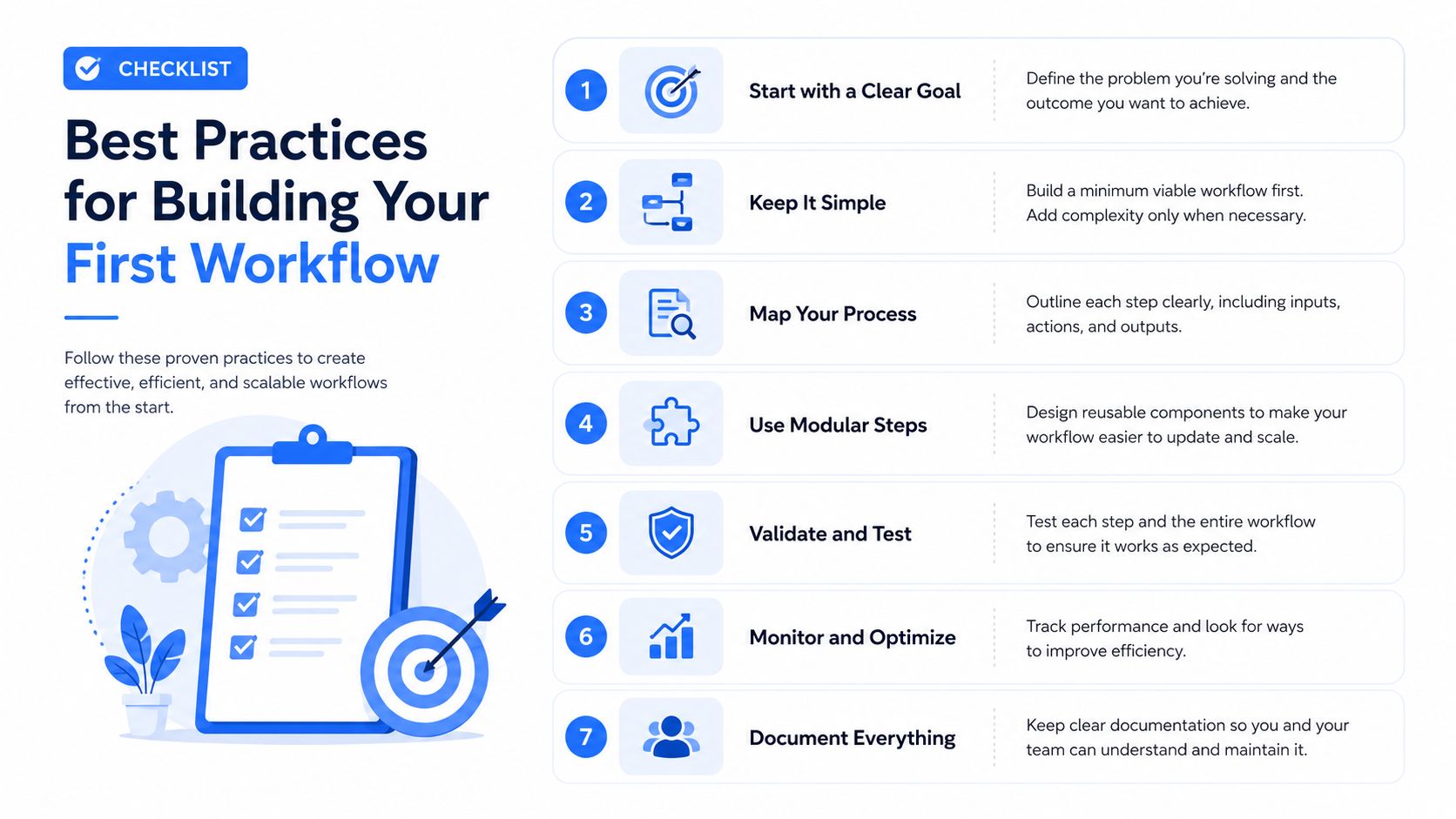
Best Practices for Building Your First Workflow
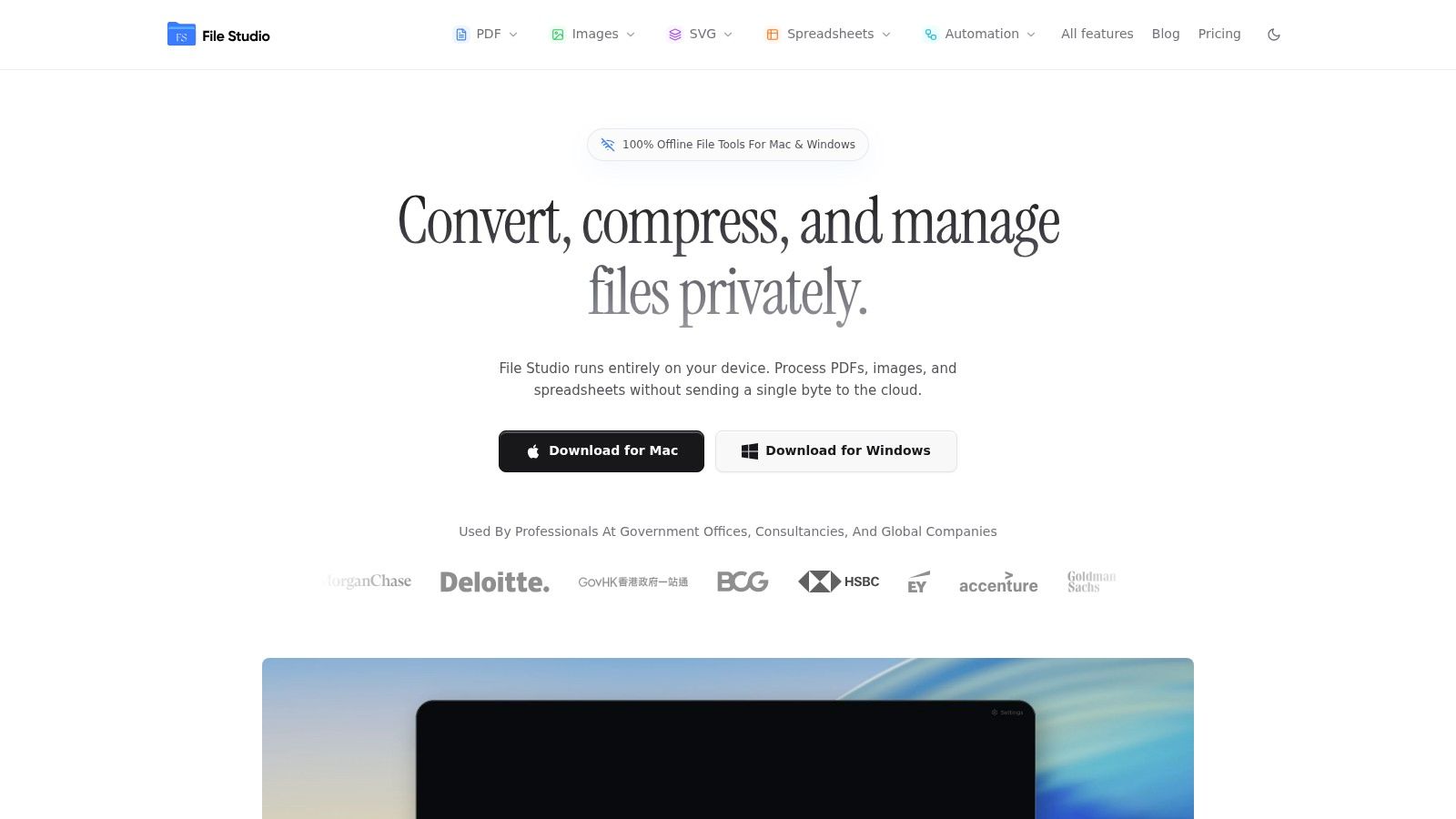
The first workflow should solve one recurring annoyance well. Don't start by designing a master system for every file type your team may ever touch. Start with the task people already dread doing manually.
Advanced systems that use AI actions to extract information can reduce document cycle times by 50% compared to manual handling, as described in Nintex's article on AI document processing automation. Even if your own workflow is much simpler, the same principle holds. Fewer manual handoffs usually means a smoother process.
Build for repetition, not novelty
A strong first workflow usually has these traits:
- It happens often: merging signed PDFs, converting images, compressing attachments, exporting pages
- It follows the same order every time: same input types, same destination, same naming pattern
- It has a clear success state: the output either meets the standard or it doesn't
Use these rules to choose well:
- Start with the bottleneck: Pick the task that causes the most daily friction, not the one that sounds most technical.
- Create naming standards early: A workflow falls apart if the output lands in chaos.
- Use presets wherever possible: Saving repeatable settings matters more than shaving one click off a single job.
- Keep review visible: Open the result and inspect it before rolling the process out to others.
For teams in regulated environments, the file itself is only part of the problem. Documentation discipline matters too. If you work around controlled records, validation habits, or audit expectations, this overview of GxP documentation requirements is a practical reminder that process quality includes traceability, not just speed.
Protect the file before you optimize the process
Many people optimize for speed first. That's backwards when documents are sensitive.
A better order is:
- Decide whether the task can stay local.
- Standardize the steps.
- Save the settings as a repeatable preset.
- Only then look for further automation.
That sequence keeps privacy baked into the workflow instead of bolted on afterward.
Here's what usually works best in practice:
- For sensitive files: process locally by default
- For recurring exports: build one tested preset per output type
- For mixed teams: document the exact steps in plain language
- For quality control: keep a sample input set for testing after software updates
Your Implementation Checklist for Local Processing
The best rollout is boring. It should be easy to explain, easy to test, and easy to repeat by someone else on the team.
A simple rollout that works
Use this checklist to build a document processing workflow without turning it into a side project.
- List your recurring tasks
Write down the jobs that repeat every week. Be specific. “PDF work” is too broad. “Merge offer letter and ID scan into one secure PDF” is usable. - Identify the file types involved
Note the exact formats you receive and the formats you need to produce. That tells you whether your workflow needs image conversion, PDF handling, spreadsheet export, or a mix. - Rank the privacy level of each task
Contracts, IDs, invoices, and internal reports usually deserve local handling. Public marketing assets may not need the same caution. - Choose one offline-capable toolset
Consolidation matters. Every extra utility creates another learning curve and another chance for inconsistent output. If staying disconnected is part of your requirement, this guide on converting documents without internet access is a useful reference point. - Build one small preset
Start with something modest, such as image-to-PDF conversion with fixed naming and destination settings. - Test with real files
Use messy samples, not ideal ones. Include scans with odd orientation, larger files, and naming inconsistencies. - Refine before expanding
Once the first workflow is stable, move to the next repetitive task. That's when watch folders, larger batches, or team-wide standards start paying off.
Small workflows spread faster inside teams because people can trust them after one successful use.
This approach keeps the project grounded. You're not replacing every system at once. You're solving one repeated document problem, proving it works, and then extending the model.
Frequently Asked Questions About Document Workflows
When do you actually need cloud AI
Use cloud AI when the core task is understanding document content at scale. That includes extracting fields from invoices, classifying incoming documents, or routing files based on what they contain. For static operations like converting, merging, splitting, compressing, watermarking, cleaning metadata, or exporting pages, local workflows are usually the better fit.
Can offline tools handle modern file formats
Yes, many modern desktop tools can handle formats that web tools often fumble, including HEIC, AVIF, WebP, TIFF, PSD, SVG, and major RAW image types. That matters for creative teams, mobile-device images, and mixed-format offices where compatibility is a daily problem. The actual test isn't whether a format opens once. It's whether you can convert it repeatedly with consistent settings.
What is the difference between batch processing and watch folders
Batch processing is a one-time run on a selected set of files. You choose the folder or files, apply the action, and review the output. Watch folders are ongoing automation. You assign a rule to a folder, and files dropped there get processed automatically using the saved settings. Batch is better for controlled jobs. Watch folders are better for repeated intake pipelines.
If your team handles sensitive PDFs, images, spreadsheets, or mixed-format document tasks every day, File Studio is built for exactly that kind of local-first workflow. It runs on macOS and Windows, processes files entirely offline, and brings conversion, compression, PDF editing, metadata cleanup, batch processing, and watch folders into one desktop app without requiring uploads or accounts.