

What Is Batch Processing: Boost Efficiency in 2026

Ayush Soni
Founder, File Studio
On this page
- What Is Batch Processing and Why Does It Matter
- A simple definition that actually helps
- This idea is older than modern software
- How Batch Processing Works Using a Simple Analogy
- The four parts most people need to know
- Translating the analogy into common terms
- Why this feels so different from manual work
- Batch Processing vs Stream Processing
- The simplest distinction
- Batch Processing vs. Stream Processing at a Glance
- A practical way to choose
- Practical Examples in File PDF and Image Workflows
- Photo libraries and modern image formats
- PDF work that repeats every week
- Why online tools feel worse in practice
- The Overlooked Benefits Performance and Consistency
- Why grouped work performs better
- Consistency is often more valuable than speed
- Throughput changes how teams plan work
- Why Offline Batch Processing Is Critical for Privacy
- The privacy gap most people notice immediately
- Why local processing changes the risk profile
- This matters for individuals, not just regulated teams
- Best Practices for Setting Up Your First Batch Job
- Start small before you scale
- Build guardrails into the workflow
- Use automation only after the rules are stable
- Keep review separate from processing
Batch processing is the practice of grouping many repetitive tasks and running them automatically in one session instead of handling each item one by one. Its roots go back to 1890, when Herman Hollerith's tabulator processed about 62.9 million U.S. Census records in batches and helped complete the census in six years instead of the projected decades.
You're probably already dealing with a version of this problem. A folder full of scans needs to become smaller PDFs. A stack of HEIC photos won't open properly in older software. A month's worth of invoices needs the same rename pattern, export setting, or archive step. You can do that file by file, but it's slow, boring, and easy to mess up.
That's where batch processing matters in daily work. It's the simple method of grouping large, repetitive tasks so software can handle them automatically in a single run. Instead of repeating the same click sequence hundreds of times, you define the rule once and let the system apply it to the whole group.
For big companies, that might mean payroll or end-of-day reports. For an office manager, photographer, legal assistant, or small business owner, it often means something more personal and immediate: converting, compressing, renaming, or organizing sensitive files without uploading them anywhere.
What Is Batch Processing and Why Does It Matter
If you've ever resized photos one at a time or converted a pile of documents manually, you already understand the pain batch processing solves. The work isn't difficult. It's repetitive. The problem is that repetition eats time and creates mistakes.
Batch processing means collecting similar tasks and letting software run them together automatically. You set the instruction once, such as “compress these PDFs” or “convert this folder of images to JPG,” and the system applies that same instruction across the whole set.
A simple definition that actually helps
Imagine sending laundry through one wash cycle instead of washing each sock by hand. The items are similar, the steps are repeated, and the value comes from doing the work as a group.
Batch processing is usually the right fit when:
- The tasks are repetitive: every file needs the same action.
- The output should be consistent: same size, same format, same naming rule.
- The work doesn't need an instant response: it can finish in the background.
Practical rule: If you can describe your task as “do the same thing to all of these,” batch processing is probably the right model.
This idea is older than modern software
Batch processing sounds modern, but the core idea is old. The history of batch processing in the 1890 U.S. Census is one of the clearest examples. Herman Hollerith's tabulator handled millions of records as grouped work rather than individual manual counts. That shift helped the 1890 Census finish in six years instead of the projected decades.
That historical example matters because the underlying problem hasn't changed. People still need a reliable way to process large sets of similar work without constant hands-on effort.
If your version of that problem is visual rather than statistical, a guide to a batch image converter workflow shows the same principle in a more everyday setting: collect the files, apply one rule, and let the system do the repeated work for you.
How Batch Processing Works Using a Simple Analogy
Batch processing becomes much easier to understand when you stop thinking about servers and start thinking about household routines.
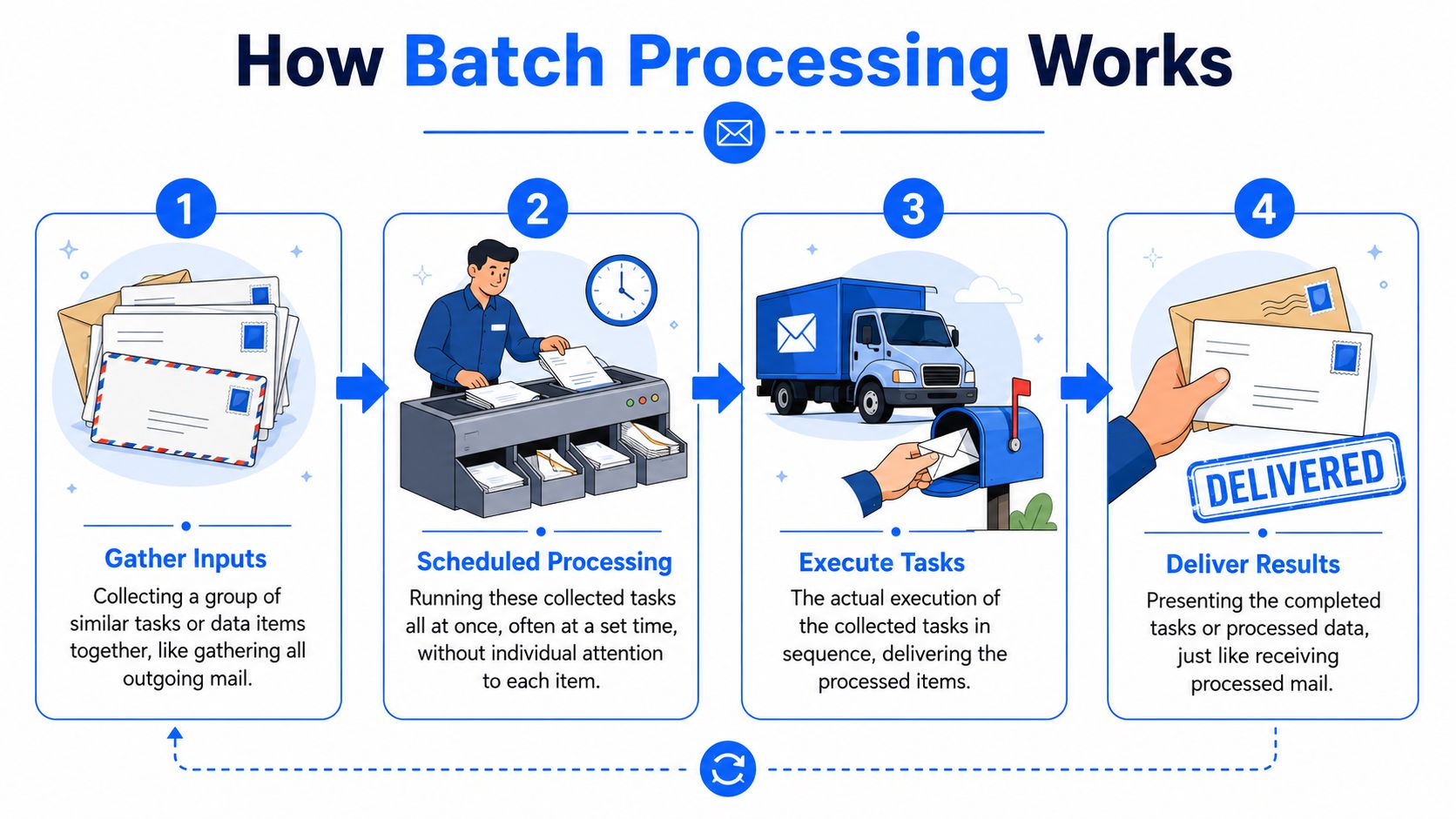
Doing laundry is a good analogy. You don't wash one shirt, then one towel, then one pair of socks, each in its own machine cycle. You gather similar items, choose the settings once, start the machine, and come back when the load is done. That's the basic logic of batch processing.
The four parts most people need to know
You don't need deep technical vocabulary to understand the flow. Most batch jobs have four parts:
- Input collection
You gather the items that need the same treatment. That might be a folder of PDFs, a group of images, or a list of spreadsheet files. - Rules or instructions
You define what should happen. Convert to PNG. Compress. Rename. Remove metadata. Merge in order. - Execution
The system runs through the list and applies the rule to each item. It may process them one after another or use parallel workers, but from your perspective it's one organized job. - Output
You get the finished files in a chosen location, usually with predictable names and formats.
Translating the analogy into common terms
Some terms confuse people because they sound more technical than they are.
| Term | Plain-English meaning |
|---|---|
| Job | The whole task you want the system to complete |
| Queue | The line of items waiting to be processed |
| Script or preset | The saved instruction set for what to do |
| Output folder | Where the finished files go |
A “job” might mean “convert all scans in this folder to smaller PDFs.” A “queue” is just the list of those files. A “preset” is your saved recipe so you don't have to rebuild the task every time.
Batch processing works best when the decision-making happens up front, not during the run.
That sentence captures the whole model. You make the choices once, then the machine handles repetition.
Why this feels so different from manual work
Manual processing interrupts your attention. Every file asks for another click, another export choice, another chance to select the wrong setting. Batch processing removes that stop-and-start pattern.
That's why people often describe it as calmer, not just faster. The system does the repetitive work in one uninterrupted session, and you get to focus on checking results rather than babysitting every single step.
Batch Processing vs Stream Processing
A lot of confusion comes from mixing up batch processing and stream processing. They're related, but they solve different problems.
Batch processing handles a collected set of work. Stream processing handles data as it arrives. One is closer to doing all your laundry tonight. The other is closer to washing each item the moment it gets dirty.
The simplest distinction
Use batch when the work can wait and benefits from being grouped. Use stream processing when a system must react right away.
According to a discussion of batch job performance testing and measurement, the two most important attributes for batch jobs are throughput and system endurance. That makes sense because batch systems are built for large, non-urgent workloads. The same source also notes batch processing's main limitation: inherent latency, which is why it isn't suitable for real-time needs.
Batch Processing vs. Stream Processing at a Glance
| Attribute | Batch Processing | Stream Processing |
|---|---|---|
| Data flow | Works on a collected set of items | Works on items as they arrive |
| Timing | Scheduled or event-triggered in groups | Continuous or near real time |
| Best for | Repetitive, non-urgent tasks | Immediate reactions and live monitoring |
| Strength | High throughput over many items | Low delay between input and action |
| Limitation | Results arrive later | More complex to manage for routine file tasks |
| Everyday example | Convert a folder of scanned PDFs overnight | Flag suspicious activity the moment it appears |
A practical way to choose
Ask one question first: Does each item need action immediately?
If the answer is no, batch is usually the simpler and cheaper option. Monthly reconciliation, nightly exports, archive cleanup, bulk image conversion, and document preparation all fit this pattern.
If the answer is yes, you're in stream territory. Fraud alerts, live dashboards, sensor monitoring, and instant notification systems usually need data-in-motion handling.
If delay is acceptable and consistency matters more than instant reaction, batch processing is usually the better fit.
For most office file workflows, people don't need a live system reacting to every new document within seconds. They need dependable bulk handling with minimal effort. That's why batch processing shows up so often in operations, reporting, and file conversion work.
Practical Examples in File PDF and Image Workflows
Here, the idea stops being abstract.
Many people searching for what is batch processing aren't managing giant cloud data pipelines. They're trying to get through ordinary work without wasting an afternoon on repetitive file handling.
Photo libraries and modern image formats
A photographer exports a wedding shoot. A real estate assistant gets phone photos in HEIC. A designer receives WebP, AVIF, and older JPG assets in the same project folder. None of that is unusual now.
The problem is compatibility. A discussion of batch processing and modern formats notes that legacy web converters fail on 60% of modern camera formats and says offline batch tools reduce format-conversion time by 93% compared to browser-based alternatives. That gap explains why one-by-one online conversion often feels painfully slow in real work.
Typical batch tasks here include:
- Convert a whole folder: HEIC or RAW files become JPG for a client delivery.
- Apply one resize rule: every product image gets the same dimensions.
- Export web-friendly assets: a mixed folder becomes one consistent output format.
PDF work that repeats every week
Administrative teams often do batch work without calling it that. They combine scans, compress large PDFs, remove extra pages, rotate mis-scanned sheets, or export pages as images.
A few common examples:
- Intake packets: merge separate scanned pages into one document for each client.
- Email preparation: compress a folder of large PDFs so they're easier to send.
- Archive cleanup: rename files by date and move them into a standard folder structure.
If your workflow starts with HTML reports or templates before they become PDFs, these Practical Python HTML to PDF methods are useful for understanding the generation side before batch handling takes over.
For document assembly tasks, guides on how to merge PDFs efficiently show how quickly small repetitive steps add up when you have many files to handle.
Why online tools feel worse in practice
Web tools look convenient because there's nothing to install. But for repeated file work, they introduce friction at almost every step. You upload, wait, convert, download, repeat, then sort the results back into the right folders.
Desktop batch workflows feel different because the files are already there. You point the software at a folder, define the rule once, and let it process the whole set locally. That's not just a technical preference. It changes how much attention the task consumes.
A good batch workflow turns “repeat this 80 times” into “set it once, then review the result.”
That's why file-based batch processing matters so much outside large enterprises. It removes the exact kind of repetitive labor that clogs up ordinary office and creative work.
The Overlooked Benefits Performance and Consistency
Hearing “batch processing” often suggests time savings. While true, this perception undersells its principal benefit.
The deeper benefit is that batching reduces repeated overhead. Every operation has a setup cost. Opening a file, preparing a conversion, saving the result, handling a request, or committing a transaction all take work before the main work even begins. When you process items one by one, you keep paying that setup cost over and over.
Why grouped work performs better
A technical explanation of batch processing performance describes this as amortizing overhead across many items. The same source says batching can reduce latency by 10, 100x while increasing throughput, and for file processing it recommends batch sizes in the range of 10,000 to 100,000 files when memory allows.
You don't need to process anywhere near that many files to benefit from the principle. Even a modest folder of images or PDFs can feel dramatically smoother when the software handles the work as one organized job.
Consistency is often more valuable than speed
Manual work varies. One image gets exported at the wrong size. One PDF uses a different compression setting. One filename keeps the old date format. These aren't dramatic failures, but they create cleanup work later.
Batch processing reduces that variation because every item gets the same rule set.
Here's where that matters most:
- Brand assets: every image uses the same dimensions, quality level, and naming pattern.
- Client documents: each PDF gets the same compression or export treatment.
- Routine admin work: folders stay structured because the process is repeatable.
Key insight: A repeatable batch job doesn't just save effort. It creates output you can trust.
Throughput changes how teams plan work
There's also a scheduling benefit. Once people know a task can run reliably in batches, they stop carving out manual time for it. They can queue the work, let it run, and come back for review.
That shift matters in small teams. It turns file processing from an interrupt-driven chore into a standard routine with predictable results.
Why Offline Batch Processing Is Critical for Privacy
This is the part most batch processing guides skip.
They explain how to process lots of data, but they assume you're comfortable sending files through a cloud service or browser-based tool. That assumption breaks down fast when the files contain contracts, IDs, invoices, HR paperwork, financial statements, or private client material.
The privacy gap most people notice immediately
A discussion of privacy-first batch processing points out that this gap is rarely addressed in mainstream content. It also states that 78% of organizations in regulated industries prioritize offline processing for sensitive datasets. That makes practical sense. If the files are sensitive, the method matters as much as the result.
Uploading private documents to a third-party service can expose more than the document body itself. Filenames, metadata, timestamps, and document structure may also be revealed. Even when a service seems trustworthy, you're still moving sensitive material outside your direct control.
Why local processing changes the risk profile
Offline batch processing keeps the workflow on your own device. That matters for several reasons:
- Sensitive content stays local: contracts, IDs, internal reports, and scans don't leave the machine.
- Metadata exposure is easier to manage: you can inspect and clean files before sharing them.
- Internet access isn't required: that helps in locked-down offices, travel settings, or restricted networks.
People handling confidential files often ask a very practical question: can I batch-convert or batch-compress these documents without uploading them anywhere? The answer is yes, but only if the workflow is designed for local processing rather than cloud submission.
For a closer look at that local-first approach, this guide to converting files without uploading captures why offline handling has become so important for privacy-conscious workflows.
Sensitive file processing should be judged by two outcomes: did the task finish correctly, and did the files stay under your control the whole time?
This matters for individuals, not just regulated teams
It's easy to frame privacy as a compliance issue for legal, finance, or HR departments. But individuals face the same concern. Personal tax documents, passports, signed forms, medical paperwork, and family photo archives all deserve careful handling.
For those cases, offline batch processing isn't a niche preference. It's often the most sensible default.
Best Practices for Setting Up Your First Batch Job
A good first batch job should feel boring. That's a compliment. You want the workflow to be predictable, easy to repeat, and hard to break.
People get into trouble when they rush straight into a large folder with original files and no naming plan. A few simple habits make batch processing much safer.

Start small before you scale
Test the job on a small sample first. If you're converting images, try a few files with different sizes and names. If you're processing PDFs, include at least one that's slightly unusual, such as a scan with rotation issues or a long filename.
That first test answers the questions that matter most. Did the output look right? Did the naming hold up? Did the files land in the expected folder?
Build guardrails into the workflow
These habits prevent most avoidable mistakes:
- Work on copies first: keep the originals untouched until you've checked the output.
- Choose a clear destination folder: don't mix source and output unless you're completely sure of the behavior.
- Use naming rules deliberately: dates, version labels, and client names should follow one pattern.
- Save reusable presets: if the task repeats, don't rebuild it manually each time.
Use automation only after the rules are stable
Once a batch task works reliably, you can make it more hands-off. Presets help because they preserve exact settings across runs. Watch folders help because they automate repeated tasks when new files appear in a chosen location.
A simple example: invoices dropped into one folder are compressed and renamed automatically, while exported product photos dropped into another folder are converted to web-ready formats. That kind of setup turns occasional convenience into a dependable system.
The best batch workflow is one you can trust without rechecking every setting from scratch.
Keep review separate from processing
One final habit helps a lot. Don't review files while the job is running. Let the batch complete, then inspect the output as a separate step. That keeps you from making mid-process changes that create inconsistent results.
For many people, that's the moment batch processing clicks. You stop acting like a machine repeating the same action, and start acting like an operator who defines the job, runs it, and verifies the outcome.
If you want a privacy-first way to handle batch conversions, PDF tasks, image workflows, and watch-folder automation on your own computer, File Studio is built for exactly that. It runs offline on macOS and Windows, handles modern file formats locally, and gives individuals and small teams a practical way to process sensitive files without uploading them to a web service.