

Top PDF Splitter for Mac Tools 2026

Ayush Soni
Founder, File Studio
On this page
- Why You Need a Reliable PDF Splitter for Mac
- When mistakes happen
- Splitting PDFs with Mac's Built-in Preview App
- When Preview is the right tool
- How to split a PDF in Preview
- Where Preview starts to slow you down
- A Professional Offline PDF Splitter for Mac
- What dedicated desktop tools do better
- Preview vs. File Studio PDF Splitting Capabilities
- Advanced Splitting Workflows for Power Users
- Batch splitting a folder of recurring PDFs
- Working with protected documents
- Why Offline Splitting Matters for Your Privacy
- The hidden problem with browser-based workarounds
- A practical rule for sensitive files
You've probably got one of these files open right now. A contract packet with signature pages buried in the middle. A scanned stack of invoices that needs to be split into separate files. A PDF from a client that mixes internal notes, IDs, and shareable pages in the same document.
This is when individuals look for a PDF splitter for Mac and take the first browser tool they find. It works for disposable files. It's a bad habit for anything sensitive.
Mac users already have one solid free option built in, and there's a clear line where built-in tools stop being practical. If you deal with contracts, invoices, HR paperwork, or identity documents, the real decision isn't just speed. It's whether the file ever leaves your machine.
Why You Need a Reliable PDF Splitter for Mac
The usual trigger is mundane. A portal rejects your upload because the PDF is too large. A client only needs pages 8 through 15. Finance wants one invoice per file instead of one combined scan. You don't need a full PDF editor. You need a clean split, fast.
The problem starts when that quick task involves confidential material. Contracts often include signature blocks, addresses, and internal attachments. Invoices can include banking details. IDs and onboarding paperwork should never be treated like throwaway files.
A lot of guides still send people straight to online splitters. That ignores a basic reality. A 2024 CISA report found that 68% of users handling legal or financial documents avoid online converters due to data leakage concerns, yet many Mac guides still default to cloud-based tools (Adobe Acrobat online split PDF overview).
Practical rule: If a PDF contains client data, payment details, identity documents, or signed agreements, assume it should stay offline unless your policy explicitly says otherwise.
That matters even more once splitting stops being a one-off task and turns into repeated office work. At that point, the issue isn't just opening a file and pulling out a few pages. It becomes an operational problem with naming, consistency, and repeat volume. That's where batch processing for file workflows starts to matter.
When mistakes happen
The messy cases are predictable:
- Mixed-purpose PDFs: One file contains pages you can share and pages you absolutely can't.
- Oversized uploads: A form or email system rejects the file, so someone reaches for the nearest web tool.
- Repeated admin work: The same splitting task happens every day, but the process stays manual.
- Sensitive archives: Old scans need cleanup and extraction without creating extra copies across cloud services.
A reliable PDF splitter for Mac should solve the immediate problem without creating a privacy problem behind the scenes. For basic work, Preview does that well. For repeated or more complex jobs, you need more control than Preview gives you.
Splitting PDFs with Mac's Built-in Preview App
Preview is the best starting point because it's already on your Mac, it runs offline, and it doesn't force you into an account or upload flow.
When Preview is the right tool
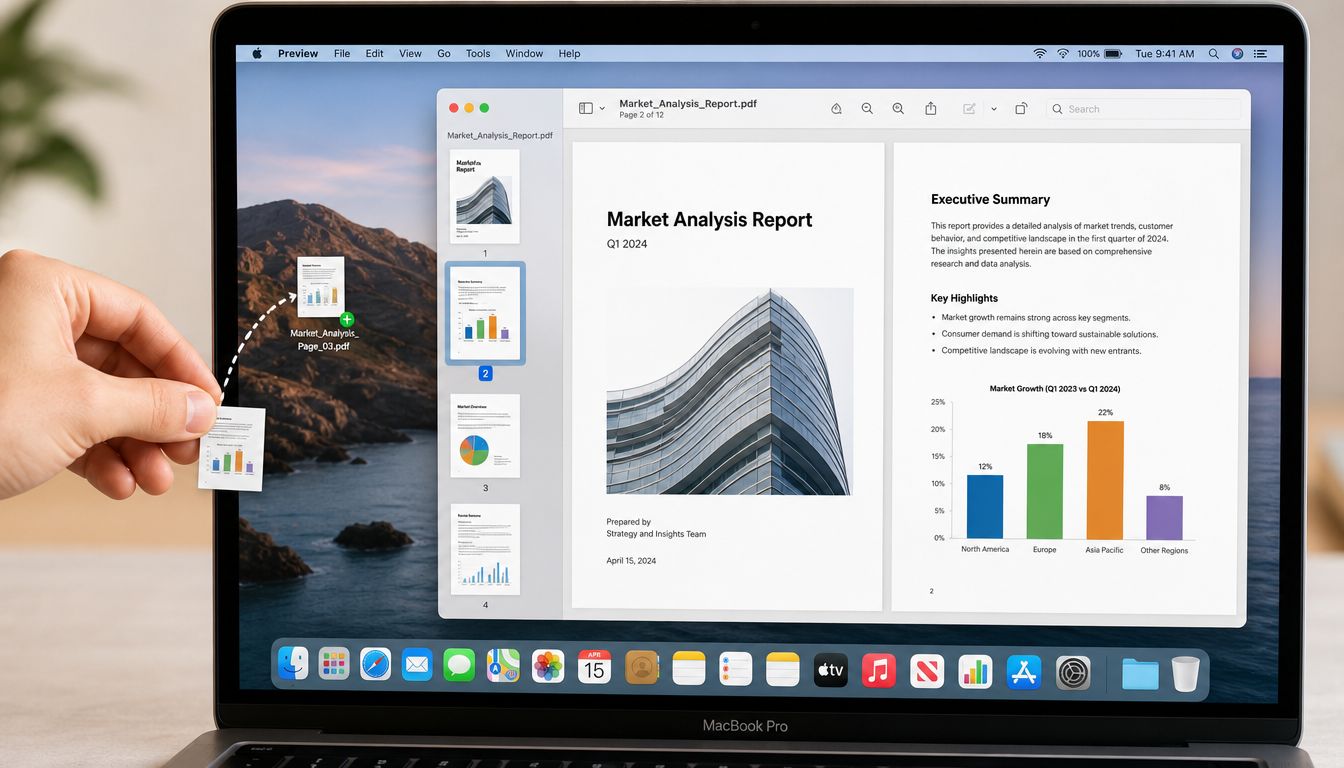
For a simple extraction job, Preview is hard to beat. On macOS, Preview lets you select page thumbnails and drag them into a new file, a method that achieves 100% success for linear page ranges without altering metadata, though it doesn't offer automated batch processing (MacOS discussion of Preview page extraction).
That makes it ideal for jobs like:
- pulling one signed page out of a contract
- saving only the receipt pages from a travel packet
- splitting one long report into two or three smaller PDFs
- extracting a set of consecutive pages for email or upload
If you only do this a few times a week, Preview is usually enough.
How to split a PDF in Preview
Use the thumbnail method, not a browser print workaround.
- Open the PDF in Preview. If the file opens in another app by default, right-click it in Finder, choose Open With, and select Preview.
- Show page thumbnails. In the sidebar, make sure you can see every page as a thumbnail. This is the easiest way to select exactly what you want.
- Select the pages to extract. Use Shift-click for a continuous range and Command-click for non-consecutive pages.
- Drag the selected pages out of Preview. Drop them onto the desktop or into a Finder folder. macOS creates a new PDF from that selection.
- Rename the new file immediately. Don't leave it as a generic export if the file is going into a client folder or a shared drive.
Select first, drag second. If you rush the selection, you'll export the wrong pages and won't notice until someone opens the file later.
Where Preview starts to slow you down
Preview is reliable, but it's manual. That's the trade-off.
Here's where it gets clumsy:
- High volume work: If you're splitting many PDFs in a row, the repeated clicking adds up fast.
- Consistent naming: Preview creates the new file, but it doesn't manage structured output naming for repetitive jobs.
- Complex split logic: It's great for visual selection, less great when you want repeatable rules.
- Folder-wide processing: There's no built-in batch system for taking a whole set of files and splitting them in one run.
For one file, Preview feels elegant. For thirty files, it feels like office busywork.
A Professional Offline PDF Splitter for Mac
There's a gap between “free and built in” and “upload your file to a website.” That gap is where a professional desktop app makes sense.
What dedicated desktop tools do better
A proper offline PDF splitter for Mac should handle the jobs that Preview turns into repetitive handwork. That usually means page-range rules, folder-based processing, protected file handling, and cleaner export control.
The value isn't abstract. It shows up when your workflow includes things like monthly invoice packets, HR document bundles, or client records that need the same split pattern over and over.
Desktop tools also solve a practical frustration that web tools never quite escape:
- No uploads
- No waiting on browser processing
- No account prompts
- No juggling temporary downloads after each split
If you specifically want a local-first desktop option, an offline file converter for Mac is the right category to look at, especially if your PDF work sits alongside image conversion, metadata cleanup, and export tasks.
Good PDF tools don't just split pages. They reduce repeat work and keep the output predictable.
Preview vs. File Studio PDF Splitting Capabilities
| Feature | Preview App | File Studio |
|---|---|---|
| Offline use | Yes | Yes |
| Split by selecting visible pages | Yes | Yes |
| Split by page range rules | Limited, manual | Yes |
| Batch split multiple PDFs | No | Yes |
| Export management | Basic | More controlled |
| Password handling | Limited for workflow-heavy jobs | Yes |
| Works well for one-off tasks | Yes | Yes |
| Works well for recurring admin workflows | No | Yes |
| Requires upload or browser tab | No | No |
The distinction is simple. Preview is a sharp knife for small jobs. A dedicated desktop app is a workbench.
That doesn't mean everyone needs more software. If your entire need is “take pages 4 through 7 out of this one PDF,” Preview is still the cleanest answer. But once your work involves repeated splitting, protected files, or process consistency, you'll feel the limits immediately.
Advanced Splitting Workflows for Power Users
At this point, free tools usually stop being comfortable. Not impossible. Just awkward enough that people start building bad workarounds.
Batch splitting a folder of recurring PDFs
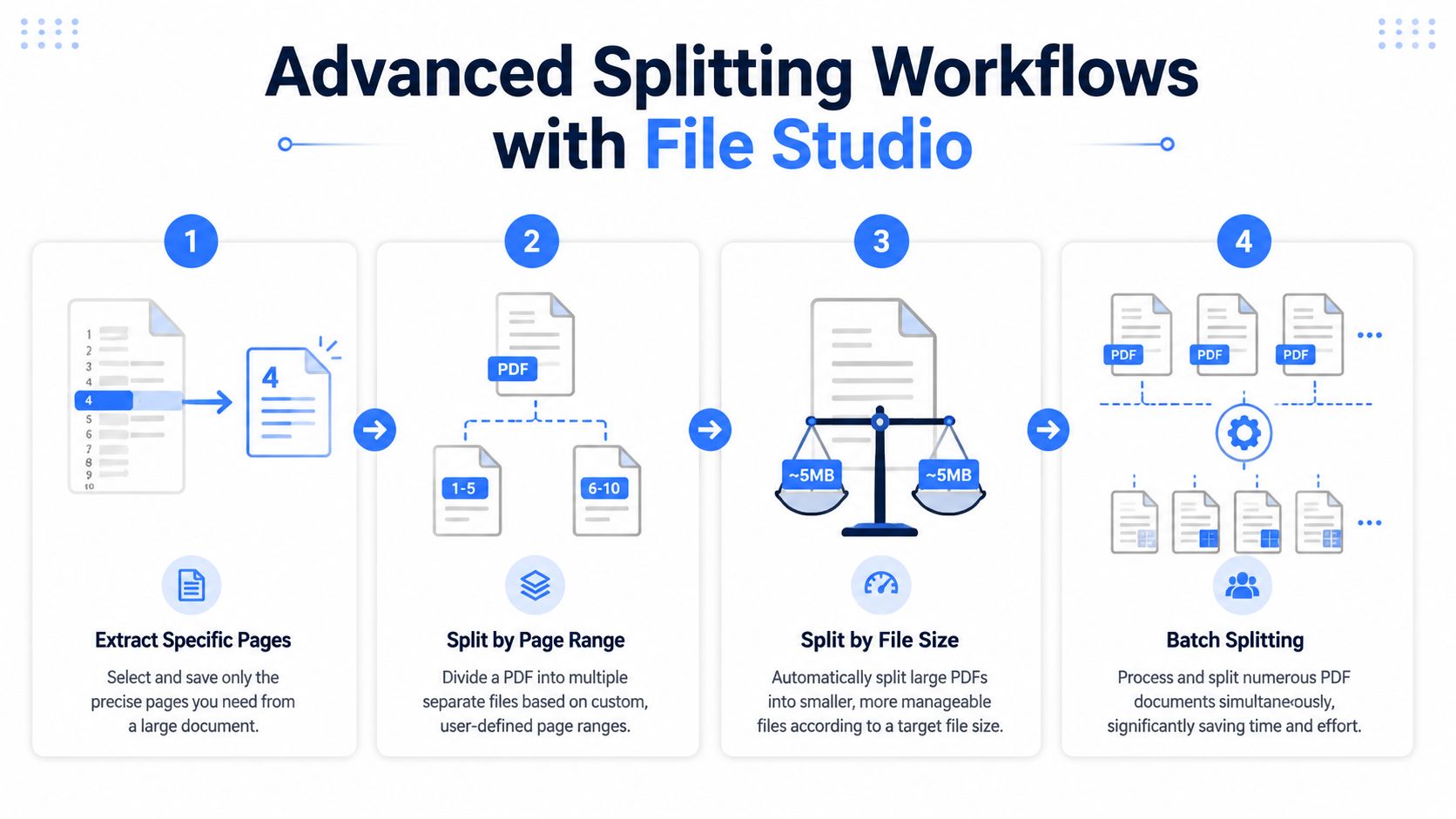
A common office example is a folder full of scanned invoice packets. Each PDF contains several pages, and each page needs to become its own file for filing or upload.
In a dedicated app, the workflow is usually:
- add the whole folder
- choose a split mode such as individual pages or custom ranges
- set the output folder
- define naming behavior
- run the job once
That's much cleaner than opening each file manually in Preview, selecting pages, dragging them out, and renaming every result one by one.
A few practical checks matter before you run a batch job:
- Review the page structure first: If one file in the folder has a different page count or ordering, it can break an otherwise clean pattern.
- Use a dedicated output folder: Don't send results back into the same folder as the originals unless the app clearly separates them.
- Name for retrieval: “Invoice-001-page-1” is useful. “Untitled 7” is not.
For extraction-heavy jobs, it helps to think in terms of page logic rather than individual files. This kind of PDF page extraction workflow is what turns a repetitive admin task into a repeatable process.
Working with protected documents
Protected PDFs are another friction point. In legal and finance work, you'll often receive files that require a password before you can even inspect the pages.
The practical problem isn't just opening them. It's avoiding unnecessary extra steps. A weak workflow looks like this: remove protection from the file in one tool, save an unprotected copy somewhere, then split it in another tool. That creates more file sprawl than is often understood.
A better offline workflow is:
- open the protected PDF in the desktop app
- enter the password
- split the document directly into the needed output
- save only the resulting files you need
That keeps the process tighter and reduces stray intermediate files.
If you regularly work with contracts, internal reports, or scanned IDs, advanced splitting isn't about power-user bragging rights. It's about reducing manual error. The best workflow is the one that produces the right files with the fewest extra copies, clicks, and temporary exports.
Why Offline Splitting Matters for Your Privacy
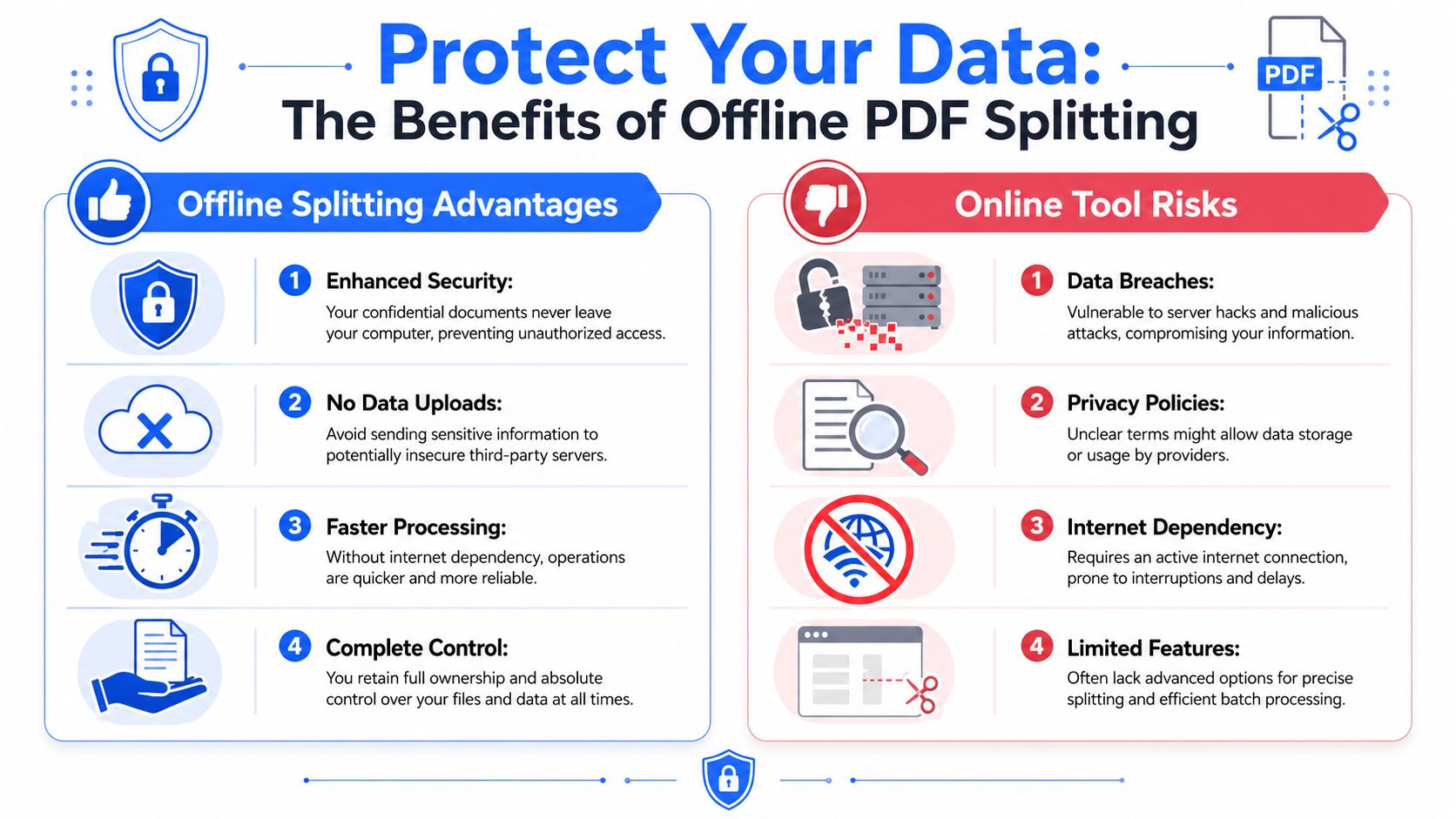
The privacy argument isn't theoretical. It shows up in the details people don't inspect.
The hidden problem with browser-based workarounds
A lot of Mac users try to split PDFs through a browser's print flow because it feels convenient. Open the PDF in Safari or Chrome, print selected pages, save as PDF, done.
The issue is that convenience can leak information you didn't mean to share. Common pitfalls in macOS PDF splitting include metadata leakage when using browser-based “Print to PDF” methods, which can embed browser version and timestamp data, with an approximately 30% failure rate in professional workflows requiring strict metadata compliance (Stack Overflow discussion of PDF splitting pitfalls).
That matters if you work with:
- client contracts
- financial statements
- employee paperwork
- identification documents
- internal review files
The file may look fine when opened normally. The hidden metadata is the part often overlooked.
Browser-based splitting is acceptable for low-stakes documents. It's the wrong habit for anything confidential.
A practical rule for sensitive files
Use the simplest tool that matches the sensitivity of the file.
If the document is ordinary and the job is small, Preview is the sensible default. It's local, quick, and already installed. If the workflow is repetitive, the document is protected, or the file contains material that shouldn't leave your computer, use an offline desktop tool built for repeat handling.
That's the key factor when choosing a PDF splitter for Mac. Not flashy features. Not whether the homepage says “free.” The question is whether the tool fits the document's risk level and the amount of repetition in your work.
For contracts, invoices, IDs, and internal records, offline processing is the responsible choice because it keeps control where it belongs: on your machine, in your folder structure, under your process.
If you want a privacy-first desktop tool that handles PDF splitting, batch jobs, password-protected files, metadata cleanup, and other file tasks locally, File Studio is worth a look. It runs offline on macOS, avoids uploads and account gates, and fits the kind of sensitive document workflow where browser tools aren't good enough.