

Pictures to PDF App: Fast, Private Offline Conversion

Ayush Soni
Founder, File Studio
On this page
- Why an Offline Pictures to PDF App Is a Game Changer
- Privacy beats convenience for real document work
- Desktop tools handle the jobs that web apps avoid
- Your First Conversion From Picture to Polished PDF
- Start with one clean document
- The settings that matter on day one
- Mastering Batch Conversions and Advanced Settings
- Batch work is where desktop tools earn their keep
- Compression quality and metadata settings that actually matter
- Troubleshooting Common Conversion Problems
- When the PDF is too large
- When the output looks wrong
- Frequently Asked Questions About Converting Pictures to PDF
- Can I edit the PDF after I create it
- What about accessibility archiving and extracting images
- Your Next Steps to Secure Document Management
You probably have a folder full of phone photos right now. Receipts for reimbursement. Signed forms from a client. A few document shots someone texted instead of scanning properly. Maybe a stack of iPhone images in HEIC that your usual web converter won't even open.
That's the point where users search for a pictures to PDF app, drag files into a browser tab, and hope for the best. It works for throwaway files. It's a poor habit for anything sensitive, repetitive, or messy.
The better workflow is local, offline, and desktop-based. It keeps private files off third-party servers, handles modern image formats more reliably, and gives you the controls that mobile apps and browser tools usually hide.
Why an Offline Pictures to PDF App Is a Game Changer
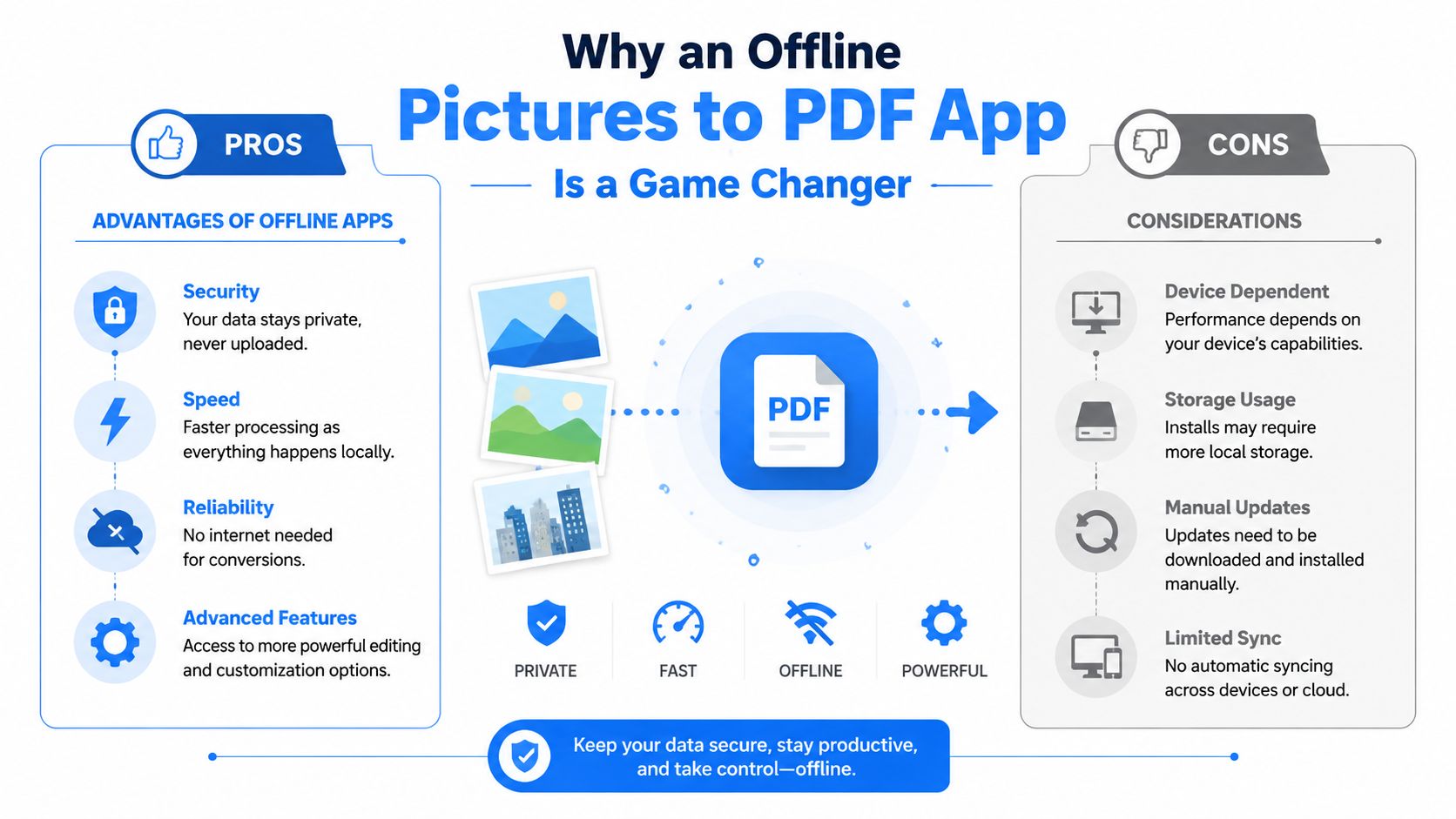
A browser converter looks fast until you have to trust it with a passport photo, payroll form, medical receipt, or signed contract. That's where an offline pictures to PDF app stops being a convenience and starts being a safer operating habit.
The market is moving in that direction for a reason. The global Image to PDF Converter market was valued at $3.8 billion in 2025 and is projected to reach $8.7 billion by 2034, with growth tied to demand for tools that convert images into PDFs without relying on cloud uploads, especially for privacy-sensitive work, according to DataIntelo's image to PDF converter market report.
A private workflow isn't just about secrecy. It also removes uncertainty. You don't have to wonder where the file is stored, whether the service keeps temporary copies, or whether metadata travels with the upload.
Privacy beats convenience for real document work
When people say, “It's only a few images,” they usually mean documents that carry more information than they realize. A simple phone photo can include location data, timestamps, device details, and visible personal information in the image itself.
That's why local processing matters. If your files never leave your machine, you remove the upload step entirely. A good offline file conversion workflow also fits locked-down office environments and travel days when the internet is unreliable.
Practical rule: If you wouldn't email the raw image to a stranger, don't upload it to a random converter either.
Offline tools also behave more predictably in regulated workplaces. Legal, HR, tax, and finance teams often don't need “smart” cloud features. They need repeatable output, stable file naming, and confidence that the source material stayed local the whole time.
Desktop tools handle the jobs that web apps avoid
Browser tools tend to be built for one-file-at-a-time use. They're fine for a quick receipt. They're clumsy when you need to combine dozens of pages, correct page order, rotate mixed camera shots, and export one clean PDF.
A native desktop app handles heavier jobs better because it has direct access to local storage, local memory, and real batch controls. That changes the day-to-day experience:
| Task | Browser tool | Offline desktop app |
|---|---|---|
| Sensitive files | Requires upload | Keeps files on-device |
| Large batches | Often awkward | Built for folders and queues |
| No internet | Usually blocked | Works locally |
| Mixed formats | Common failure point | Better fit for practical workflows |
There's also the speed factor. Uploading, waiting in a queue, then downloading again feels small until you repeat it all day. On-device conversion cuts out that friction.
Most people don't need more features. They need fewer interruptions between “I have the photos” and “the PDF is ready.”
That's the essential value of a privacy-first pictures to PDF app. It turns a fragile little web chore into a dependable desktop process.
Your First Conversion From Picture to Polished PDF
Start with something ordinary. A receipt for expenses is ideal because it shows the exact problems people run into first: odd lighting, wrong orientation, and a final file that needs to look tidy enough to email.
Mobile demand for this kind of task is obviously strong. In India, the “Image to PDF” app reached 29th on the Top Free chart in the Productivity category, which shows how often people need to turn camera-roll images and scans into shareable PDFs, according to Sensor Tower's app overview for Image to PDF in India.
The desktop version of the task should feel just as simple, but with better control.
Start with one clean document
Use this basic sequence:
- Import the image
Drag in the receipt, form, or document photo. If you have several shots of the same page, pick the sharpest one before you do anything else. - Check orientation first
Rotate the image before export if needed. People often try to fix orientation after the PDF is made, which creates extra work. - Crop the dead space
Trim table edges, desk background, fingers, and shadows. A tight crop makes the final PDF look more intentional and often helps with file size too. - Set a sensible page size
For receipts and general office paperwork, standard page sizes keep the file easier to print and share. If the software offers “fit image to page” and “preserve aspect ratio,” keep proportions intact.
The settings that matter on day one
You don't need to touch every option. Focus on the few that affect readability.
- Image order: If you're combining more than one picture, confirm the sequence before export.
- Margins: Small margins often look cleaner than edge-to-edge placement for office documents.
- Output folder: Pick it deliberately. The default download folder is where polished work goes to disappear.
- Filename: Rename the export while the task is still fresh. “Receipt_March_Travel.pdf” beats “IMG_4472-final-final.pdf”.
A PDF doesn't need to look fancy. It needs to open correctly, read clearly, and make sense to the next person.
If the source image is reasonably sharp, that's enough for a successful first run. Export it, open the PDF, zoom in on the text, and check whether small numbers remain legible. If they do, you've already done the part that most quick converters get wrong: preserving usefulness, not just producing a file.
Mastering Batch Conversions and Advanced Settings
A true test of a pictures to PDF app isn't one receipt. It's a folder with thirty uneven phone photos from two different devices, mixed orientations, duplicate shots, and filenames that tell you nothing.
That's where desktop tools separate themselves from mobile apps and web forms. Most mainstream advice still assumes everyone works with JPG and PNG. That's outdated. HEIC and AVIF adoption grew 65% year over year in 2024, yet 78% of top-rated apps still only support JPG and PNG, which leaves a big format gap for people handling current phone and camera files, according to the Google Play listing context cited for Image to PDF compatibility trends.
Batch work is where desktop tools earn their keep
When I'm handling a messy folder, I use a repeatable order of operations. It saves more time than any individual feature.
First, group images by document set. Don't dump unrelated receipts, forms, and ID shots into one conversion queue just because they arrived together.
Then fix sequence before export. If filenames are chaotic, sort manually by page order. This is especially important for tax packets, onboarding documents, and any set where page order affects meaning.
A strong batch workflow usually looks like this:
- Pre-clean the folder by deleting duplicates and obvious blur shots.
- Normalize orientation so portrait pages stay portrait and horizontally-oriented pages remain in that orientation.
- Apply one page style across the whole batch instead of letting each image decide its own layout.
- Export to a dedicated destination with a naming rule you'll understand next month.
If you do this often, a guide to batch image conversion workflows is worth bookmarking because the time savings come from consistency, not from clicking faster.
Field note: Batch conversion fails most often at the organization stage, not the conversion stage.
For image-heavy records, it also helps to understand whether the source photos contain small printed text, faint stamps, or handwritten notes. If you're trying to preserve evidence in screenshots or photographed records, this practical overview of the forensics of image text is useful because it shows why tiny text and compression artifacts become a problem so quickly.
Compression quality and metadata settings that actually matter
Compression is where people accidentally ruin a good PDF. If the app applies aggressive lossy recompression, text edges get fuzzy and thin lines start to break apart. One verified benchmark note warns that some PDF optimizer tools use lossy JPEG2000 recompression that can degrade image fidelity by up to 15% compared with lossless baselines, especially for legal scans, screenshots, and text-heavy images, according to Alibaba Life Tips on PDF tools and compression trade-offs.
For text documents, forms, diagrams, and screenshots, lean toward lossless settings when they're available. Save heavier compression for casual photo collections where visual softness matters less than file size.
Use this rule set:
| If your images contain | Better choice |
|---|---|
| Printed text | Lossless or minimal compression |
| Screenshots | Lossless |
| Signatures and stamps | Higher quality, low compression |
| Casual photos | Moderate compression can be acceptable |
Metadata deserves the same attention. Phone images and office documents can carry more background information than is often assumed. Before exporting final files for clients, portals, or outside sharing, check whether your app can remove metadata locally. That includes document properties and image metadata where applicable.
Naming presets help too. Instead of exporting ad hoc every time, build a naming pattern around client, date, or document type. Clean names reduce mistakes later, especially when several PDFs land in the same shared folder.
Troubleshooting Common Conversion Problems
A pictures to PDF app can still produce frustrating results if one setting is off. The good news is that most conversion problems are predictable. Once you know the likely cause, the fix is usually quick.
When the PDF is too large
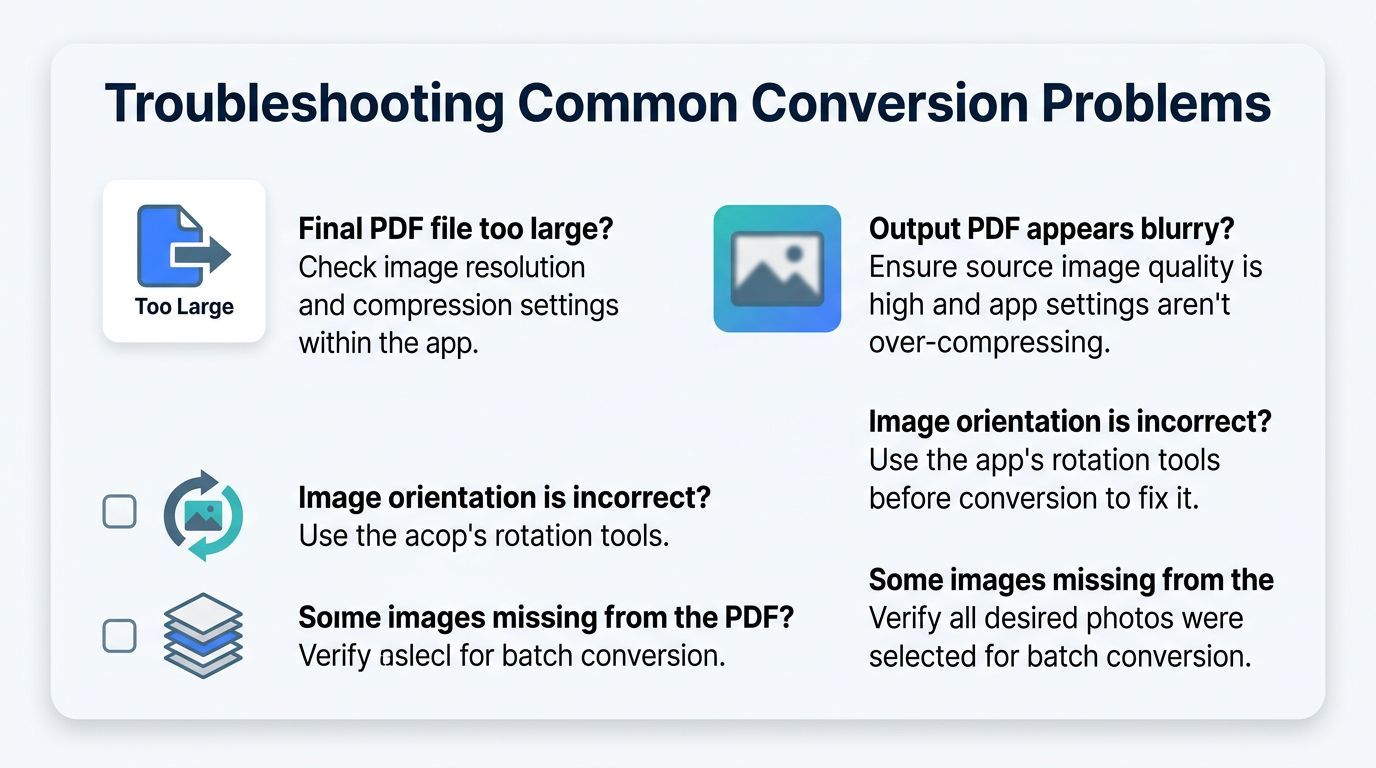
If the final file won't upload to an expense portal or email cleanly, the first thing to inspect is image resolution. Phone photos are often far larger than the document task requires.
Try this checklist:
- Reduce oversized source images before export if they came straight from a high-resolution camera.
- Use moderate compression instead of maximum quality for simple receipts and snapshots.
- Avoid adding blank margins around every page if the software is enlarging the canvas unnecessarily.
If the file is still big, check whether you included duplicate pages by mistake. That happens more often than people admit.
When the output looks wrong
Blurry pages usually come from one of two issues. Either the source image was weak to begin with, or the app compressed too aggressively.
Other common fixes:
- Wrong orientation: Rotate images before export rather than after.
- Missing pages: Confirm all selected files were added to the queue.
- Odd page order: Switch from filename sorting to manual ordering when camera names don't match document order.
- Confusing export location: Save to a dedicated output folder, not a generic downloads pile.
If text looks soft at normal zoom, stop and re-export. Don't send a “good enough” PDF when the source image was better than the output.
A final check catches most problems. Open the PDF, zoom in, skim every page thumbnail, and confirm the filename makes sense. That quick review is faster than explaining a bad file later.
Frequently Asked Questions About Converting Pictures to PDF
A lot of questions only show up after the first few successful conversions. They're less about making a PDF and more about making one that stays useful.
Can I edit the PDF after I create it
Yes, but it depends on what you mean by “edit.” If you converted pictures into a PDF, the content is still image-based unless you run OCR in a separate tool.
That means you can usually reorder pages, rotate them, delete pages, merge the file with other PDFs, or extract images back out. Editing the text itself is different. For that, you need OCR and then a PDF editor that can work with recognized text.
For most office work, the practical path is simple: fix the image before conversion, then use PDF tools only for page-level cleanup.
What about accessibility archiving and extracting images
This part matters more than many people realize. A common pitfall in picture-to-PDF apps is poor accessibility support. More than 60% of generated PDFs can end up non-compliant with accessibility standards for visually impaired users if proper PDF/UA tagging isn't embedded, and enterprise-grade tools should support PDF/A-2b and PDF/UA-1, according to Nutrient's PDF SDK benchmark and compliance analysis.
That doesn't mean every everyday receipt PDF needs a full compliance workflow. It does mean that HR packets, educational materials, and official records deserve extra scrutiny if accessibility or archival requirements apply.
A few quick answers:
- Can I extract images back out later? Yes, if your PDF tool supports image extraction or page export.
- Will it work on macOS and Windows? A good desktop workflow should, especially if your office mixes both.
- Is PDF/A worth caring about? Yes, when long-term archiving, legal retention, or formal records are involved.
- Will a photo-based PDF be searchable? Not by default. You'll need OCR for searchable text.
Accessibility and archiving aren't premium extras in some workplaces. They're part of doing document handling correctly.
Your Next Steps to Secure Document Management
The biggest shift isn't learning how to tap “convert.” It's building a document habit that doesn't leak data, break on modern formats, or collapse when you have a real batch to handle.
That matters because most advice still points people toward mobile and web tools, while desktop users in tax, legal, and HR are still trying to solve practical jobs like batch-cropping, rescaling, and organizing many document photos into one compliant PDF, as reflected in this Reddit tax professionals discussion about photo to PDF software needs.
Use a simple system from here:
- Keep sensitive files local unless there's a clear reason not to.
- Create repeatable presets for naming, output folders, and page layout.
- Review metadata before sharing so exported files don't disclose more than intended.
- Treat online tools as exceptions rather than your default workflow.
If you also want a broader checklist for protecting personal and work files beyond conversion itself, this guide to actionable steps for online safety pairs well with a local-first document workflow. For PDF-specific cleanup, it also helps to learn how to remove PDF metadata before sending files outside your organization.
The right pictures to PDF app should feel boring in the best way. Open files. Organize pages. Export confidently. Move on with your day.
If you want one offline desktop tool for converting images to PDF, handling HEIC and RAW files, cleaning metadata, and managing repeat file tasks locally, take a look at File Studio. It runs on macOS and Windows, keeps processing on-device, and fits the kind of private, batch-friendly workflow this article is built around.