

Word to Excel Conversion Guide for Offline Batch Automation

Ayush Soni
Founder, File Studio

On this page
- Understanding Word to Excel Conversion Challenges
- Where conversions usually break
- What works better in practice
- Extracting Word Tables for Excel
- The controlled import method
- Why this works better
- Edge cases worth catching early
- Applying OCR to Image-Based Word Documents
- Two offline OCR routes
- A workable OCR pipeline
- What to inspect after OCR
- Automating Batch Word to Excel Conversions
- Batch workflow with watch folders and staging rules
- Power Query as the cleanup engine
- When scripting makes sense
- Privacy-First Offline Conversion Workflows
- What cloud tools usually hide
- A safer local workflow
- A simple comparison
- Best Practices and Troubleshooting
- The working checklist
- Common problems and the likely fix
- The habits that save the most time
You've probably been handed a Word file that was never meant to become a spreadsheet. It has policy tables, pasted screenshots, odd spacing, and a deadline attached to it. Someone in HR, legal, finance, or operations needs the content in Excel by the end of the day, but nobody wants to spend hours fixing broken columns or uploading confidential files to a web converter.
That's the core Word to Excel problem. The conversion itself isn't hard when the document is clean. The hard part is preserving structure, handling messy source files, and keeping sensitive material local. If you've ever copied a Word table into Excel and watched dates turn into text, merged cells shift every column, or hidden metadata travel farther than expected, you already know why the usual quick fixes don't hold up.
Understanding Word to Excel Conversion Challenges
A common office scenario looks like this. An HR manager has several Word documents containing employee policy acknowledgments, benefit tables, and manually edited forms. Some tables came from older templates, some were pasted from email, and some include notes inside cells with extra line breaks. Excel is the destination because the team needs filtering, sorting, and audit-ready summaries.
The trouble starts when people treat Word and Excel as if they store structure the same way. They don't. Word is a document layout tool first. Excel is a grid and calculation tool first. That mismatch is why a table that looks neat on the page can fall apart the moment it crosses into a workbook.
The broader demand for conversion tools reflects how often teams face this mismatch. The global file conversion software market was estimated at $2.5 billion in 2025 and is projected to grow at a 12% CAGR from 2025 to 2033, according to Archive Market Research on file conversion software. That growth tracks with a simple reality inside most offices. People still keep important operational data inside Word files, even when the next step requires Excel.
Where conversions usually break
The failures are usually predictable:
- Table layout drift: merged cells, nested content, and uneven row structures create shifted columns.
- Format confusion: dates, currency, and codes arrive as plain text instead of usable Excel values.
- Mixed content: one document may contain proper tables, freeform text, and image-based sections.
- Privacy exposure: online tools can be convenient, but they're the wrong fit for contracts, personnel records, and internal reports.
Practical rule: Before choosing a method, decide what kind of Word file you have. Native tables, plain text laid out with spaces, and scanned images each need a different workflow.
What works better in practice
For clean native tables, controlled import beats raw copy-paste. For image-heavy files, OCR is the only realistic route. For recurring jobs, batch automation saves more time than heroic manual cleanup. And when the documents are sensitive, offline handling isn't a nice extra. It's part of the workflow design.
Teams get the best results when they stop looking for a single magic button and instead use the right path for the actual source document.
Extracting Word Tables for Excel
Direct copy-paste is fast when you're lucky and expensive when you're not. The biggest troublemakers are merged cells and embedded line breaks. According to WPS guidance on Word to Excel conversion, those issues cause up to 40% of copy-paste operations to need manual fixes. The same source notes that saving as tab-delimited text and importing through Excel can reduce errors to under 5%.
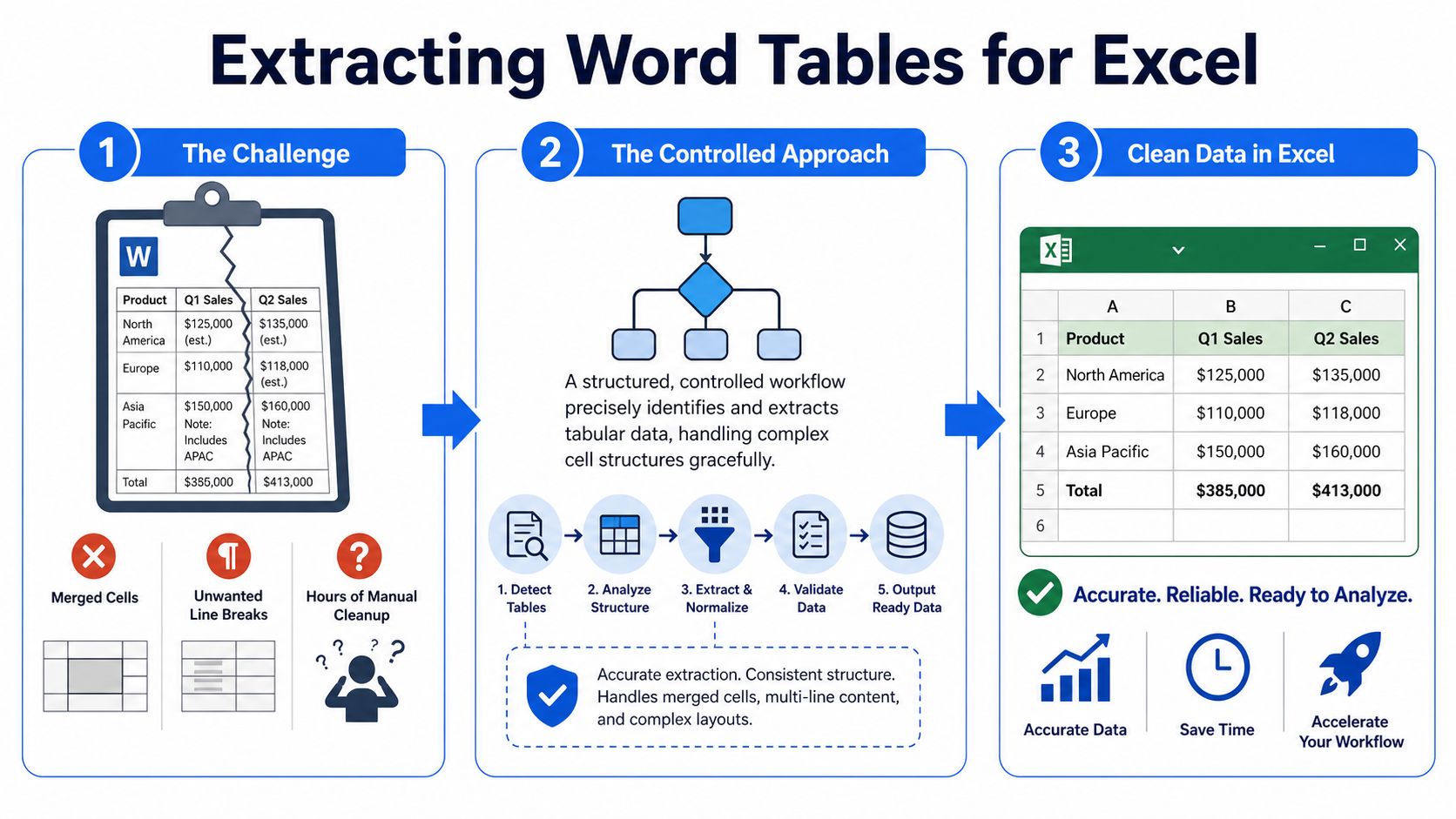
The controlled import method
Use this when the Word document contains real tables and you want cleaner structure in Excel.
- Open the Word file and inspect the table first.
If you see cells merged across multiple columns or notes stacked with manual line breaks, expect copy-paste to distort the grid. - Save the document as Plain Text (.txt).
During export, choose Tab-delimited if Word offers the option. - Open Excel and use Data > From Text/CSV.
Don't double-click the text file and hope Excel guesses correctly. - In the import wizard, set the delimiter explicitly to Tab.
Review the preview carefully before loading. - Load into a staging sheet first.
Keep your raw import separate from the cleaned final sheet.
Why this works better
This method forces structure into a format Excel understands more reliably. Instead of carrying over Word's visual formatting, you're transferring field boundaries. That's usually what office teams need.
A few checks matter before you click Import:
- Dates: If values like 01/02/2025 appear, confirm whether your system reads them as dates or text.
- Long numbers: Employee IDs, invoice references, and account-like strings can lose formatting if Excel auto-converts them.
- Non-printing characters: Strange spacing often comes from hidden characters left behind in Word.
If the source table is messy, preserve the raw import in one sheet and build a cleaned sheet beside it. That gives you an audit trail when someone asks why a column changed.
Edge cases worth catching early
Some Word files look tabular but aren't true tables. They're text lined up with spaces. In those cases, the tab-delimited route won't fix the underlying structure. You'll need either manual normalization in Word or a different extraction path.
If you regularly hand off imported data to coworkers, a follow-up step can help. A simple CSV to Excel converter workflow is useful when your import process or downstream system standardizes on CSV before final workbook formatting.
A final tip from experience. Don't clean formatting in Word for aesthetics. Clean it for field boundaries. Excel doesn't care whether the table looked polished on the page. It cares whether each value belongs in one cell and one column.
Applying OCR to Image-Based Word Documents
Some Word files only pretend to be editable. The text you see may be a scanned page, a screenshot pasted into a report, or a photo dropped into a document. If that's the source, standard Word to Excel methods won't pull real data because there isn't any real text layer to import.
That's where OCR comes in. The goal is simple. Convert the visual content into machine-readable text first, then shape that output into rows and columns.
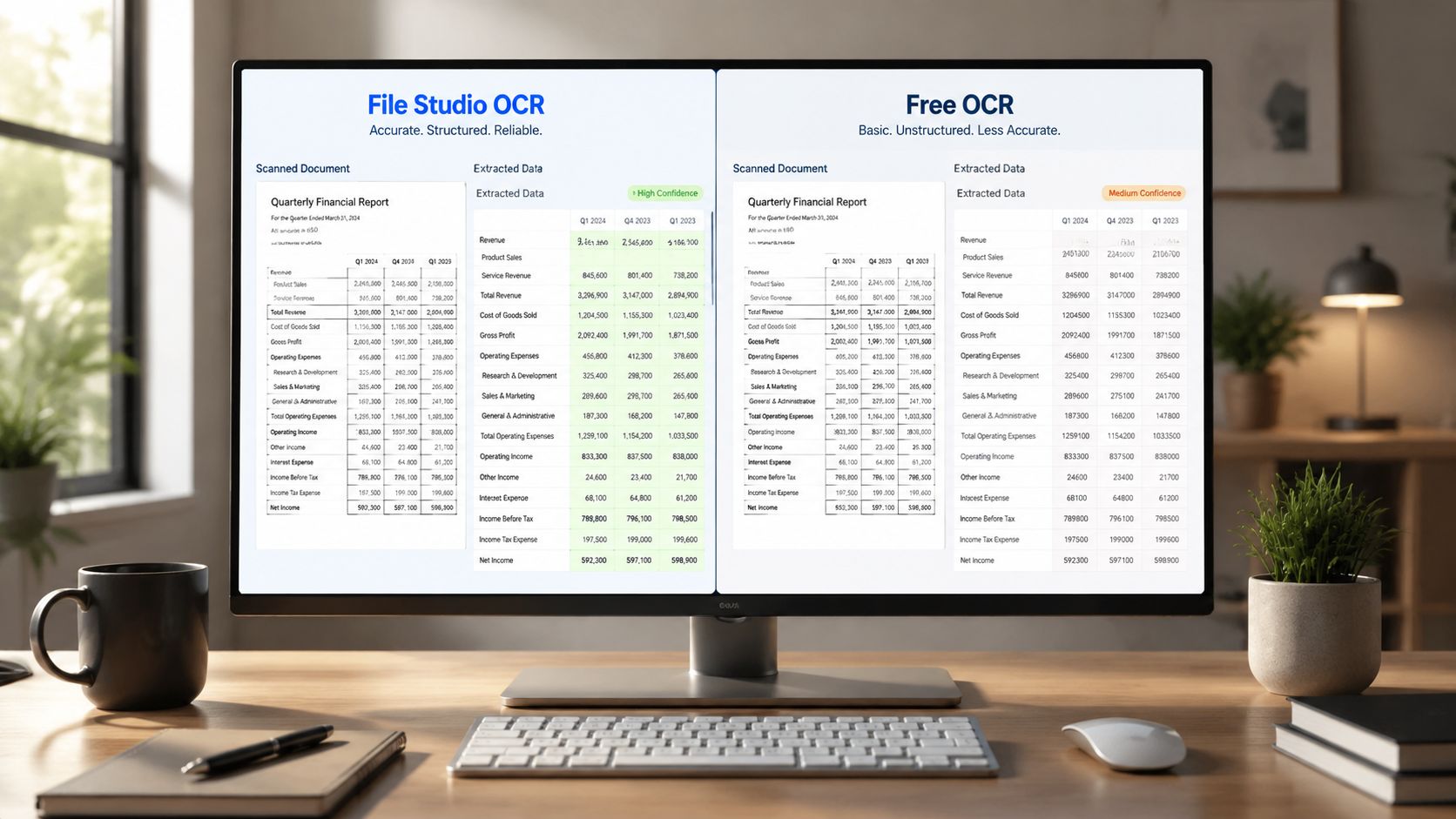
Two offline OCR routes
If you want to keep everything local, there are two practical approaches.
Route one uses an offline desktop OCR workflow. Export the Word pages that contain scans as PDF or high-quality images, run OCR locally, then open the extracted text in Excel for cleanup.
Route two uses free offline tools. Tesseract is flexible if you're comfortable configuring language data and reviewing output. Microsoft OneNote can also extract text from images on-device in some office environments, though the table structure usually needs more repair afterward.
LibreOffice belongs in this conversation for a different reason. It can export Word content to Excel-compatible formats without internet access, and this overview of document conversion tools notes that offline suites like LibreOffice help teams avoid cloud uploads when working with sensitive material.
A workable OCR pipeline
Use a repeatable sequence instead of experimenting file by file.
- Export clean source pages: If the Word file contains scans, save those pages as PDF or image files with enough clarity for character recognition.
- Run OCR locally: Choose the right language pack and verify symbols, dates, and column headers.
- Normalize the text: Remove odd breaks, duplicated spaces, and stray characters before trying to load the result into Excel.
- Rebuild the table shape: OCR often captures content accurately but not table boundaries. You may need delimiter cleanup before import.
Field note: OCR can read words correctly and still fail as a table extractor. Accuracy in characters isn't the same as accuracy in columns.
For finance and expense teams, this overlaps with receipt capture work. If your process includes scanned invoices or photographed paper records, Divvy's guide on managing group payments is a useful companion read because it shows how document capture quality affects downstream data handling.
What to inspect after OCR
Check headers first. If the header row is wrong, every downstream sort and filter will be wrong too.
Then review:
- Date fields for split characters or text conversion
- Currency values for dropped symbols or misplaced decimals
- Multi-line cells where OCR may have inserted extra row breaks
- Names and IDs where similar characters can be confused
OCR is the right tool for image-based Word documents. It just isn't a one-click table miracle. Treat it as text recovery first, spreadsheet shaping second.
Automating Batch Word to Excel Conversions
Manual conversion is tolerable for one file. It gets sloppy fast when the folder contains weekly reports, monthly statements, or recurring forms. Batch work needs naming rules, consistent staging, and a way to flag failures without stopping the whole run.
The strongest built-in route inside Microsoft's ecosystem is Power Query. According to UMA Technology's write-up on preserving formatting in Word to Excel workflows, Get Data > From Word preserves table structure 92% of the time versus 68% for direct paste. That same source also notes the method requires native Word tables and benefits from a Trim/Clean step to remove non-printing characters that can misalign cells.
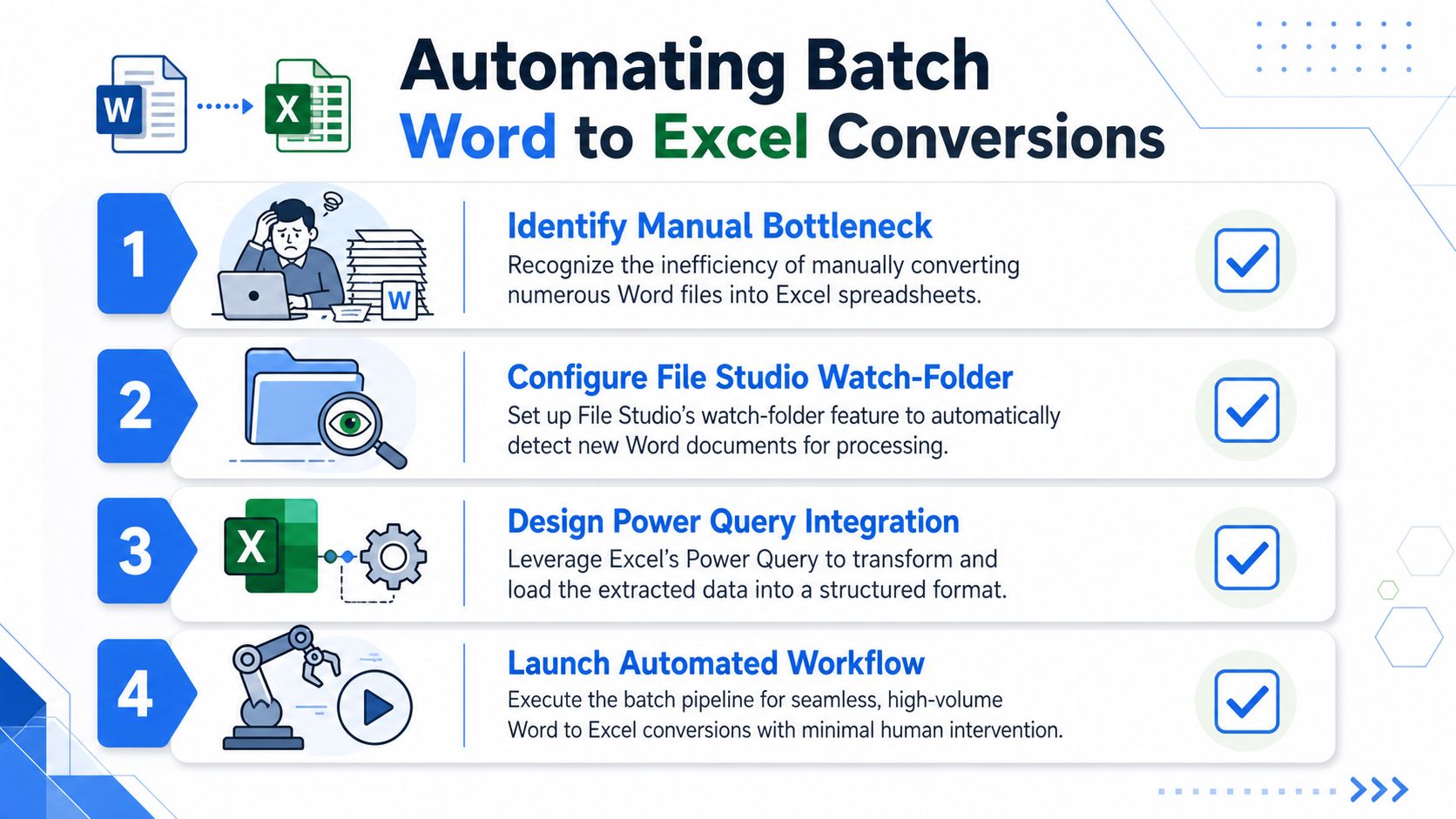
Batch workflow with watch folders and staging rules
A solid batch setup usually follows this pattern:
| Step | What the team does | Why it matters |
|---|---|---|
| Intake | Drop incoming Word files into a designated folder | Keeps source files separate from output |
| Extraction | Apply one consistent conversion preset | Reduces file-by-file improvisation |
| Staging | Send results to a review sheet or folder | Makes QA faster |
| Final output | Save clean XLSX files with standard names | Prevents version chaos |
This matters more than people expect. Most batch failures aren't caused by conversion alone. They come from bad source naming, mixed document types in the same folder, or no review checkpoint before final distribution.
If your team handles recurring conversions, this overview of what batch processing means in file workflows is a useful primer for setting expectations around throughput, consistency, and error handling.
Power Query as the cleanup engine
Power Query is especially useful after extraction because it gives you a repeatable cleanup layer.
Use it to:
- Trim spaces that came from Word formatting
- Clean hidden characters before headers shift
- Standardize column types so dates and numbers stop arriving as text
- Append multiple imported tables into a single reporting sheet
If your team also uses Microsoft 365 automation and AI features, Tbourke Solutions' Copilot guide is worth reviewing alongside your process design. Not because Copilot replaces conversion discipline, but because teams increasingly blend assisted spreadsheet cleanup with traditional import workflows.
Native Word tables are the dividing line. If the source was built with real table objects, batch automation is practical. If the layout was faked with tabs and spaces, expect cleanup rules to break.
When scripting makes sense
PowerShell, VBA, or Bash wrappers are useful when the job is repetitive and the source format is stable. They're less useful when every document is a new mess from a different department. In those cases, folder automation plus staged review usually beats deep scripting.
For most office teams, the best batch process is the one that fails predictably. Quiet failures are what create bad reports.
Privacy-First Offline Conversion Workflows
The most overlooked part of Word to Excel conversion isn't formatting. It's exposure. Teams spend time fixing broken columns, but they often ignore what happens when confidential files are dragged into a cloud converter. Contracts, HR records, disciplinary notes, pricing documents, and internal reports shouldn't leave the device just because somebody needs a spreadsheet.
That concern isn't fringe. Practice Test Geeks' discussion of Word to Excel conversion states that 78% of enterprises cite data privacy as their top concern with cloud converters, while most tutorials still ignore metadata leakage in these workflows.
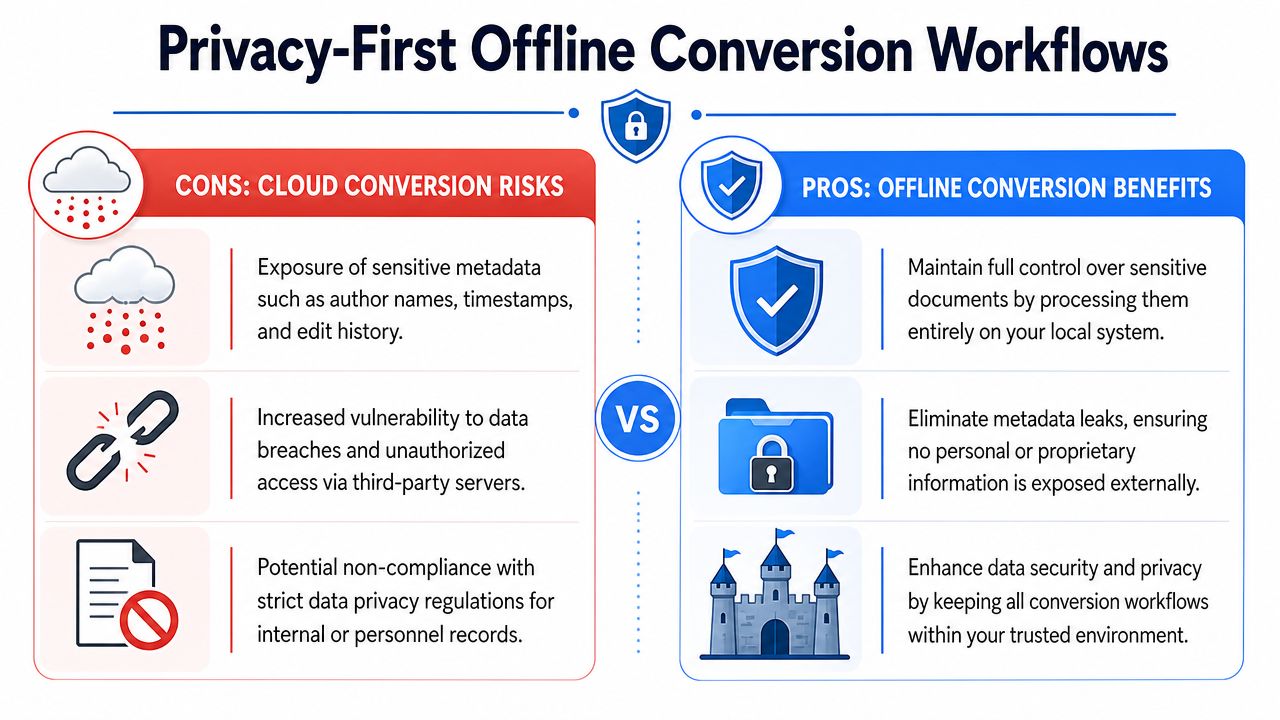
What cloud tools usually hide
The visible risk is the upload itself. The less visible risk is the document information attached to the file or carried into the workflow. Depending on the source, that can include author details, edit history, timestamps, and other embedded metadata that legal and HR teams would rather not spread any further than necessary.
An offline process gives you tighter control over three points:
- Where the file is processed
- Who can access the intermediate outputs
- Whether metadata is inspected and cleaned before sharing
A safer local workflow
A practical privacy-first routine looks like this:
- Keep the source document in a controlled local folder.
- Convert it with an offline desktop tool or local office suite.
- Review the output in a staging workbook.
- Clean metadata before distribution if the file will be sent outside the originating team.
- Save the final workbook to the approved destination folder with clear naming.
That approach isn't complicated. It's just disciplined.
Sensitive documents shouldn't travel farther than the task requires.
For teams creating internal procedures, File Studio's article on document confidentiality in everyday file handling is a helpful reference when building policies around local processing and metadata hygiene.
A simple comparison
| Workflow | Main advantage | Main trade-off |
|---|---|---|
| Online converter | Fast for low-risk public files | Upload exposure and weaker control |
| Offline desktop workflow | Better privacy and auditability | Requires local setup and process discipline |
| Hybrid approach | Flexible for mixed workloads | Easy to apply the wrong method to sensitive files |
If the documents include personnel records, legal exhibits, or finance material, offline should be the default. Convenience matters, but confidentiality matters more.
Best Practices and Troubleshooting
Most Word to Excel failures can be prevented before conversion starts. The key is to inspect the source and match it to the right method instead of forcing every file through the same shortcut.
The working checklist
- Check whether the content is a real table: Native Word tables behave very differently from text arranged with spaces.
- Review dates and number fields first: These are usually the first values Excel misreads.
- Clean hidden characters before finalizing: Non-printing characters are small problems until they break imports.
- Use OCR only when the content is image-based: If the page is a scan, stop trying table import tools.
- Keep a raw version of the output: A staging sheet makes troubleshooting much easier.
Common problems and the likely fix
| Problem | Likely cause | Better response |
|---|---|---|
| Columns shift after paste | Merged cells or embedded line breaks | Use controlled text export and import |
| Values look right but won't sort | Dates or numbers imported as text | Set column types during import or cleanup |
| Table import misses sections | Source wasn't built with native tables | Rebuild the source or switch methods |
| OCR output is messy | Poor scan quality or weak layout detection | Improve source clarity and clean delimiters |
| Sensitive data handling feels risky | Cloud-based workflow | Keep conversion local and clean metadata |
The habits that save the most time
Don't judge success by whether the spreadsheet opens. Judge it by whether the resulting workbook can be filtered, sorted, audited, and shared safely.
And don't let the fastest method become the default method. Copy-paste has its place. It just shouldn't be your standard for legal files, HR records, large batch jobs, or anything that needs reliable structure.
If you need an offline desktop tool for repeat conversion work, metadata cleanup, and local-first file handling, File Studio is built for that kind of workflow. It runs on macOS and Windows, processes files on-device, and fits teams that want batch utility without sending documents through browser-based converters.